Transcript-and-code comparers
If you keep a transcript, coding editor and reference material visible together, prioritise usable text workspace and check how the resolution feels at your preferred display scaling.


For transcript-and-code work at a fixed desk, start by considering a 27-inch QHD IPS monitor with an adjustable stand. A 27-inch 4K display offers more pixels if you are comfortable with its display scaling; for a laptop desk, check USB-C video compatibility and charging power before relying on one cable. If you conduct remote interviews, decide separately whether the monitor needs a built-in webcam and microphone.
If you keep a transcript, coding editor and reference material visible together, prioritise usable text workspace and check how the resolution feels at your preferred display scaling.
If you prepare and interview from a USB-C laptop, check whether it can send video to the monitor and whether the monitor can supply the charging power you need.
If you use the same desk for regular calls, screen adjustment and the choice between built-in and separate call equipment may matter as much as the display connection.
For coding-interview transcripts, decide which need would drive your monitor choice: room for text and code, a laptop connection, screen positioning or call equipment.
| Concern | What to check | Who this matters to |
|---|---|---|
| Text workspace | Compare 27-inch QHD and 4K resolution, then check whether your preferred display scaling leaves the text comfortable to read. | If I keep a transcript beside code, I need enough usable room to follow both without relying on tiny text. Around 37% of consumers put that workspace need first. |
| Laptop connection | Check USB-C video support, the monitor’s power-delivery rating and whether the required cable is included. | A single cable appeals when I move my laptop between desks, but it must also meet my charging needs. For around 27% of consumers, that connection is the main priority. |
| Screen position | Check stand adjustment, desk depth and compatibility with a suitable mount if you plan to use one. | If I prepare at one desk for long sessions, I need to place the screen at a comfortable height and distance. Screen positioning comes first for around 18% of consumers. |
| Interview equipment | Decide whether you need a built-in webcam, microphone or Ethernet connection, or prefer separate equipment. | When calls happen at the same desk, I want the camera and audio setup ready without arranging extra devices each time. Around 18% of consumers prioritise that setup. |
USB-C power delivery differs between models. LG UK specifies up to 15W for the 27U631A-B and up to 90W for the 27UP850K-W; BenQ specifies 65W for the GW2790QT. The connector alone does not establish whether your laptop can send video or receive enough power.
Check your laptop’s USB-C video capability and charging requirement against the exact monitor, and confirm whether a suitable cable is included.
You may still need to use your laptop charger or obtain a suitable video cable.
The Health and Safety Executive advises placing the top of the screen at eye level, with the screen about an arm’s length away. Limited stand adjustment can make that position harder to achieve.
Check desk depth and the stand’s height adjustment before buying; if you plan to use an arm, confirm mounting compatibility.
A separate riser or compatible monitor arm may be needed.
LG UK lists a webcam, microphone and speakers on its 27-inch 27BA850-B, but its Full HD panel has fewer pixels than a 27-inch QHD or 4K panel. Call convenience and transcript workspace are separate priorities.
Decide whether built-in call equipment solves a real desk-setup problem, then compare resolutions at the size and scaling you intend to use.
UK waste-electrical-equipment guidance addresses recovery, reuse and recycling of electrical equipment, including displays.
Before replacing a monitor, check the available retailer take-back and local-authority electrical-waste routes.
Dell UK lists the UltraSharp U2724D as a 27-inch QHD IPS Black monitor with a 120Hz panel.
LG UK lists QHD and 4K USB-C displays alongside a Full HD business display with built-in call equipment.
BenQ lists the GW2790QT as a 27-inch QHD USB-C monitor with height, tilt, pivot and swivel adjustment.
These monitors offer different ways to set up a screen for transcript-and-code work. Compare their stated display features first, then check the connections and call equipment your own laptop desk requires.
 No image available
Consider this for a 4K transcript-and-code workspace with a USB-C laptop connection.
The product title specifies USB-C 65W, Google TV, Dolby Audio and Multi-Control. Check whether your laptop supports USB-C video and whether 65W meets its charging needs; confirm call equipment separately if required.
 No image available
Consider this if a QHD IPS workspace is your starting point for reading transcripts beside code.
If you intend to connect and charge a laptop through the monitor, check its USB-C power-delivery rating against the laptop’s requirements. Confirm camera and microphone arrangements separately for remote calls.
 No image available
Consider this if you want a 4K display for text work and are assessing a USB-C connection for a Mac-based desk.
The product title specifies a height-adjustable stand and a Nano Glossy finish. Check your computer’s video and charging compatibility, and consider reflections in your desk lighting.
 No image available
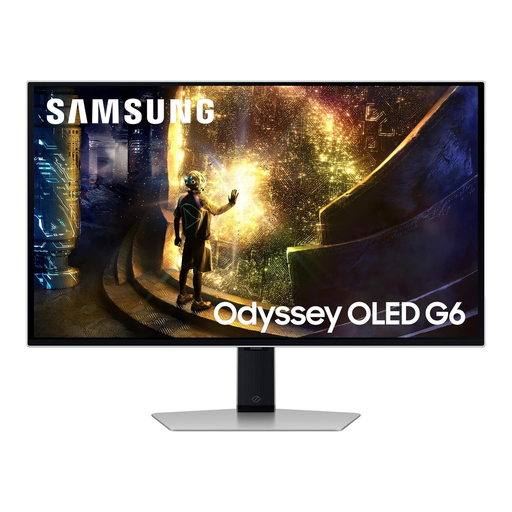
Consider this if a 27-inch QHD screen fits your transcript-and-code layout, while keeping its OLED panel distinct from the IPS options above.
The product title specifies 240Hz and 0.03ms. Check its laptop connections and any call-equipment requirements independently rather than treating those gaming specifications as evidence of text-work suitability.
 No image available
Consider this for a 4K IPS workspace when you can use the stated display connections for your computer.
The product title lists HDMI, DisplayPort, built-in speakers and a 60Hz refresh rate. If you want one-cable laptop charging or monitor-based call equipment, check those requirements against the exact model before buying.
It can be, particularly if built-in call equipment matters more to you than text workspace. At the same 27-inch size, QHD and 4K provide more pixels than Full HD, so compare how comfortably you can keep the transcript and code visible together.
Only if your laptop supports the monitor’s USB-C video connection and the monitor supplies enough power for that laptop. LG UK specifies up to 15W on the 27U631A-B and up to 90W on the 27UP850K-W; BenQ specifies 65W on the GW2790QT. Check the exact model and your laptop’s requirements.
Position it so you can look ahead without twisting and adjust its height and distance to suit your workstation. The Health and Safety Executive advises keeping the top of the screen at eye level and the screen about an arm’s length away; an adjustable stand or compatible arm can help you achieve that position.
For workers who use display screen equipment daily as part of normal work, continuously for an hour or more, the Health and Safety Executive says employers must carry out a workstation assessment. That assessment covers the wider setup and working conditions, not just the monitor specification.
Check an appropriate electrical-waste collection route when replacing it. UK guidance on waste electrical and electronic equipment addresses recovery, reuse and recycling; a retailer’s take-back arrangements or local-authority services can help you find a suitable route.