For command-line work beside a bright window, deal with the light before choosing a monitor: angle the screen away from direct reflections and use blinds or curtains when needed, as the Health and Safety Executive advises. Then choose a low-reflection or anti-glare surface and a stand that lets you position it comfortably. A taller 3:2 display suits code-heavy work, a 4K hub display suits a compatible laptop desk, and a high-refresh model makes more sense when gaming is also a regular use.
Who this setup suits
Window-side command-line developers
If daylight reflects in your terminal or editor, start with desk position and window coverings. The Health and Safety Executive advises arranging the desk and screen to avoid glare and bright reflections; screen treatment and stand adjustment are further considerations when choosing a monitor.
Code-and-documentation heavy users
If you keep source files, terminal output and reference material visible together, consider whether a taller display would suit your layout. BenQ describes its RD280UG as a 3:2 programming monitor with coding modes and a Nano Matte panel; those features do not establish how much more productive you will be.
Laptop-docked hybrid users
If the same desk serves development and other activities, check which connections your laptop needs before choosing a monitor. Dell lists hub connectivity on its U2725QE; a high-refresh display is worth considering when gaming is also an important use.
What to prioritise
Coding-first 3:2 display
Choose it when: Reading long files and terminal output matters more to you than a conventional widescreen layout; BenQ lists a taller 3:2 format and coding modes for the RD280UG.
Keep in mind: Its specialist features are manufacturer claims, and the screen still needs a workable position relative to the window.
4K laptop hub display
Choose it when: A conventional 16:9 desktop and a compatible laptop connection are central to your setup; Dell lists anti-glare treatment and hub features for the U2725QE.
Keep in mind: Confirm video, charging and cable compatibility rather than assuming that one USB-C connection will handle everything.
High-refresh hybrid display
Choose it when: Fast-paced gaming is a regular second use; LG lists high-refresh modes for its 27G850A-B.
Keep in mind: Refresh rate and HDR specifications do not address reflections from a bright window.
| Concern |
What to check |
Who this matters to |
| Window reflections |
Check the stated screen treatment and available stand adjustments. Plan where the screen and window coverings will go before relying on a panel coating. |
If daylight keeps appearing across my terminal, I need to control the room and position the screen so I can read without fighting reflections. Around 42% of consumers put glare control first. |
| Code workspace |
Compare native resolution and aspect ratio, then consider text scaling at your usual viewing distance. |
When my editor, build output and documentation compete for space, I want a layout that keeps the text comfortable to read. For around 33% of consumers, workspace is the primary concern. |
| Docking and other uses |
Check laptop video and charging compatibility, the intended cable and ports; decide whether gaming refresh rates matter to you. |
If I move between a laptop desk and gaming, I need connections that suit my computer as well as a screen that suits both uses. Docking or a regular second use comes first for around 25% of consumers. |
Buying pitfalls
-
Expecting brightness or HDR to fix window glare
Those specifications do not remove a reflection falling across the screen. The Health and Safety Executive recommends arranging the desk and display to avoid bright reflections and using curtains or blinds to control intrusive light.
Try the intended screen position and window covering first, then compare surface treatments and stand adjustment.
-
Taking coding and eye-comfort claims as health guarantees
A coding preset or low-blue-light feature is not proof that a monitor prevents eye strain. BenQ describes coding modes for its RD programming-monitor line, but you still need a suitable workstation setup.
Judge display modes by whether you can read your own text comfortably, and review positioning, room lighting and breaks. Where a workplace assessment applies, consider the whole workstation.
-
Assuming every USB-C laptop will dock through one cable
Dell lists up to 90W power delivery for the U2725QE, but a one-cable setup also depends on the laptop’s video and charging capabilities and the cable used.
Check your laptop’s required charging power, external-display support and cable specification against the exact monitor before buying.
-
Prioritising gaming refresh rates for terminal work
LG lists high-refresh modes for the 27G850A-B, but refresh rate does not replace reflection control, readable text or a suitable screen position.
Choose a high-refresh hybrid for regular gaming or other motion-sensitive use; otherwise, compare the features that matter to your coding desk first.
Brands to consider for this setup
BenQ
BenQ’s RD programming-monitor line is relevant if a taller coding workspace and a manufacturer-described low-reflection surface appeal to you.
- BenQ lists a 28.2-inch 4K+ 3:2 panel, Nano Matte treatment, coding modes, automatic display adjustment and an adjustable stand for the RD280UG.
- Those specifications do not show that the monitor will eliminate reflections from your particular window; desk position and light control still matter.
Dell
Dell’s UltraSharp models are relevant to conventional 27-inch desks, particularly where anti-glare treatment and laptop connectivity matter.
- Dell lists a 4K anti-glare, anti-reflective panel, ambient-light sensor, 120Hz refresh rate and up to 90W power delivery for the U2725QE; the QHD U2724D offers another resolution choice.
- Confirm laptop and cable compatibility, and do not treat an ambient-light sensor as a remedy for direct reflections.
LG
LG’s UltraGear 27G850A-B is relevant when development shares a screen with regular high-refresh gaming.
- LG lists a 4K Nano IPS Black panel, 240Hz/480Hz dual mode, DisplayHDR 600 and stand adjustment for this model.
- Gaming and HDR features do not establish how the screen will handle light from a particular window.
Joybuy monitor choices
These monitors cover different ways to set up a coding desk, from conventional desktop displays to a model intended for regular gaming too. Compare the exact screen treatment, positioning options and computer compatibility against your bright-window setup.
 No image available
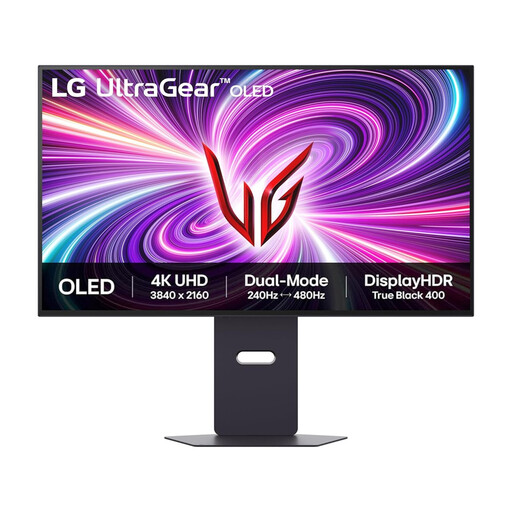
LG UltraGear 32GS95UV-B 32-inch 4K OLED
Consider this model if the workstation also serves regular high-refresh gaming. The title lists dual modes of 4K at 240Hz and Full HD at 480Hz, plus DisplayPort and HDMI 2.1. Check how its screen treatment looks in your planned position; gaming specifications do not resolve window reflections.
View on Joybuy
 No image available
ASUS ProArt PA278CV IPS WQHD
Consider this conventional desktop option if WQHD suits the amount of code and documentation you keep visible. If you plan to connect a laptop through USB-C, confirm its video support, charging requirement and the cable you will use. Check the screen treatment and stand adjustment against your proposed window-side position.
View on Joybuy
 No image available
ASUS ProArt PA27DCE-K OLED 4K UHD
Consider this 4K option if display detail is a priority for your desktop layout. Before placing it beside a bright window, check how its screen surface handles your intended lighting. For prolonged static code and terminal windows, also check the product guidance for OLED use.
View on Joybuy
 No image available
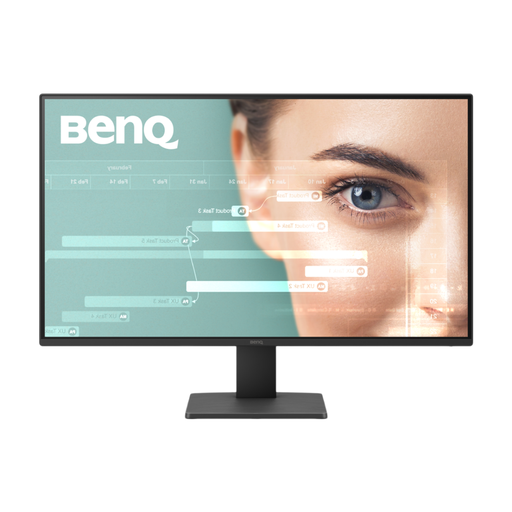
BenQ GW2791 27-inch IPS Full HD 100Hz
Consider it if Full HD gives you enough room for the terminal and documents you use together. At 27 inches, check text detail at your usual viewing distance. Confirm that the available stand adjustment lets you angle the screen away from the window.
View on Joybuy
 No image available
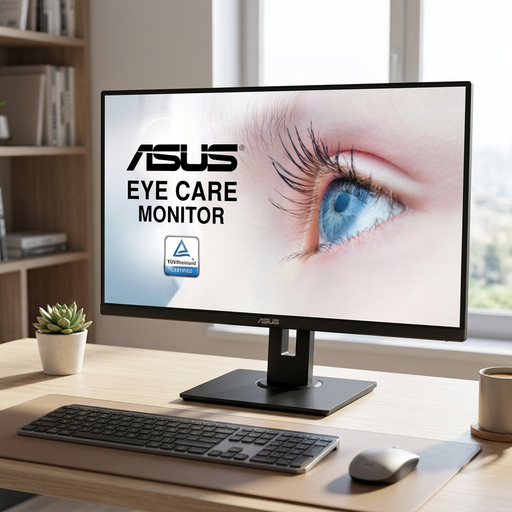
ASUS VP32AQ 31.5-inch WQHD IPS
Consider this larger WQHD screen if its text detail suits your viewing distance and layout. Height adjustment is listed as unavailable, so check whether a tilt-only position works beside your window before choosing it.
View on Joybuy
Common questions
Can an anti-glare monitor solve reflections from a bright window on its own?
No: screen treatment does not replace control of the light falling on your workstation. The Health and Safety Executive advises positioning the display to avoid windows or bright lights facing it directly and adjusting curtains or blinds when light intrudes.
Do I need a 3:2 monitor for command-line development?
No: a 3:2 display is a choice for people who value a taller layout for code, terminal output and documentation. BenQ lists that format for the RD280UG, while a conventional 16:9 4K display may suit you better if you prefer that layout or need compatible laptop hub features.
Does an HDR label tell me how a monitor will handle window glare?
No: HDR capability does not tell you whether daylight will reflect across the screen. If HDR matters for another use, the Video Electronics Standards Association says the DisplayHDR designation applies to displays meeting its relevant requirements; check the exact tier for the model rather than relying on a generic HDR label.
What should a UK employer consider for daily screen work?
A workstation assessment may be required, not just a choice of monitor. The Health and Safety Executive says employers must assess workers who use display screen equipment daily as a normal part of work, continuously for an hour or more; the assessment covers the whole workstation and working conditions.


