What matters when choosing
Choose the colour mode for your intended output first. Then check whether two people can sit and work comfortably around the screen, and whether its connections suit the laptop setup.
| Concern |
What to check |
Who this matters to |
| Colour judgement |
Check the exact model’s colour modes and documented factory accuracy, then plan calibration for your editing environment. |
If I need to agree on an edit with another person, I want a colour mode suited to the final output and a dependable starting point for calibration; around 36% of consumers put that colour baseline first. |
| Shared viewing and space |
Check panel and viewing-angle specifications, stand adjustment and the stand’s depth against the usable desk space. |
When we view the same image from neighbouring seats, I need room for both people and a screen we can position without awkward angles; roughly 29% of consumers prioritise shared viewing and desk fit. |
| Laptop workflow |
Confirm USB-C video support, laptop charging requirements and the cable and hub connections you need. |
If laptops are swapped at the desk, I would rather avoid reconnecting several peripherals each time; about 21% of consumers make that connection workflow their primary concern. |
| Specification fit |
Match colour-space capability and screen size to your actual editing work and desk dimensions. |
For mainly standard-gamut edits, I do not want to choose features I will not use while overlooking the space the display occupies; around 14% of consumers put specification fit first. |
Relevant brands to consider
These model examples illustrate different checks for a shared colour-editing desk; their listed features do not apply to every monitor from the same brand.
ASUS ProArt
The 27-inch 4K IPS PA279CRV is a reference point for buyers seeking documented wide-gamut coverage and a USB-C laptop connection.
- ASUS lists 99% DCI-P3 and 99% Adobe RGB coverage, factory pre-calibration to ΔE < 2 and USB-C power delivery up to 96 W for the PA279CRV.
- Those are specifications for this model, not a measure of accuracy in your room. Confirm the output colour mode, laptop compatibility and calibration plan.
BenQ DesignVue
The 27-inch 4K IPS PD2706UA is worth examining when sRGB, Rec.709 or P3 work must share a desk with a USB-C laptop setup.
- BenQ lists 100% sRGB, 100% Rec.709, 95% P3, average ΔE ≤ 3, a calibration report, a USB hub and USB-C power delivery up to 90 W for the PD2706UA.
- BenQ lists a 463.0 mm stand depth for this version. Measure the desk before assuming the screen and laptop will fit comfortably together.
Dell UltraSharp
The 27-inch 4K IPS Black U2723QE illustrates a colour-editing display with docking-style connections.
- Dell lists 100% sRGB, 100% Rec.709, 98% DCI-P3, ΔE < 2 calibration, 90 W USB-C power delivery and a LAN/USB hub for the U2723QE.
- Dell’s UK page marks this exact model unavailable. Check the exact variant and current retailer listing before planning a purchase around it.
Joybuy monitors for this setup
These monitors offer different screen sizes and panel types for a shared colour-editing desk. Decide which colour and connection checks matter to you before choosing between them; the OLED model also warrants consideration of how long static editing controls remain on screen.
 No image available
ASUS ProArt Display PA32UCG-K 32-inch 4K HDR IPS Mini LED monitor
For a shared editing desk where a 32-inch screen will fit, measure the available space before choosing this model. Confirm the colour modes and laptop-charging capability needed for your workflow.
View on Joybuy
 No image available
iiyama ProLite XUB2792UHSU-B6 27-inch 4K UHD monitor
Consider this size if two editors can work around a 27-inch screen. If they need a documented colour baseline or laptop charging through the monitor, check those details for this exact model before buying.
View on Joybuy
 No image available
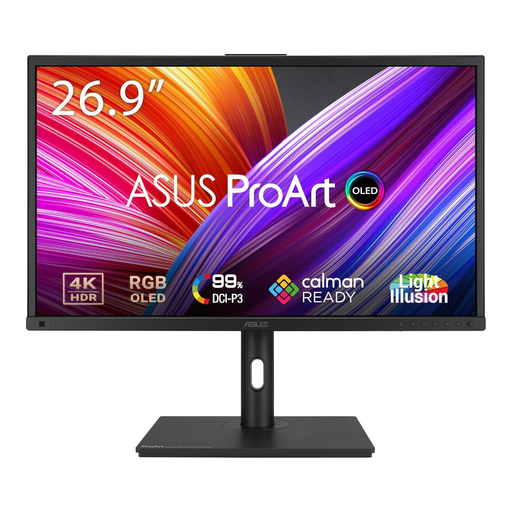
ASUS ProArt PA27DCE-K OLED 4K UHD monitor
For editors considering OLED, weigh how often static tool panels will remain visible. RTINGS notes burn-in risk with constant static elements; also confirm the colour modes required for your output.
View on Joybuy
 No image available
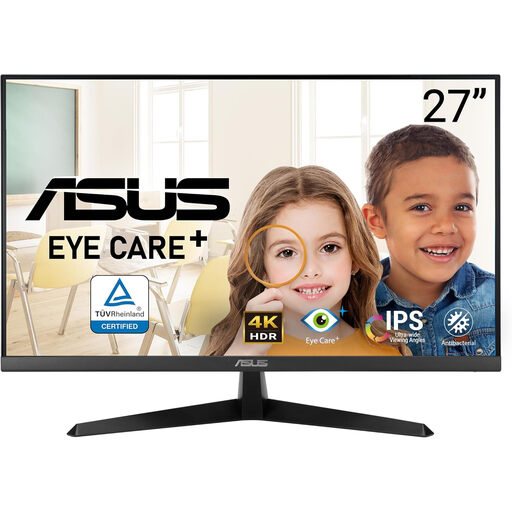
ASUS Eye Care VY27UQ 4K UHD 60 Hz monitor
If this display is to serve as a shared reference for colour edits, check its factory-accuracy information and position both viewers carefully. Confirm that its connections suit the laptop or desktop you will use.
View on Joybuy
 No image available
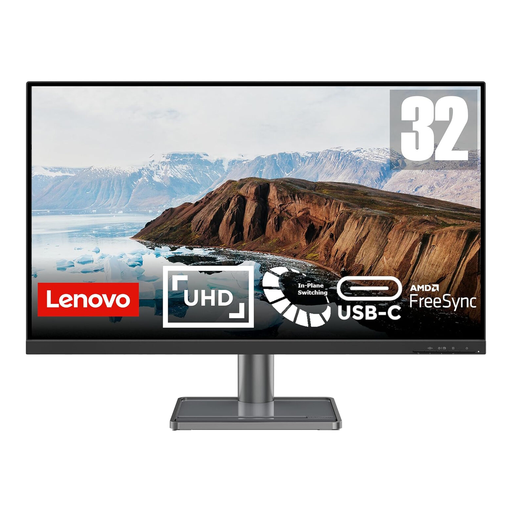
Lenovo L32p-30 31.5-inch 4K UHD IPS USB-C monitor
If the shared desk can accommodate a 31.5-inch display, check its stand footprint and your viewing distance. Confirm the required colour modes, calibration information and USB-C charging capability for this model.
View on Joybuy
Common questions
Does a shared-desk colour-editing monitor need an IPS panel?
IPS is a useful starting point for two people viewing from different positions: the creative IPS models documented by ASUS and BenQ list wide viewing angles. That specification does not guarantee identical perceived colour, so seating position, reflections and room lighting still matter.
Is factory calibration enough for colour-critical editing?
Factory calibration provides a starting point, not a lasting answer for your particular workspace. Datacolor notes that factory settings do not account for your brightness, white point, ambient light or type of work; use a compatible calibration process for the conditions in which edits are judged.
Can one USB-C cable carry the picture and charge my laptop?
It can if the laptop supports video through its USB-C connection, accepts charging from it and the monitor and cable meet its requirements. ASUS lists up to 96 W power delivery for the PA279CRV and BenQ lists up to 90 W for the PD2706UA; check your laptop’s required wattage and port specifications against the exact monitor.
Should I choose OLED for long editing sessions?
Not solely for its panel type if static editing controls will stay on screen for long periods. RTINGS notes burn-in risk from constant static elements on OLED and advises caution for photo-editing use in that situation; assess your own screen-use pattern alongside the colour capabilities you need.


