Caption makers using labels and card
If you print cut-out captions, sticker labels or coated inserts, the stock you use should determine which media specifications you check.


Choose a printer by the caption material you intend to use: its documented media types, sizes, weights and trays need to accommodate your labels, coated paper or card. Wireless printing may matter more for occasional sheets, while toner options matter more for repeated projects, but neither tells you whether a particular scrapbook stock will feed correctly.
If you print cut-out captions, sticker labels or coated inserts, the stock you use should determine which media specifications you check.
If you print a few caption sheets at a time, device compatibility, wireless printing and room for the printer in your workspace may shape your choice.
If you make captions and journalling cards across several projects, compare the replacement toner options as well as the printer’s media support.
Start with the exact paper or label you will feed through the printer; then weigh the convenience of short print runs against the toner needs of repeated projects.
| Concern | What to check | Who this matters to |
|---|---|---|
| Labels, coated paper and card | Match the exact stock type, dimensions and gsm to the printer’s media list and intended tray. Check that adhesive labels are made for laser printers. | When I print captions on label sheets or heavier inserts, I need the stock to suit the printer before convenience matters; around 42% of consumers put media compatibility first. |
| Short-run workflow | Confirm support for your device and connection method, and check the space needed for loading paper and collecting prints. | If I print only a few sheets during a scrapbook session, sending them from my usual device should be straightforward; around 25% of consumers prioritise that workflow. |
| Repeat-project toner needs | Identify compatible black, cyan, magenta and yellow cartridges, and compare their yields on the same stated test basis. | For captions across several albums, I want to plan cartridge replacements without treating a standard page yield as my scrapbook output; around 33% of consumers put toner planning first. |
Support for ordinary A4 paper does not establish support for a particular label sheet, coated insert or card. Canon UK lists different media-weight limits by material and tray for the i-SENSYS LBP673Cdw II.
Note your stock’s type, size and gsm, then compare them with the exact model’s media table and the tray you intend to use.
A feed problem can waste specialty sheets or card.
A label’s appearance does not establish that it is intended for a laser printer. Avery UK identifies its gloss paper laser-label range as suitable for laser printers, while printer acceptance is a separate check.
Choose sheets marked for laser use, confirm that the printer accepts labels of that size, and try one sheet before printing a batch.
Brother UK states compatible HL-L8240CDW toner yields using ISO/IEC 19798. Colour-heavy captions and graphics need not use toner in the same way as those standardised test pages.
Use yields to compare compatible cartridges on a like-for-like basis, not to predict how many project pages each cartridge will produce.
HP Store UK lists mobile printing and automatic two-sided printing for the Color LaserJet Pro 3202dw, but those features answer different questions from whether your label or card can use a particular paper path.
Check media compatibility first; then decide whether wireless printing or duplexing helps with your usual caption sheets and inserts.
Canon UK provides a detailed media specification for the print-only i-SENSYS LBP673Cdw II, making it a reference point when comparing caption materials.
HP Store UK describes the Color LaserJet Pro 3202dw as a compact colour printer with wireless and mobile printing for short-run workflows.
Brother UK distinguishes print-only from multifunction colour models and documents toner options for the HL-L8240CDW.
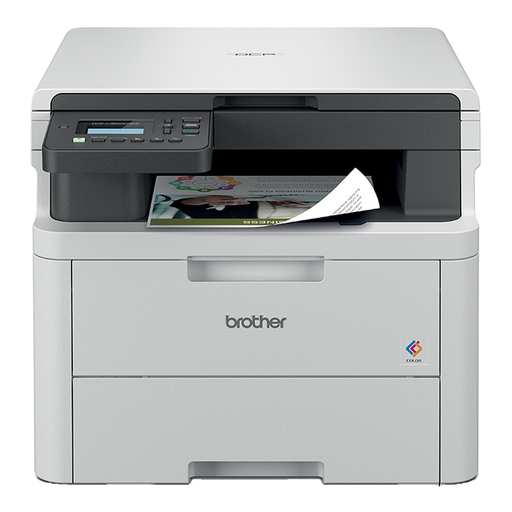
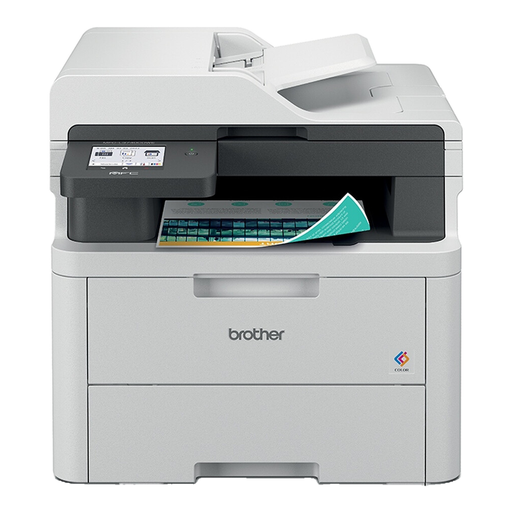
These Brother colour-printer choices are relevant to caption sheets and home projects. Compare each model’s media guidance with your actual labels or card before choosing.
 No image available
For caption sheets, consider this colour printer after checking your stock’s type, size and weight against the guidance for the tray you plan to use.
 No image available
If you want a wireless all-in-one for scrapbook projects, check that the exact labels or card you use meet this model’s media and tray requirements.
Yes: choose label sheets stated to be suitable for laser printers, and check that your printer accepts labels in the size and tray you intend to use. Avery UK identifies its gloss paper laser labels as laser-suitable; Canon UK lists labels for the i-SENSYS LBP673Cdw II, subject to that model’s media guidance.
It can handle a particular card only if that stock fits the printer’s documented media type, dimensions, weight and tray conditions. Canon UK specifies up to 200 g/m² for coated paper on the i-SENSYS LBP673Cdw II, but that limit does not establish compatibility with every textured, uncoated or handmade card.
No. They are standardised comparison figures, not a forecast for artwork with your particular colour coverage. Brother UK states its cited HL-L8240CDW cartridge yields in accordance with ISO/IEC 19798; check the compatible black, cyan, magenta and yellow options for the printer you choose.
Check your local council’s route for household electrical equipment rather than assuming an old printer belongs in a household bin. UK government guidance describes a collection system for waste electrical and electronic equipment; local arrangements vary, and Coventry City Council, for example, directs residents to its recycling and reuse centre or bulky-waste service.