Choose a large colour tablet if archaeological reports rely on colour-coded plans, photographs, maps or frequent movement between PDFs and research tools. Consider ePaper if your work is mainly text-led reading and handwritten annotation, but check its screen size, lighting and app workflow against a report you actually use. A larger display alone will not make scanned text reflow.
Who these choices suit
Readers of image-heavy field reports
If you inspect plans, stratigraphic drawings, maps, photographs and tables, assess how much of a page remains readable alongside its colour details. Screen area and PDF navigation may matter more to you than a paper-like display.
Readers who need larger text and contrast controls
Device text settings, zoom and spoken-content features can offer ways to adjust reading, depending on the app and document. GOV.UK warns that PDFs often do not work well with assistive technology, so test the actual report rather than assuming a scanned page will reflow.
Long-session annotators
If you spend extended sessions marking up text-led PDFs, an ePaper writing workflow may appeal. Check it against the colour figures, reference tools and file services you still need to use.
What matters when choosing
Large colour tablet
Choose it when: Plans, photographs and colour-coded figures must remain interpretable while you zoom, annotate or consult other apps.
Accept: A larger screen can be less convenient to hold or carry; check the exact model and your reading position.
ePaper tablet
Choose it when: Focused reading and handwritten PDF notes matter more than a general-purpose colour-screen workflow.
Accept: Display colour, lighting and available apps differ between devices. BOOX describes the Note Max as monochrome and without a front light; reMarkable specifies a colour display and adjustable reading light for the Paper Pro.
If your reports mix dense text with plans and tables, decide which single requirement would change your choice when those needs compete.
| Concern |
What to check when buying |
Who this matters to |
| Full-page legibility |
Open a representative plan or table at a useful zoom level; check whether labels remain readable without constant panning. |
When I compare drawings with their captions, I want enough of the page visible to follow both. Around 36% of consumers put full-page legibility first. |
| Enlarged text |
Try text-size, contrast and zoom controls in your intended PDF app, including on captions and footnotes. |
Small report text slows my reading, and enlarging it must still leave me able to navigate the page; roughly 29% of consumers prioritise this need. |
| Annotation workflow |
Check pen availability, PDF markup and export, plus access to the references or institutional files you use. |
I need my notes to travel with the report when I return to it or share the file. For about 21% of consumers, annotation and related workflow are the main concern. |
| Focused long reading |
View text and a colour figure in your usual lighting; check whether you need a reading light. |
For long text-led sessions, I would give up some general-purpose functions for a display and workflow I prefer to read on. That is the primary need for around 14% of consumers. |
Mistakes to avoid
-
Expecting large-text settings to fix a scanned PDF
System settings can change interface text or compatible app content without turning an image-only page into selectable, reflowable text. GOV.UK notes that PDFs often pose difficulties for assistive technology.
Try a representative report before committing: inspect captions, tables and drawing labels, and test search, selection, zoom and annotation.
-
Using monochrome ePaper for untested colour plans
BOOX describes the Note Max as a monochrome E Ink device. If phases or features are distinguished by colour, a greyscale view may not convey the distinctions you need.
Check an actual colour-coded figure on the device. If colour is essential to interpreting it, use a colour screen for that work.
-
Assuming the device alone completes an annotation setup
A pen, case, keyboard or file-sync service may affect how practical the setup is. Apple offers Pencil options separately for the 13-inch iPad Air.
Check which accessories are included with the exact variant and whether your PDF app can export annotations in the form you need.
-
Choosing a focused device before checking file access
A PDF-centred workflow does not establish compatibility with your reference manager, institutional sign-in or required cloud storage.
List the apps, authentication methods and export formats you rely on, then confirm that the proposed device supports the workflow before purchase.
Brands to consider for report reading
Samsung
A large Android-tablet route if keeping a substantial part of a colour report visible is a priority.
- Samsung Business UK identifies the Galaxy Tab S11 Ultra as a 14.6-inch tablet and shows a split-screen workspace.
- Check the weight, connectivity variant and included accessories of the exact model you are considering. Test text controls in your PDF app; Samsung's cited font-setting guidance concerns Galaxy phones rather than this tablet specifically.
Apple
A 13-inch colour-tablet route for readers who want PDF annotation alongside iPad display and accessibility controls.
- Apple's UK specifications give the 13-inch iPad Air a 2732 × 2048 display with an anti-reflective coating; Apple Support documents larger text, bold text, contrast controls and spoken content on iPad.
- The specified 616 g weight applies to the Wi-Fi model. Check the configuration and Pencil option you intend to use, and test how your PDF app handles fixed-layout pages.
BOOX
A large monochrome ePaper route for predominantly text-led PDFs and handwritten review.
- BOOX describes the Note Max as a 13.3-inch, 300 ppi E Ink device with document annotation and split-screen functions.
- Its monochrome screen and lack of a front light matter if you interpret colour figures or read in dim conditions. Check applicable purchase and support terms for your location.
reMarkable
A focused digital-paper route for importing PDFs, reading and handwriting notes.
- reMarkable specifies an 11.8-inch Canvas Color display, adjustable reading light and PDF import and export for the Paper Pro.
- The page area is smaller than the 13-inch-plus devices discussed here. Check required apps, institutional storage and file handling against its operating-system workflow.
Joybuy product choices
These choices cover conventional tablets for mixed-layout reports and an ePaper device for text-led reading. Compare each one with a representative PDF, particularly if enlarged text, colour figures or handwritten notes will decide your purchase.
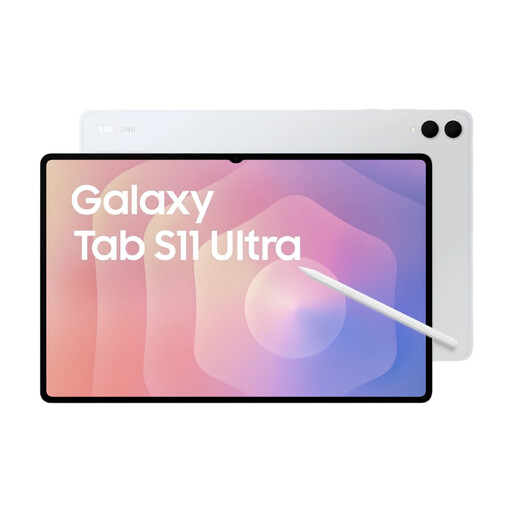 Image unavailable
Samsung Galaxy Tab S11 Ultra X930 WiFi 14.6, 12GB RAM/256GB, Silver
Consider this large conventional tablet if viewing plans and colour figures on a generous screen is central to your work.
The listed variant is WiFi with a 14.6-inch display, 12GB RAM and 256GB storage. Check its size in your usual reading position and try your preferred PDF app's text and annotation controls with an actual report.
View on Joybuy
 Image unavailable
iFLYTEK AINOTE 2 10.65-inch E-Ink tablet with protective case
Consider this ePaper device for text-led report reading if its smaller page area suits the PDFs you use.
The product name specifies a 10.65-inch E-Ink display and a protective-case bundle. Check colour-dependent figures and text enlargement in a representative PDF, and plan for adequate room lighting: the listing states that there is no reading light.
View on Joybuy
 Image unavailable
Xiaomi Pad 8 8G RAM/128GB Wi-Fi, Gray
This conventional-tablet choice is worth comparing if you can work with a smaller page area than the 13-inch-plus options.
The named variant has 8G RAM, 128GB storage and Wi-Fi. Open a plan at your intended zoom level, test larger-text settings in your PDF app and check whether a compatible stylus is included if you need handwritten notes.
View on Joybuy
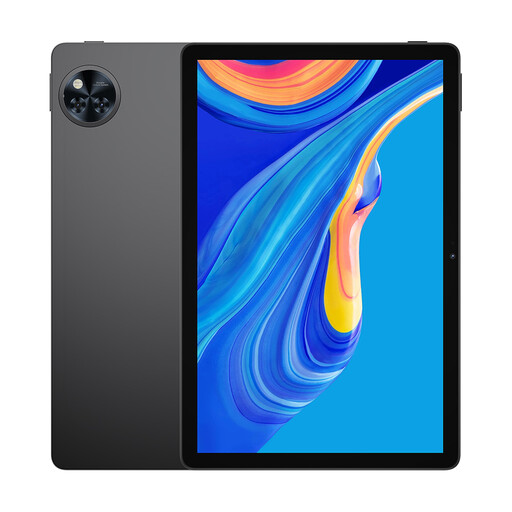 Image unavailable
DOOGEE U11 PRO 11-inch tablet, 30GB RAM + 256GB ROM/2TB, Black
Consider this 11-inch conventional tablet only after checking that small plan labels and footnotes remain comfortable to read at your intended zoom level.
The product name identifies an 11-inch IPS screen and a Black variant. Try your chosen PDF reader with a real report, including its text controls and any annotation functions you require.
View on Joybuy
Questions about report reading
Will a larger tablet make every archaeological PDF easier to read?
No: more screen space cannot make a scanned or fixed-layout PDF reflow or provide selectable text. GOV.UK notes that PDFs often do not work well with assistive technology, so try the reports you need to read and check zoom, navigation and text selection.
What screen size should I try for plans and tables?
Start by viewing a representative page on a 13-inch-plus colour tablet if plans, photographs or colour distinctions are important. A 13.3-inch BOOX Note Max offers a large monochrome ePaper page for text-led work, while the 11.8-inch reMarkable Paper Pro has a smaller colour paper-style display; page fit and figure readability should decide whether either suits your files.
How can I check whether larger text will work in my PDF app?
Turn on the device's available text-size, contrast or zoom controls, then inspect headings, captions, tables and footnotes in the PDF app you intend to use. Apple Support documents larger text, bold text, contrast and spoken-content options on iPad; confirm the corresponding controls on the exact Android device and app you choose.


