Windows and Linux command-line developers
If your project needs Windows applications as well as Linux utilities and Bash, a supported Windows installation with WSL lets you use both on one laptop, as Microsoft Learn explains.


Choose an operating system that runs your project’s tools, then check the exact laptop’s display limits before comparing processors. Windows with the Windows Subsystem for Linux (WSL) suits a workflow that needs Windows applications alongside Linux command-line tools; a Mac may suit a macOS workflow, but support for two external monitors depends on its model and chip. Decide whether “two screens” means the laptop plus one monitor or two external monitors, then check memory, connections and any dock against that layout.
If your project needs Windows applications as well as Linux utilities and Bash, a supported Windows installation with WSL lets you use both on one laptop, as Microsoft Learn explains.
If you want a terminal, editor, documentation and test output spread across two external monitors, check the exact laptop’s display limits and your planned dock. Apple’s display guidance shows why the chip and whether the laptop screen stays on can change the available layout.
If you alternate between a desk and other workspaces while running an editor, builds, databases or containers locally, size memory and storage for the processes you will use together rather than assuming a base configuration will suffice.
Choose it when: Your project needs Windows software alongside Linux command-line tools; Microsoft Learn documents running Linux distributions and Bash tools through WSL on supported Windows installations.
Allow for: Setting up WSL and confirming that the project’s dependencies work in that environment.
Choose it when: Your required tools work on macOS and you want to develop in that environment.
Allow for: Model-specific monitor limits: Apple documents two external displays alongside the built-in screen for M5 MacBook Air, while its documented M3 dual-external-display setup requires the lid closed.
| Concern | What to check | Who this matters to |
|---|---|---|
| Two-screen layout | Specify whether you need one or two external monitors. Check the exact laptop’s supported display count, resolution and refresh rates, including whether its lid must stay open. | I want my editor and terminal visible without losing a monitor when I open the laptop; around 44% of consumers put the required display layout first. |
| Local development capacity | List the builds, services and containers you will run together, then compare the selected configuration’s memory and SSD capacity. | When I run local services alongside the editor, I need a configuration suited to that combined workload; roughly 33% of consumers prioritise local capacity. |
| Tool compatibility | Confirm the required operating system, shells, packages and workplace software. For WSL, check that the Windows installation is supported. | If a required tool dictates my operating system, I need to settle that before choosing hardware; about 23% of consumers make tool compatibility their primary concern. |
A port or dock does not establish how many independent displays the laptop can drive. Apple states that a hub or daisy chain does not increase a Mac’s maximum supported display count.
Check the exact model, the monitors’ resolutions and refresh rates, and the dock’s supported arrangement before choosing connections.
An unsuitable setup may call for a different dock or adapter, or a different laptop if the computer’s display limit is the constraint.
Apple’s documented dual-external-display setup for M3 MacBook Air and MacBook Pro requires the lid closed. Apple documents two external displays in addition to the built-in screen for M5 MacBook Air.
If you need the laptop screen active alongside two monitors, check the exact chip and model’s stated layout before buying.
Editors, builds, terminals and local services may run together, so a configuration that suits a modest command-line project may not suit a more demanding one.
List the processes you expect to use concurrently and choose memory and storage for that workload, rather than choosing by processor name alone.
Dell UK states that an AC adapter is not included with the Dell Pro 14 Plus configuration on its cited product page.
Check the selected configuration’s power-supply details and whether a planned USB-C monitor or dock can provide suitable charging power.
A compatible charger may be needed separately.
The ThinkPad T16 Gen 4 Intel is a 16-inch Windows option to examine if you want a larger built-in screen and direct display connections.
Dell Pro 14 configurations are worth comparing if you want a compact Windows business laptop and need to select memory for your local workload.
MacBook models are relevant when the project’s tools work on macOS, but the chip and model determine which multi-monitor layout to consider.
These Windows laptops are options to assess for a command-line workflow that may use WSL. Their listed memory and storage differ; for a two-monitor desk, confirm the exact model’s supported display layout before choosing among them.
 No image available
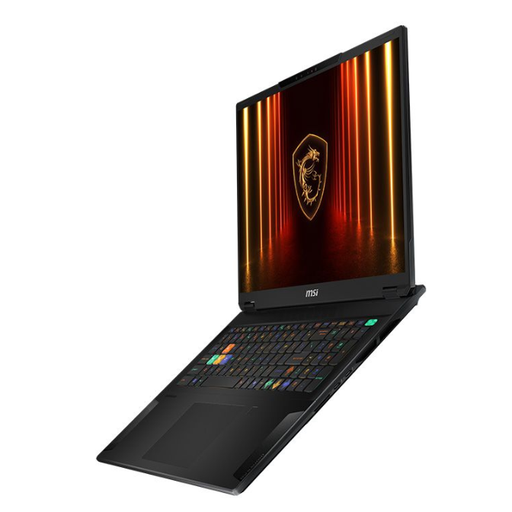
Consider this Windows 11 Home configuration if your local tools call for its stated 64 GB RAM and 2 TB SSD.
The title also specifies a 4K OLED touchscreen, AMD Ryzen AI 9 HX 370 and NVIDIA GeForce RTX 5080 16 GB. Confirm the supported external-monitor count, resolutions and refresh rates for your intended setup.
 No image available
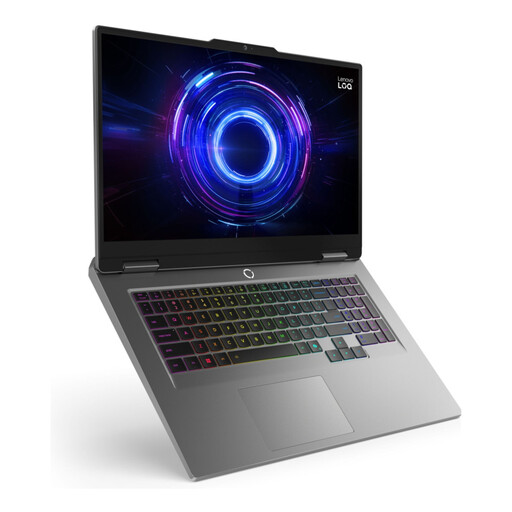
Its 18-inch built-in screen may suit a desk-based Windows workflow; weigh that size against how often you carry the laptop.
The title lists an Intel Core Ultra 9, 32 GB RAM, a 2 TB SSD and NVIDIA GeForce RTX 4070. Check the exact external-display arrangement before planning two monitors.
 No image available
This Windows 11 Home configuration is one to assess if 24 GB memory and 1 TB storage fit the tools you plan to run locally.
Confirm the processor variant before purchase: the product title and description differ on its suffix. Check the supported monitor layout separately.
 No image available
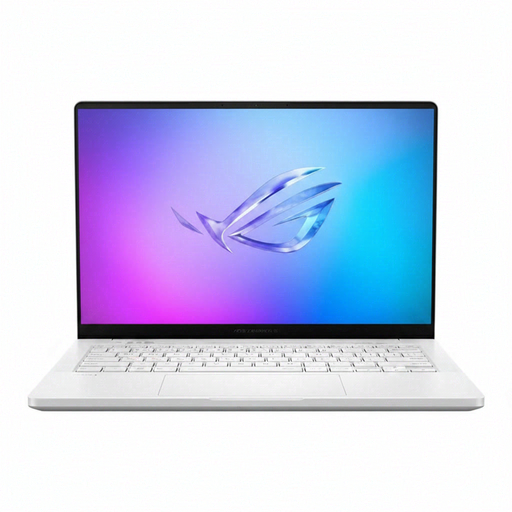
Consider its smaller built-in screen if you want a 14-inch Windows laptop for work away from your monitor desk.
The title specifies AMD Ryzen AI 9 HX 370, 32 GB RAM, a 2 TB SSD and Windows 11 Home. Check its display connections and supported monitor count, and confirm the colour and keyboard layout of the selected variant.
 No image available
This Windows 11 Home 2-in-1 is worth assessing if its 16 GB memory and 512 GB SSD suit your planned local tools.
The title specifies a touchscreen and Intel Core Ultra 5 226V. Confirm its external-display connections and supported monitor layout before building a desk setup around it.
It can mean either the laptop screen plus one monitor, or two external monitors. If you want both external monitors while keeping the laptop screen active, check the exact model’s stated external-display count and its resolution and refresh-rate limits.
No: a dock cannot be assumed to increase the laptop’s supported display count. Apple says a hub or daisy chain does not increase a Mac’s maximum, so check both the computer’s limit and the dock’s supported setup.
Yes, when the project’s dependencies work with WSL and the Windows installation is supported. Microsoft Learn says WSL runs Linux distributions and Bash command-line tools on Windows; its documented installation requirement is Windows 10 version 2004 (build 19041) or later, or Windows 11.
Not in Apple’s documented M3 MacBook Air and MacBook Pro dual-external-display setup, which requires the lid closed. If you need all three screens active, check a different model’s exact stated support rather than assuming the same arrangement works with the lid open.