Who this setup suits

Remote committee minute-takers

If you follow a live discussion while viewing an agenda, decisions and shared documents, decide whether your existing computer and peripherals already provide the camera and microphone you need. Dell’s conferencing-monitor specifications and Microsoft’s Teams guidance distinguish meeting hardware from the software that records a meeting.

Quiet-study document reviewers

If most of your time goes into reading and checking records, screen position and reflections may matter more to your choice than built-in meeting hardware. The Health and Safety Executive advises adjusting screens and lighting to manage glare.

Laptop-led hybrid workers

If you reconnect a laptop at the same desk, a hub monitor may simplify the display and peripheral connections. Check the laptop’s video and USB-C or Thunderbolt capabilities before planning around one cable.

What matters when choosing

Standard QHD monitor

Choose it when: Your laptop or separate peripherals already provide suitable meeting audio and video, and you mainly need a screen for agendas, minutes and recordings.

Trade-off: You must provide and position a camera and microphone separately if the computer does not have suitable ones; HP identifies its E27u G5 as having no integrated camera.

Conferencing monitor

Choose it when: Regular remote meetings make built-in camera, microphone and speakers useful at your fixed desk; Dell lists these features for the P2726DEB.

Trade-off: The meeting hardware is tied to the display, while recording still depends on the connected computer, meeting platform and account controls.

Concern What to check Who this matters to
Capturing the meeting Identify the camera and microphone you will use, then check recording controls for the intended meeting account. If I organise remote discussions, I need usable audio and video inputs as well as permission to save the meeting. Around 42% of consumers put dependable capture first.
Reading and screen position Check native resolution, comfortable text scaling, stand adjustment and how the screen sits in your lighting. When I spend longer sessions checking agendas and minutes, I need a screen I can position for the documents and room lighting. Document review comes first for around 33% of consumers.
Laptop connection Confirm the laptop’s video output and whether the intended USB-C or Thunderbolt connection carries the data and charging you require. If I reconnect my laptop at a fixed desk, I want the display and peripherals ready without rearranging several connections. Around 25% of consumers prioritise that connection routine.

Mistakes to avoid

  • Assuming a monitor can record because it has a display

    Microsoft says Teams meeting recordings can capture audio, video and screen sharing, but the monitor supplies neither the meeting-platform function nor the account permissions.

    Before buying, identify the computer, audio and video devices, meeting platform, recording permissions and storage location. Choose built-in conferencing hardware only if it meets a device need.

    A separate webcam, microphone, headset or compatible connection equipment may be needed for the intended setup.

  • Choosing QHD without checking the laptop’s output

    A QHD panel needs a compatible computer connection to run at its native resolution; the shape of a USB-C port alone does not establish its video or charging capabilities.

    Check the laptop’s port specification and the intended cable or dock against the monitor’s display mode and any charging requirement.

    Changing an unsuitable cable, adapter or dock adds another step to setting up the desk.

  • Treating an adjustable screen as the whole workstation solution

    The Health and Safety Executive links poorly arranged display-screen workstations and environments with discomfort, fatigue and eye strain. Screen adjustment does not replace attention to lighting, desk arrangement and breaks.

    Check desk fit and reflections, adjust the screen and lighting together, and follow any applicable workplace display-screen assessment process.

  • Keeping identifiable recordings simply because storage is available

    Where recordings contain personal data, storage and access are part of the decision, not just a feature of the meeting software. The Information Commissioner’s Office advises a retention schedule that reflects business needs and legal requirements.

    Agree who may access recordings, where they will be stored and how long they are needed before recording the meeting.

Brands to consider

Dell

Dell lists distinct 27-inch QHD options for document work, laptop connectivity and integrated conferencing.

  • Dell specifies a webcam, microphone and speakers for the P2726DEB conferencing monitor; its U2724DE focuses on Thunderbolt 4 connectivity.
  • For a non-conferencing model, check how you will provide the camera and microphone required by your meetings.

HP

HP’s E27u G5 is a reference for a document-focused QHD USB-C workstation monitor.

  • HP lists an anti-glare finish and height, tilt, swivel and pivot adjustment for this model.
  • HP explicitly lists no integrated camera for the E27u G5, so remote meetings need suitable camera hardware elsewhere in the setup.

Lenovo

Lenovo’s ThinkVision T27hv-30 illustrates an integrated QHD conferencing display.

  • Lenovo lists a 5MP camera, two microphones, two 5W speakers and USB-C and Ethernet connectivity for this model.
  • Check current availability if this particular model interests you; Lenovo’s UK listing marked it out of stock when consulted.

LG

LG’s 27QN880 is a reference for screen positioning at a desk with a clamp-mounted stand.

  • LG lists QHD IPS, an anti-glare treatment and a C-clamp stand with extension, swivel, pivot, height and tilt adjustment.
  • LG marked the 27QN880 discontinued on its UK page. Use its stand features as comparison points when considering an available model.

Joybuy monitor choices

These monitors are options for viewing committee documents at a study desk. Check your camera and microphone setup separately before relying on any of them for remote meetings; the ASUS ProArt PA278CV is also listed for a USB-C desk connection, subject to laptop compatibility.

ASUS ProArt PA278CV IPS WQHD monitor

ASUS ProArt PA278CV IPS WQHD

Consider this for a document-focused desk where a USB-C connection is useful. The product name specifies an IPS WQHD display; confirm the laptop’s video and charging requirements, and arrange suitable meeting audio and video devices.

View on Joybuy

ASUS ProArt PA278CFRV IPS QHD 100Hz monitor

ASUS ProArt PA278CFRV IPS QHD 100Hz

This QHD display is a choice for reading agendas and minutes when meeting hardware is supplied separately. Its name specifies IPS and 100Hz; confirm the exact regional USB-C variant if that connection is important to your desk.

View on Joybuy
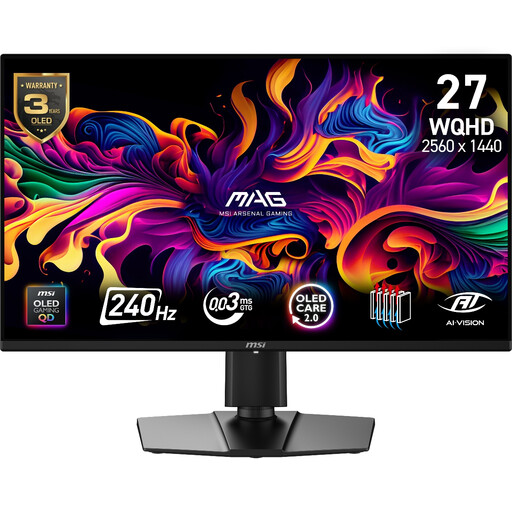
MAG 274QP QD-OLED X24 27-inch WQHD 240Hz monitor

MAG 274QP QD-OLED X24 27-inch WQHD 240Hz

Its stated resolution makes this a display option for committee documents, although its product name is gaming-focused. The name specifies 2560 × 1440, QD-OLED and 240Hz; check desk fit and whether your computer supports the display mode you intend to use.

View on Joybuy
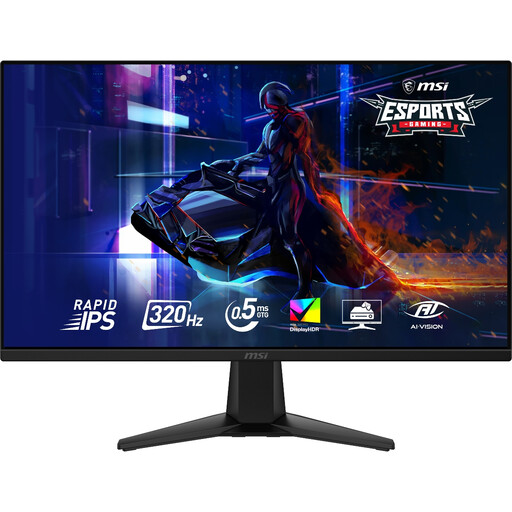
MAG 275QF X32 27-inch WQHD 320Hz monitor

MAG 275QF X32 27-inch WQHD 320Hz

This is another QHD display option for viewing agendas and minutes, rather than a choice based on recording hardware. Its name specifies a 27-inch 2560 × 1440 Rapid IPS panel and 320Hz; check the stand adjustments and screen finish against your desk and lighting needs.

View on Joybuy
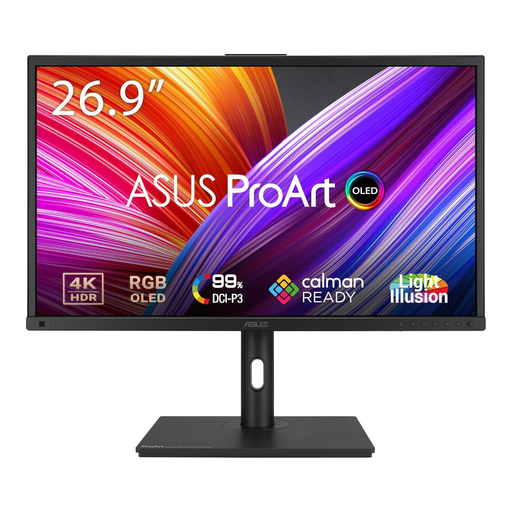
ASUS ProArt PA27DCE-K OLED 4K UHD monitor

ASUS ProArt PA27DCE-K OLED 4K UHD

Consider this for document viewing if you want to assess a 4K display rather than the QHD options above. The product name specifies OLED and 4K UHD; confirm computer compatibility and whether your preferred text scaling suits that resolution.

View on Joybuy

Common questions

Can a monitor record committee decisions on its own?

A monitor does not replace the recording function of your meeting platform. For Teams meetings, Microsoft says recordings can capture audio, video and screen sharing; check the connected devices, eligible account and administrator-controlled recording settings before relying on that workflow.

Do I need a monitor with a built-in webcam in a quiet study?

Not if your laptop or separate devices already provide suitable meeting audio and video. An integrated conferencing monitor can reduce the number of separate devices for regular remote meetings, while a standard display lets you choose and position the camera and microphone independently.

How should I set up the screen for lengthy minutes-taking sessions?

Position the screen and lighting to limit reflections, adjust your chair and screen for the work, and take breaks or change activity during longer sessions. The Health and Safety Executive advises attention to the whole display-screen workstation rather than the monitor alone.

What should a UK committee check before keeping meeting recordings?

If a recording contains personal data, establish the applicable recording and data-protection process before retaining it. UK GDPR Article 5 sets out principles including lawfulness, fairness, transparency and storage limitation; the Information Commissioner’s Office advises documenting retention periods. Ask your organisation’s data-protection lead about the lawful basis, participant information, access controls and retention period for your particular meetings.