What matters when choosing
For a committee desk with limited sockets, decide whether your primary need is fewer laptop connections, meeting hardware at the screen, room for documents or comfortable positioning. The monitor itself will still need a power socket.
USB-C hub monitor
Choose when: The laptop can use USB-C for display and charging, and the desk already has suitable meeting camera and audio equipment.
Trade-off: A hub connection does not, by itself, provide the hardware needed for a video meeting.
Conferencing monitor
Choose when: The committee workstation needs a screen with integrated meeting camera and speaker hardware.
Trade-off: Integrated hardware does not replace checks on platform compatibility, recording permissions or audio needs.
Ultrawide USB-C monitor
Choose when: The person recording decisions needs agendas, draft minutes and meeting controls visible side by side.
Trade-off: A wider screen needs a suitable desk and viewing position; do not assume it includes conferencing hardware.
| Concern | What to check | Who this matters to |
|---|
| Fewer connections |
Check the laptop’s USB-C video output and charging requirement against the monitor’s stated power delivery; check for RJ45 if wired networking matters. |
If I have few sockets, I want to avoid a separate laptop charger or dock without losing the connections I use. Around 36% of consumers would put fewer connections first. |
| Meeting hardware |
Check whether the workstation needs a camera, speakers, microphone functions or separate room equipment, and how the platform controls recording. |
When I run a hybrid meeting, I need the other participants to see and hear the room as well as view its papers. Roughly 29% of consumers would prioritise meeting hardware. |
| Document space |
Compare screen size and resolution with the available desk space and the windows you need open together. |
If I cross-check an agenda against draft decisions while watching meeting controls, hiding windows interrupts the task. About 21% of consumers would make document space their primary concern. |
| Screen positioning |
Check stand adjustment or compatible mounting, then assess the intended screen position at the workstation. |
During lengthy minutes work, I need to position the screen comfortably rather than accept a fixed height. Around 14% of consumers would put positioning first. |
Joybuy monitors for these workstations
These monitors offer different screen sizes and USB-C options for committee document work and laptop desks. Match the exact monitor, laptop and meeting equipment to the connections your workstation needs.
 No image available
Acer X Predator X49X 49-inch curved ultrawide monitor
Consider this 49-inch, 32:9 screen when keeping several committee windows visible is the priority and the desk can accommodate it.
The product name specifies QD-OLED, an 1800R curve and Double Quad HD. Check the exact USB-C, charging and meeting-equipment requirements before purchase.
Joybuy
 No image available
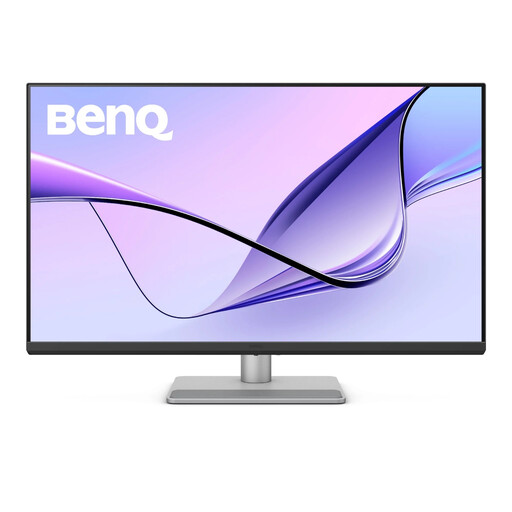
BenQ MA320UP 32-inch 4K USB-C monitor
This larger display may suit a desk where reviewing committee documents takes priority over a compact screen.
Its name specifies a height-adjustable stand and Mac positioning. Check compatibility with the committee laptop, including the USB-C display and charging functions it needs.
Joybuy
 No image available
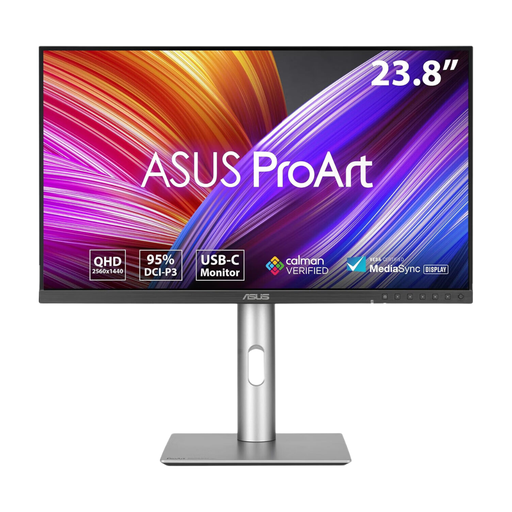
ASUS ProArt PA24ACRV QHD monitor
Consider this model when a QHD screen and USB-C connection fit a committee desk without requiring an ultrawide display.
Check the exact model’s USB-C charging, hub and network functions against the laptop and other desk equipment.
Joybuy
 No image available
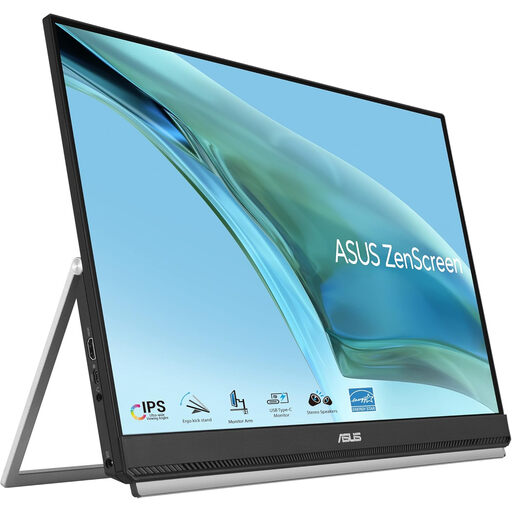
ASUS ZenScreen MB249C IPS USB-C monitor
If mounting flexibility matters at a constrained or shared desk, check which mounting accessories accompany this ZenScreen configuration.
Confirm that its USB-C charging suits the laptop, and check the stated weight against the intended mounting arrangement.
Joybuy
 No image available
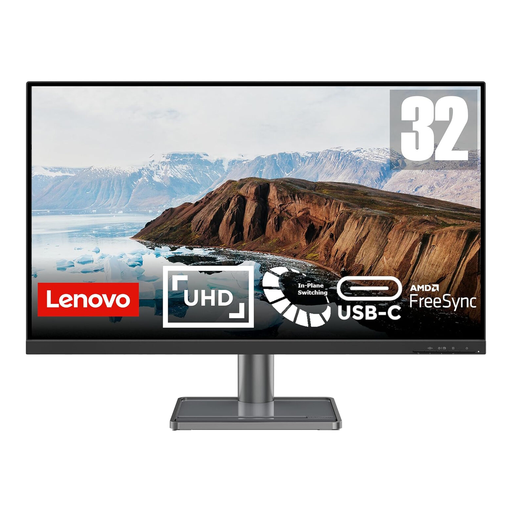
Lenovo L32p-30 31.5-inch 4K USB-C monitor
This 31.5-inch IPS screen is an option when committee documents call for a larger 4K display.
Check the USB-C charging output against the laptop’s requirement, as well as any wired-network or meeting-hardware needs.
Joybuy
Common questions
Can a monitor record committee decisions by itself?
No: the monitor is part of the workstation, not the complete recording system. Check that the computer and meeting platform can make and retain the required recording, and establish who is permitted to start it.
What does a laptop need for a one-cable monitor connection?
It needs compatible USB-C video output and charging support that fits the monitor’s power delivery. The Video Electronics Standards Association describes DisplayPort Alt Mode as a way for compatible USB-C devices to carry audio and video alongside data and power; check the actual laptop port and cable rather than relying on connector shape.
What if a committee recording includes workers?
For worker monitoring, the Information Commissioner’s Office says organisations must act lawfully and fairly. Before recording, establish the lawful basis, consider whether a data protection impact assessment is required, and arrange appropriate privacy information, access and retention controls.
How should I position a monitor for repeated minutes work?
Position it so you can work without an awkward viewing angle. The Health and Safety Executive advises placing the top of the screen around eye level and the screen about an arm’s length away; it also recommends a separate keyboard and mouse for prolonged laptop use so the display can be raised.
What should an organisation do with the monitor it replaces?
Check its approved reuse or electrical-equipment disposal route rather than putting it in ordinary waste. GOV.UK explains that UK waste electrical and electronic equipment rules encourage recovery, reuse and recycling; confirm any relevant supplier take-back arrangements for the replacement.


