Choose a desk monitor around the video modes your console and games can use, then check that the monitor accepts those modes through the HDMI input you intend to connect. If 4K at 120Hz matters, check the complete console-to-monitor connection; if it does not, give more weight to desk fit, the number of inputs and your audio arrangement. A monitor's advertised panel refresh rate alone does not establish its console modes.
Who is choosing a desk monitor?
PS5 or Xbox players targeting 4K at 120Hz
If this is the mode you want, check the console's video information and the monitor's HDMI-specific modes. PlayStation and Xbox Support both make high-refresh output conditional on compatible equipment; the game must support the mode too.
Players with several devices at one desk
Count the consoles, laptop and other sources you want to leave connected. Enough suitable monitor inputs may remove the need to swap cables; otherwise, a switch must pass the signals those devices require.
Players working with limited desk space
Measure the usable width and depth, including room for the stand, cables and controls. Plan how you will listen as well as where the screen will sit; speakers, a headset and an external audio setup place different demands on the desk.
What should you check before buying?
Start with your console's intended video mode, then count connected devices, measure the desk and decide how you will hear game audio.
| Concern | What to check | Who this matters to |
|---|
| Console video modes |
Match your console and games to the monitor's HDMI-specific resolution, refresh rate, HDR and variable refresh rate (VRR) support. |
If I want a supported game to run at 4K and 120Hz, the monitor's PC refresh-rate figure will not settle my choice. Around 33% of consumers put console video-mode compatibility first. |
| Inputs and switching |
Count devices that must remain connected and check each HDMI input. If using a switch, check its documented signal pass-through. |
With several devices at my desk, I want to change sources without finding that an intermediary limits the signal. For around 27% of consumers, dependable connections are the primary concern. |
| Desk fit |
Measure usable desk depth and width; check the stand footprint or mounting requirements and allow for cable clearance. |
A screen might fit across my desk but leave too little room to position it comfortably. Physical fit comes first for around 20% of consumers. |
| Audio arrangement |
Decide between a headset, monitor speakers and external audio; check the connections needed for your chosen route. |
If I share the space or need voice chat, I want a listening setup that works without assuming the monitor provides it. Audio is the leading consideration for around 20% of consumers. |
Mistakes that can affect the setup
-
Equating panel refresh rate with console support
A monitor's advertised high refresh rate may apply to a different connection or resolution from the one your console will use.
Check the model's HDMI input modes, then inspect the connected-display information in your PS5 or Xbox settings after setup.
-
Choosing an HDMI switch by port count alone
A switch or other intermediary can limit the signal even when the console and monitor are individually capable. PlayStation advises checking intermediary equipment when diagnosing PS5 output problems.
Check the switch's stated support for your required resolution, refresh rate, HDR, VRR and HDCP path. If a mode fails, try a direct console-to-monitor connection to isolate the cause.
A different switch or cable may be needed if the existing connection cannot pass the intended mode.
-
Choosing screen size before planning its position
A diagonal measurement does not tell you how much desk space the stand and cables occupy or where reflections will fall.
Measure the setup area and consider seating and lighting before deciding on a screen size. Health and Safety Executive display-screen guidance also addresses arranging desk space and adjusting screens to avoid glare.
-
Assuming every gaming monitor covers your audio needs
Speakers and external-audio connections differ by model, so the monitor label alone cannot establish how you will listen or use voice chat.
Choose your headset, speaker or external-audio route before buying, and check the specific monitor's relevant connections.
Relevant monitor brands for reference
BenQ MOBIUZ
BenQ UK lists the 27-inch EX2710U with 4K resolution, a 144Hz panel and HDMI 2.1.
- BenQ lists integrated 2.1-channel audio for the EX2710U, which is worth checking if you want sound from the monitor itself.
- Check the EX2710U's input-mode specifications against your console and games; its panel specification does not confirm every console mode.
LG UltraGear
LG UK lists different panel and connection specifications across UltraGear models; the 27GP950-B is a 4K HDMI 2.1 option.
- LG lists 4K and VRR up to 120Hz through HDMI 2.1 for the 27GP950-B.
- Check the exact model rather than applying the 27GP950-B's HDMI capabilities to another UltraGear monitor.
ASUS TUF Gaming / ROG
ASUS lists monitors with differing resolutions and connections across its TUF Gaming and ROG ranges.
- The TUF Gaming VG249QM5F is listed as a 23.8-inch Full HD model with a 260Hz overclocked panel setting, offering a concrete lower-resolution model to assess.
- That panel setting does not establish 4K at 120Hz from a console. Check the exact model's HDMI modes before choosing it for a particular console output.
Console gaming monitors on Joybuy
These monitors are display options for a console gaming desk. Compare their stated size and features with your available space, then confirm the HDMI modes your console needs for each model.
 No image available
LG UltraGear G8 27G850A 27-inch gaming monitor
Consider this model if you want a 27-inch 4K desk display. Its title lists a Nano IPS panel, HDMI 2.1 and 240Hz/480Hz dual modes; check which resolution applies to each mode and what your console can send over HDMI.
Check the stand dimensions against your available desk space.
View on Joybuy
 No image available
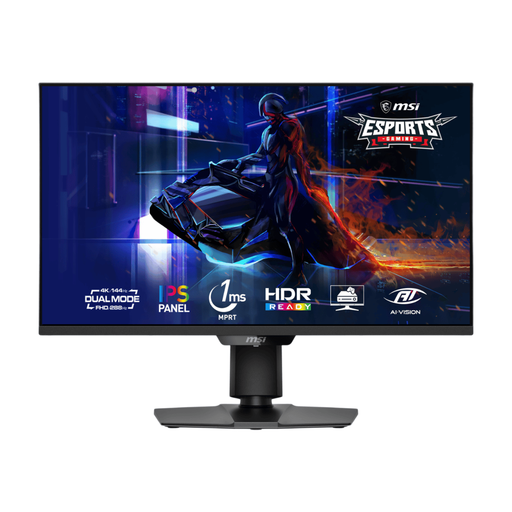
MSI MAG 275UPD E14 27-inch dual-mode gaming monitor
Consider this 27-inch model if you want to compare a UHD mode with a Full HD high-refresh mode. Its title lists UHD at 144Hz and Full HD at 288Hz; check the console-specific HDMI modes rather than assuming either panel mode is available from your console.
Measure the space available for the monitor and stand before choosing it for a compact desk.
View on Joybuy
 No image available
Dahua 32-inch curved 4K OLED gaming monitor
Consider the larger curved screen only if its placement works on your desk. The title lists 3840 × 2160 resolution and 165Hz; check the monitor's HDMI modes and your console's output before treating that refresh rate as a console option.
Allow for the screen, stand and cable clearance when measuring the setup area.
View on Joybuy
 No image available
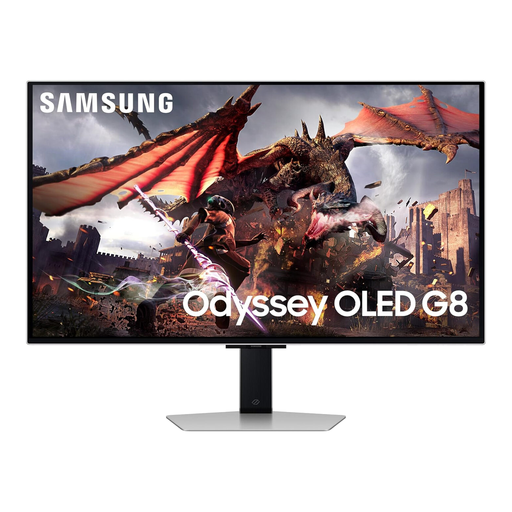
Samsung Odyssey OLED G8 LS32DG802SUXXU 32-inch monitor
Consider this 32-inch Ultra HD Smart Gaming Monitor if that screen size suits your desk. Check its HDMI input count and supported console modes against the devices you plan to connect.
Confirm the stand footprint and your intended audio connection as part of the desk layout.
View on Joybuy
Common questions
Will a 144Hz or faster monitor give my console 120Hz gameplay?
Not automatically: the monitor must accept the selected mode over HDMI, and the console and game must support it. PlayStation says PS5 120Hz output applies to games that support it; check the connected display information after setup.
Do I need HDMI 2.1 for a PS5 or Xbox Series X desk monitor?
Choose the connection for the output you intend to use. Xbox Support specifies compatible HDMI 2.1 equipment for Series X 4K at 120Hz, while PlayStation's PS5 guidance makes 120Hz output conditional on a supporting display and game. If you plan to use another mode, check that mode against the exact monitor input instead of choosing by the HDMI label alone.
When does an HDMI switch make sense?
Use one when the monitor lacks enough suitable inputs and the switch is specified to pass every video mode you need. If the console does not output the expected mode, connect it directly to the monitor to check whether the switch or another intermediary is involved.
How should I choose a monitor size for a compact desk?
Measure the usable desk area and check the monitor's stand footprint and cable clearance, not just its screen diagonal. Position the screen around your seating and lighting; Health and Safety Executive guidance on display-screen use recommends arranging screens and lighting to avoid reflections and glare.


