What matters when choosing?
Choose the key layout around your usual checkout test sequence, then check that the board leaves workable room for the mouse and other devices.
75% keyboard
Consider it when: You run frequent browser and navigation-heavy tests and want a compact board with more directly accessible keys than a 60% layout.
Trade-off: It occupies more desk width than a 60% board; inspect the exact variant for the keys and UK layout you need.
60% keyboard
Consider it when: Desk width is your overriding constraint and secondary-key shortcuts fit your test routine.
Trade-off: Function and navigation commands may require extra keystrokes. Razer states that its Huntsman Mini lacks a dedicated function row and home cluster.
Mini productivity keyboard
Consider it when: General QA, form entry and switching between devices matter more to you than mechanical-switch customisation.
Trade-off: Check the exact navigation-key arrangement and operating-system shortcuts before relying on it for repeated tests.
| Concern |
What to check |
Who this matters to |
| Desk and mouse space |
Compare board widths and decide what space the mouse or test device needs. |
If my mouse and test device compete for the same patch of desk, I can accept some key shortcuts to free up room. Around 29% of consumers put desk space first. |
| Keyboard-only checkout checks |
Make sure Tab, Shift+Tab, Enter, Space, Escape and arrow keys are comfortable to use in your test sequence. |
I need to repeat a checkout without a mouse and follow focus through every control and dialog. Keyboard-only testing is the primary concern for around 29% of consumers. |
| Browser and navigation keys |
Inspect the exact variant for its function row, arrows and the navigation keys your tools use. |
Frequent browser and test-tool shortcuts make extra key combinations a nuisance during my routine; around 24% of consumers prioritise direct access to those commands. |
| Comfort and device switching |
Check the connection options and supported devices, then consider keyboard height and mouse position in the full setup. |
Repeated form entry or moving between test machines makes key feel and switching important to me. Around 18% of consumers put comfort or connectivity first. |
Joybuy keyboard options
These compact keyboards cover 75%, 65% and 60% choices for a small-desk setup. Compare the exact key arrangement and regional layout with your checkout-testing routine before choosing one.
 No image available
HyperX Alloy Rise 75 Wireless Keyboard UK
Consider this 75% keyboard if you want a compact board for repeated checkout tests. Its name specifies a UK wireless variant; check the exact key legends and operating-system compatibility for your setup.
View on Joybuy
 No image available
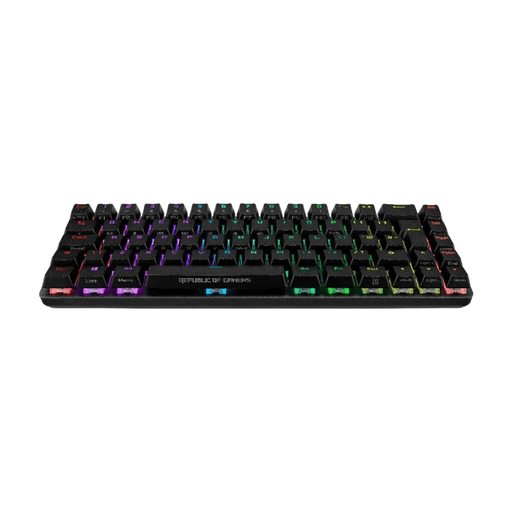
ASUS ROG Falchion Ace HFX 65 Analog Gaming Keyboard, UK layout
Consider this compact UK-layout option if you want to inspect a 65% board for your testing desk. Check function-key access against your browser shortcuts and confirm compatibility with the computer you use.
View on Joybuy
 No image available
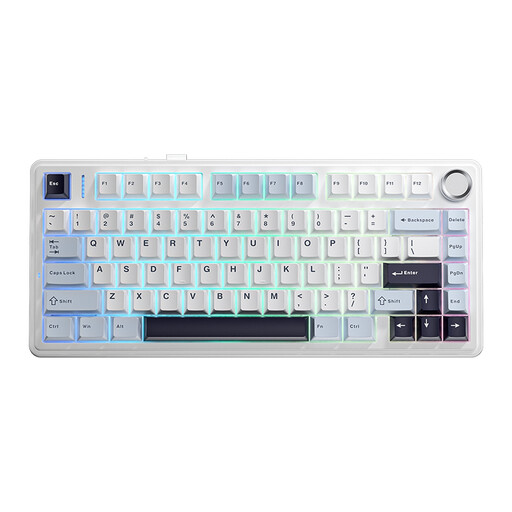
AULA F75 75% Wireless Mechanical Keyboard, QWERTY US
This 75% option is worth considering if you want a choice of wired USB-C, Bluetooth and 2.4 GHz connections. Its stated QWERTY US layout makes key positions and symbols an important check for UK form entry; inspect its navigation keys too.
View on Joybuy
 No image available
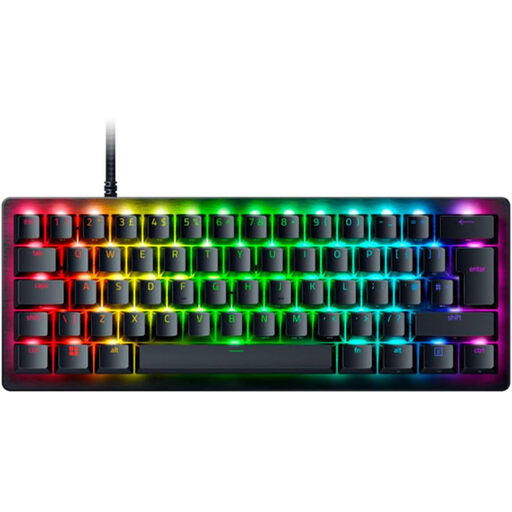
Razer Huntsman V3 Pro Mini 60% Analog Optical Keyboard
Consider this 60% board when desk width matters more than direct access to every navigation command. Check the exact regional layout and secondary-key mapping against your checkout test sequence.
View on Joybuy
 No image available
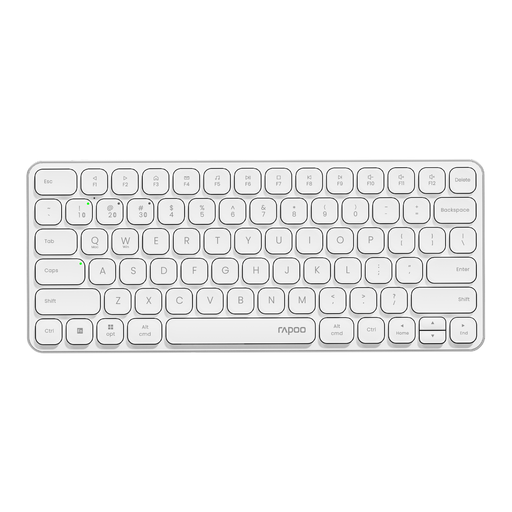
Rapoo E9050L 75% Wireless Membrane Keyboard, QWERTY US, White
Consider this 78-key option if you move between test devices and prefer a slim membrane keyboard. Its name specifies 2.4 GHz and Bluetooth connections and support for four devices; check its navigation-key arrangement and whether the QWERTY US layout suits your form-entry work.
View on Joybuy
Frequently asked questions
Which keys matter most when testing a checkout without a mouse?
Make sure you can comfortably use Tab, Shift+Tab, Enter, Space, Escape and arrow keys throughout your usual test sequence. The Department for Work and Pensions Accessibility Manual describes keyboard checks for moving between and operating controls; include dialogs and error states in your pass.
Can I use a 60% keyboard for checkout accessibility tests?
Yes, if its shortcuts let you complete your test sequence comfortably, but inspect those shortcuts before buying. A 60% board can move function and navigation commands to secondary keys; Razer confirms that its Huntsman Mini lacks a dedicated function row and home cluster.
Will a compact keyboard make a small workstation comfortable?
Not on its own. A narrower board may leave more room to position the mouse, while Health and Safety Executive guidance also calls for a central keyboard just below elbow height and a mouse in line with the elbow.
What should I do with an old keyboard when replacing it?
Ask the retailer about electrical-waste take-back when buying the replacement keyboard. GOV.UK describes retailer duties to take back waste electrical equipment of the same type as a newly purchased item; check the retailer's available route rather than putting the old keyboard in general household waste.


