A compact 13-inch-class laptop is a sensible starting point when the desk must also accommodate a mouse, cables or a monitor, but screen size alone will not tell you whether the setup fits. Confirm that your help-centre tools work on the chosen operating system, then compare the exact laptop dimensions, connections and charging arrangement. For long editing sessions, plan the whole workstation rather than relying on laptop specifications alone.
Who this is for
Small-desk content editors
If you format help-centre pages beside a mouse, notes or a monitor, compare the laptop’s full footprint with the space you actually have. Leave room for the keyboard, charging cable and any accessories you use while editing.
Long-session help-centre maintainers
If you spend extended periods editing and checking pages, keyboard use and the wider workstation matter alongside the laptop. The Health and Safety Executive advises assessing the whole workstation, including equipment, furniture and work conditions.
Organisation-managed support teams
If your employer controls sign-in, browsers, security tools or peripherals, confirm those requirements before choosing macOS or Windows. Business-laptop connectivity and management features can vary by configuration.
What matters when choosing
Choose an operating-system route that your workplace supports, then compare the physical setup and connections of the exact configuration you intend to buy.
13-inch MacBook Air
Consider when: Your organisation confirms that its editor, browser extensions and sign-in tools work on macOS.
Allow for: Apple’s cited MacBook Air specification lists two Thunderbolt 4/USB-C ports; check how your existing monitor and USB-A accessories would connect.
Compact Windows consumer laptop
Consider when: Your help-centre workflow requires Windows and a compact laptop suits both your desk and travel pattern.
Allow for: Check the selected model’s ports and charger inclusion; Dell UK says a charger is not included with its cited XPS 13 listing.
Compact Windows business laptop
Consider when: Workplace requirements favour a business configuration and direct connections for desk accessories.
Allow for: Lenovo’s cited ThinkPad X13 Gen 5 port layout belongs to a particular withdrawn configuration; check the ports and management features of the model on sale.
| Concern |
What to check |
Who this matters to |
| Desk fit |
Compare the exact width and depth with space for a mouse and cables; check weight if you move the laptop regularly. |
I need room to edit without crowding the mouse or notes beside my laptop; around 40% of consumers put usable desk space first. |
| Editing comfort |
Try the keyboard and trackpad where possible, and plan the display and workstation for sustained use. |
Long formatting sessions make the typing position and overall desk arrangement important to me; roughly 30% of consumers prioritise sustained-editing comfort. |
| Connections |
Match the monitor, accessories and charger to the exact ports and display-output options. |
I want my existing monitor and peripherals to connect without an awkward cable arrangement; about 20% of consumers make connectivity their main concern. |
| Workflow compatibility |
Confirm the required operating system, browser extensions, sign-in and device-management tools with your organisation. |
My workplace tools must run on the laptop before its size matters; around 10% of consumers place workflow compatibility first. |
Buying pitfalls
-
Choosing by screen diagonal alone
A 13-inch-class display does not establish how much desk space the chassis or its connected cables will occupy.
Measure the available surface, including room for a mouse and charger, then compare it with the selected laptop’s published width and depth.
-
Expecting specifications to solve long-session comfort
The Health and Safety Executive links poorly arranged display-screen workstations with risks including fatigue and discomfort; a laptop specification cannot describe the whole setup.
For regular work, consider the workstation, the tasks and changes of activity as well as the device. Employers should assess applicable display-screen workstations.
-
Overlooking chargers and adapters
A laptop’s ports may not match an existing monitor or accessories. Dell UK also states that a charger is not included with its cited XPS 13 listing.
List every connection you need, then check charger inclusion, compatible charging requirements and any adapter or dock against the exact model.
-
Buying before checking workplace requirements
A compact design will not help if the required help-centre editor, browser extension or managed sign-in cannot be used in the organisation’s setup.
Ask your organisation to confirm its operating-system, browser, VPN, security and peripheral requirements before choosing a laptop.
Brands to consider for this setup
Apple
The MacBook Air is relevant if your organisation supports a macOS help-centre workflow and you want a compact laptop.
- Apple’s UK MacBook Air specification lists a 13.6-inch display, 16GB unified memory in the cited configuration and two Thunderbolt 4/USB-C ports.
- Check the exact model’s external-display conditions and whether your HDMI or USB-A accessories need an adapter or dock.
Dell
The XPS 13 is a compact Windows option for buyers who want to compare portability with their desk requirements.
- Dell UK describes the cited XPS 13 as a compact laptop with a touchscreen and backlit keyboard.
- Dell UK says a charger is not included with that listing; check the power supply and the ports of the configuration you select.
Lenovo
The ThinkPad X13 Gen 5 line is relevant to buyers considering a compact Windows business laptop.
- A specific Lenovo ThinkPad X13 Gen 5 configuration lists HDMI 2.1, two USB-A ports and two Thunderbolt 4/USB-C ports.
- That cited configuration is withdrawn and does not establish the ports or availability of a current UK model; check the exact configuration before buying.
Joybuy product choices
These compact macOS and Windows laptops provide different starting points for a small-desk help-centre setup. Check workplace compatibility and each model’s footprint and connections before choosing.
 No image available
ASUS Vivobook 14 X1407QA-LY003W, 16GB, 512GB SSD
Consider this model if a 14-inch laptop suits your workspace and your organisation approves the required software on it.
The product name identifies a Snapdragon X processor, 16GB RAM, a 512GB SSD and the Quiet Blue variant. Confirm its exact footprint and connections against your desk and accessories.
View on Joybuy
 No image available
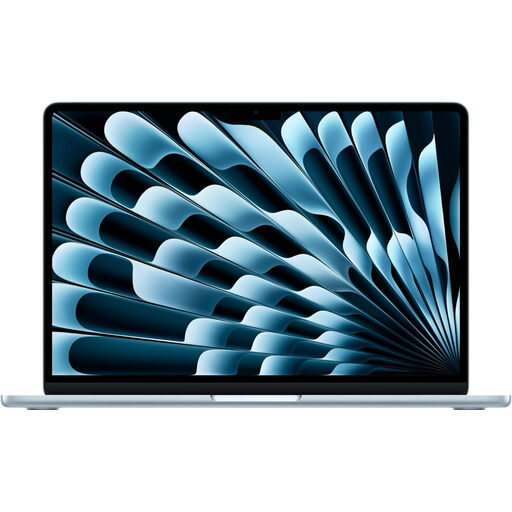
Apple 13-inch MacBook Air (2026), M5, 16GB, 1TB SSD
Consider this Sky Blue model if your help-centre platform and workplace tools are approved for macOS.
The product name identifies an M5 chip, 16GB memory and a 1TB SSD. Check this configuration’s dimensions, ports and external-display arrangements before planning the desk; confirm the processor configuration on the product page.
View on Joybuy
 No image available
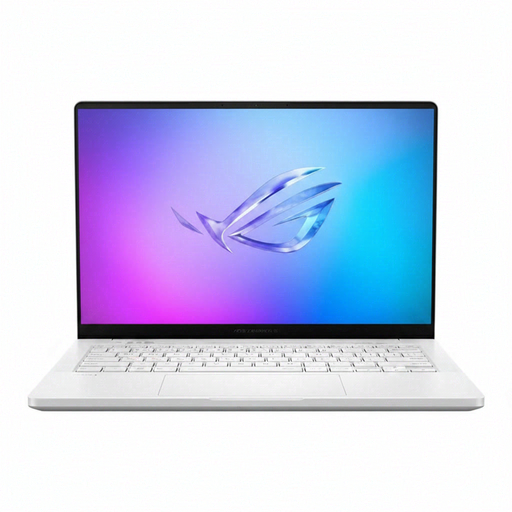
ASUS ROG Zephyrus G14 GA403WR-QS088W, 32GB, 2TB SSD
Consider this 14-inch Windows model if its configuration suits other work you do as well as help-centre editing; its gaming positioning alone does not establish a formatting advantage.
The product name lists an AMD Ryzen AI 9 HX 370 processor, 32GB memory, a 2TB SSD and an NVIDIA GeForce RTX 5070 Ti. Check the exact dimensions, keyboard layout and ports before deciding whether it fits your desk.
View on Joybuy
Common questions
Do I need a larger laptop screen for help-centre formatting?
Not necessarily: on a small desk, compare the full chassis footprint before choosing by screen diagonal. If you need more display area for sustained work, consider whether an external monitor and its stand fit your workstation; the Health and Safety Executive advises looking at the whole setup.
Will I need a dock or adapters?
You will need them only where the exact laptop’s connections do not match your monitor or accessories. Apple’s cited MacBook Air specification lists Thunderbolt 4/USB-C ports, while a particular Lenovo ThinkPad X13 Gen 5 configuration lists HDMI and USB-A as well; check the model you intend to buy.
When is a workstation assessment relevant in the UK?
The Health and Safety Executive says employers must assess display-screen workstations for workers who use them daily for continuous periods of an hour or more, and reduce identified risks. The assessment covers the workstation and work conditions, not just the laptop.
How should I plan breaks during long editing sessions?
Plan breaks or changes of activity rather than relying on laptop hardware to address fatigue. The Health and Safety Executive advises shorter, more frequent breaks over longer, less frequent ones and gives 5–10 minutes each hour as an example, not a fixed schedule for every task.


