Who needs this setup?
The right second screen depends as much on where and how you work as on the display itself.
Shared-desk and kitchen-table workers
If your work surface also serves other purposes, you need to account for the monitor base, laptop, keyboard and cables together. Which? discusses both limited-space monitors and home-working arrangements that include kitchen tables.
Laptop users seeking a one-cable desk setup
You may want one connection for the display and laptop charging. Check your exact laptop model first: DisplayPort explains how video can travel over compatible USB-C connections, while Microsoft Support notes that external-display support depends on the device and its cables or adapters.
Document-heavy home and hybrid workers
If you keep documents, spreadsheets, messages or calls visible during work, consider how much onscreen space you need alongside the room available on your desk. Screen placement and adjustment matter as part of the whole workstation, as reflected in Health and Safety Executive guidance.
What matters when choosing?
Measure the working surface and establish your computer’s video connection before deciding whether a larger screen, USB-C charging or a separate monitor arm belongs in the setup.
| Concern |
What to check |
Who this matters to |
| Desk fit and shared use |
Measure usable width and depth, allowing for the stand and cables. For an arm, check the monitor mount, arm capacity and desk fixing. |
If I clear the table after work, the screen and its base must leave room for everything else I use. Around 31% of consumers put physical fit first. |
| Laptop connection and charging |
Match the laptop’s documented video output to the monitor input; if you want USB-C charging, compare their power requirements and ratings. |
I want a second screen without discovering that my laptop cannot send it video or charge through the planned connection. For around 31% of consumers, compatibility is the primary concern. |
| Position and adjustment |
Consider which height, tilt, swivel or pivot adjustments you will use, and assess placement with the desk, chair and laptop. |
When I work at the same desk regularly, I need to position the display for that complete workstation. Adjustment comes first for around 25% of consumers. |
| Onscreen working area |
Compare screen size and resolution against the documents or windows you use, then check that the display still fits the desk and connection setup. |
Keeping detailed documents or several windows in view matters more to me than minimising screen size, provided the setup fits. Around 13% of consumers prioritise onscreen space. |
Relevant monitor brands
These brands provide examples of different model-specific features to compare; a feature on one model should not be assumed across its range.
Dell
Dell’s Pro Plus P2425HE is an example to consider for a compact laptop desk where USB-C connectivity and stand adjustment are priorities.
- Dell specifies a 23.8-inch Full HD IPS display, up to 90W USB-C power delivery, 1GbE Ethernet and height, tilt, swivel and pivot adjustment for the P2425HE.
- Check that Full HD suits your work and that your laptop supports the intended video connection and charging arrangement.
LG
LG offers distinct options for a compact desk and for a workspace that can accommodate a larger display.
- LG specifies USB-C power delivery up to 90W, Ethernet, a webcam, microphone and speakers for the 23.8-inch 24BA850-B. It specifies a 27-inch 4K IPS panel for the 27U730A-B.
- The larger model needs to fit the actual desk arrangement; check laptop video and charging compatibility for either intended connection.
BenQ
Selected BenQ home-office models offer stand adjustment or a VESA mounting option for a desk that needs flexible placement.
- BenQ specifies height, tilt, swivel and pivot adjustment for the GW2490T. For the GW2490TC, it lists a 100 × 100 mm VESA mount and 150 mm height adjustment.
- BenQ lists 20W USB-C power delivery for the GW2490TC; compare that rating with your laptop’s charging requirements rather than assuming the monitor can replace its charger.
Monitor options on Joybuy
These external monitors offer options to consider for a compact home-working surface. Compare each model’s full dimensions with your desk, and check its connection and charging functions against your computer before choosing.
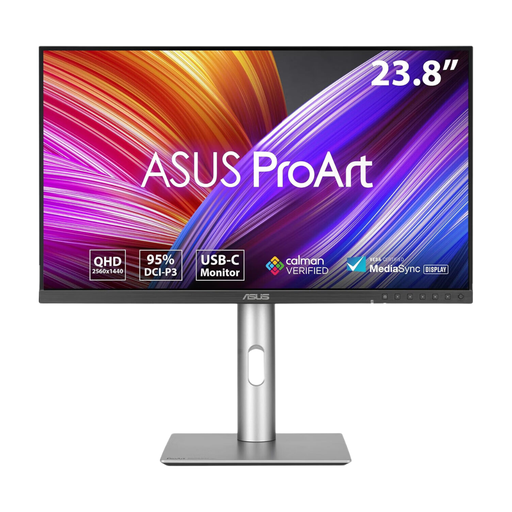 Image unavailable
ASUS ProArt PA24ACRV IPS QHD monitor
Consider this QHD IPS model if display resolution is important for your work. Check its full stand dimensions against your desk and confirm the video connection and any intended USB-C charging with your laptop.
View on Joybuy
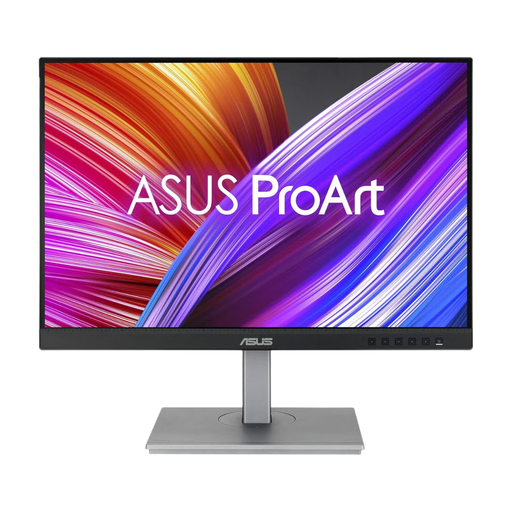 Image unavailable
ASUS ProArt PA248CNV IPS WUXGA monitor
The WUXGA IPS display is an option to compare for document-focused work. Before planning a laptop connection, check the monitor’s inputs, your laptop’s video output and charging requirements, and the space taken by the stand.
View on Joybuy
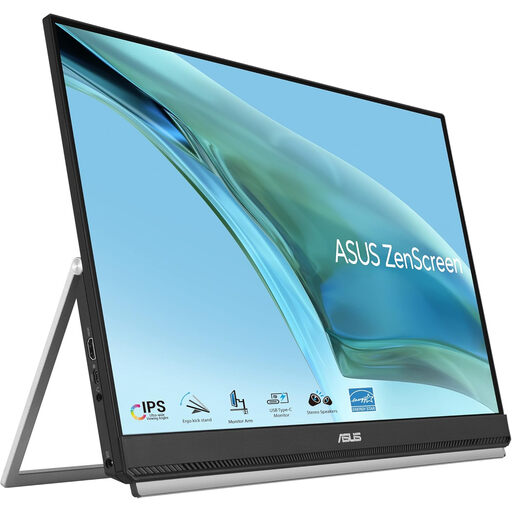 Image unavailable
ASUS ZenScreen MB249C IPS USB-C monitor
This USB-C model is worth assessing if you need to arrange a screen around a shared workspace. Confirm which mounting accessories are included, whether the installation fits your surface and whether your laptop supports the intended USB-C video and charging functions. If you plan to move the monitor regularly, confirm its weight.
View on Joybuy
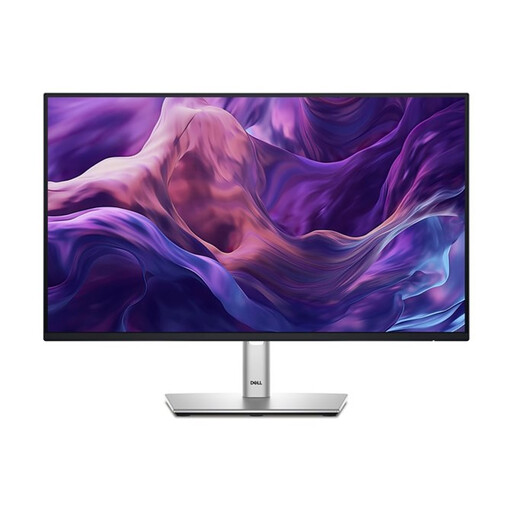 Image unavailable
Dell P2425H 24-inch Full HD monitor
Consider this model if your computer can use a matching HDMI, DisplayPort or VGA video connection. Its title specifies a 24-inch, 1920 × 1080 IPS display. Check the stand’s full footprint for a compact desk, and confirm USB-C video or charging functions before relying on either.
View on Joybuy
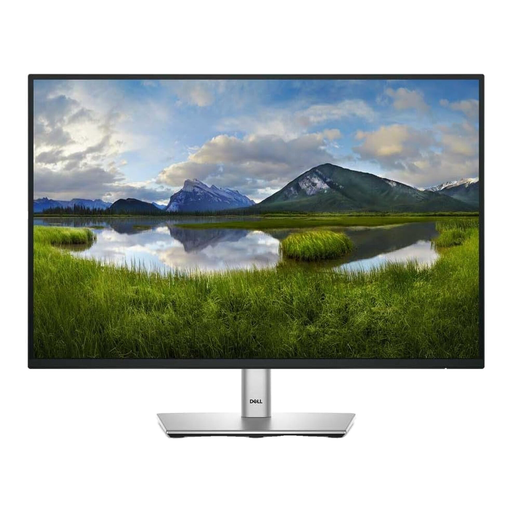 Image unavailable
Dell P2425 24.0-inch monitor
This 24.0-inch model is an option to assess for a document-work desk. Confirm its full stand dimensions and the connections needed by your computer. If USB-C charging or refresh rate is important to your choice, check those exact specifications before ordering.
View on Joybuy
Common questions
Will any USB-C laptop work with a USB-C monitor?
No: the connector alone does not confirm video output. Check the exact laptop model’s external-display support and the monitor’s input; Microsoft Support also notes that the cables or video adapters used can affect the connection.
Will a monitor rated for 90W USB-C charging charge my laptop?
Only if the laptop accepts charging through that connection and the monitor’s power delivery meets its requirements. Dell and LG specify up to 90W for particular monitors, while Microsoft Support lists differing charging requirements across Surface Laptop models; compare the specifications for your exact devices.
When would I need a dock or video adapter?
A dock or adapter may be useful when your laptop’s supported video output does not directly match the monitor input, or when the laptop maker specifies one for the setup you want. Check the laptop, dock or adapter, cable and monitor as a complete connection chain rather than matching connector shapes alone.
Should I use a monitor arm on a shared desk?
Consider an arm if its fixing arrangement works with the desk and you want an alternative to the supplied stand. Confirm the monitor’s VESA pattern and weight, the arm’s load rating and the desk-clamp or grommet fit; BenQ, for example, specifies a 100 × 100 mm VESA mount for the GW2490TC, not for every monitor.


