Start with the task that is difficult, then try the relevant accessibility feature on the phone, tablet or computer you already use. Consider a separate keyboard, pointing device, screen reader or task-support tool when the built-in option does not provide the input or output method you need; check its compatibility with your device, applications and physical setup before choosing.
Who these tools are for
People who need spoken or braille access
If reading a screen or navigating visually is difficult, compare the screen reader built into your device with software that works on your computer. Apple, NV Access and Freedom Scientific describe different platform and output options; the applications and documents you need to use still matter.
People who need another way to control a device
If sustained keyboard, mouse or touchscreen use is difficult, the question may be whether voice control, a different keyboard layout or an alternative pointing device fits your tasks. AbilityNet describes keyboard and mouse alternatives, while Microsoft documents conditions for its Windows voice and eye-control features.
People who need writing or task support
If writing, reminders or calculations are the main obstacle, check what your existing device can do before adding a microphone, organiser or talking calculator. GOV.UK includes both built-in features and separate task-support tools among accessible technology options.
What to check before choosing
Choose the task and preferred input or output method first. Then check whether a built-in feature meets that need and whether any separate tool will work with the device and applications you use.
| Concern |
What to check |
Who this matters to |
| Non-visual reading and navigation |
Check the operating system and required apps, then whether speech or braille output works with the documents and devices you use. Apple describes VoiceOver on its devices; NV Access and Freedom Scientific describe Windows screen readers. |
When I need to read and navigate a screen without relying on its visual display, output and app access come before a different keyboard. About 36% of consumers put non-visual access first. |
| Voice or lower-movement control |
Check the supported operating-system version, language and microphone environment. Microsoft says Windows Voice Access requires Windows 11 version 22H2 or later; eye control requires compatible tracking hardware. |
If conventional hand control is difficult, I need an input method I can use for my actual apps and surroundings. Lower-movement control is the primary need for about 29% of consumers. |
| Physical typing and pointing |
Compare key layout, reach and pointing position. Check whether the intended device permits the keyboard or mouse connection, including any required USB port or Bluetooth pairing. |
I may be able to use physical controls, but a standard keyboard or mouse does not fit how I reach, type or point. Roughly 21% of consumers prioritise a more workable physical input arrangement. |
| Writing and task organisation |
Identify whether dictation, reminders, notes or spoken calculation is the main task. Try the relevant built-in function, then check a separate tool’s controls, alerts and setup if needed. |
When keeping track of tasks or producing text is the main difficulty, I want support for that activity rather than a replacement for every device control. This is the first concern for about 14% of consumers. |
Buying pitfalls
-
Choosing a peripheral before checking its connection
A keyboard or mouse that feels promising may not connect to the intended phone, tablet or managed computer. Wired, Bluetooth and USB-receiver devices have different port and pairing requirements.
Note the exact device and operating-system version, available ports, permitted connections and required keyboard layout before ordering.
-
Treating an accessibility label as a personal fit test
A feature description cannot establish that its controls, language support or physical arrangement will suit a particular person. Microsoft specifies conditions for Voice Access and Eye Control, and Apple notes that some features vary by region, language or app.
Test the task that matters: the app, document, input or output method, and physical position in which the tool will be used.
-
Overlooking setup and practice
A built-in feature or separate screen reader may need configuration before it works well with everyday documents, websites and commands.
Allow time to set up and practise with the real tasks involved, particularly on a work or education device.
-
Assuming a work-related tool is already approved
Acas describes reasonable adjustments as specific to the individual, while GOV.UK describes Access to Work support for some specialist equipment and assistive software. Neither description establishes approval for a particular product.
Check the relevant scheme’s current eligibility and your employer’s assessment and procurement process before ordering for work.
Brands and platforms to consider
These names are relevant to different access routes, not interchangeable choices: the device you use and the task you need to perform determine which features are worth checking.
Microsoft
Windows accessibility features are relevant when the existing computer is a compatible Windows PC.
- Microsoft documents Voice Access for PC control and text entry on Windows 11 version 22H2 or later.
- For Windows Eye Control, check the specific tracking device; Microsoft notes that experience with other devices may vary.
Apple
Built-in accessibility features are worth checking on an existing iPhone, iPad or Mac.
- Apple describes VoiceOver with audible and braille output and navigation through gestures, a trackpad or a Bluetooth keyboard.
- Apple says feature, app and service availability can vary by region or language; check the particular device and feature.
NV Access
NVDA is a screen-reader option for Microsoft Windows users seeking speech or braille feedback.
- NV Access describes NVDA as a Windows screen reader with synthetic speech and braille feedback.
- Its Windows focus does not establish compatibility with a particular workplace app, document workflow or non-Windows device.
Freedom Scientific
JAWS is a Windows screen-reader route to examine when an organisation or user needs its particular workflow.
- Freedom Scientific describes JAWS as providing speech and braille output for PC applications.
- Check the supported Windows version, licence and required applications rather than assuming every organisational workflow will work.
Logitech
Its peripherals are relevant when comparing mouse shapes, hand positions and configurable controls.
- Logitech describes vertical-mouse options and configurable controls in its accessibility material.
- A product’s shape or ergonomic description does not establish personal fit; check grip, size, controls and device support.
Joybuy physical-input products
These keyboards and mouse offer physical-input arrangements to consider when conventional typing or pointing is difficult, or when a keyboard is needed across devices. They are not substitutes for screen-reading, voice-control or task-organisation tools.
 No image available
HP 960 Ergonomic Split Layout Wireless Keyboard with Padded Wrist Rest
Consider its split layout if a conventional keyboard position is difficult to use. The listed keyboard is wireless and has a padded wrist rest; check the key arrangement, reach and connection against your own setup before choosing it.
View on Joybuy
 No image available
V7 MW500BT Bluetooth Vertical Mouse
Consider a vertical mouse if you want to assess a different pointing grip. The product name specifies Bluetooth and 2.4GHz modes, six buttons and adjustable 1600 DPI; check its size, button placement and usable connection with your device rather than assuming the shape will feel comfortable.
View on Joybuy
 No image available
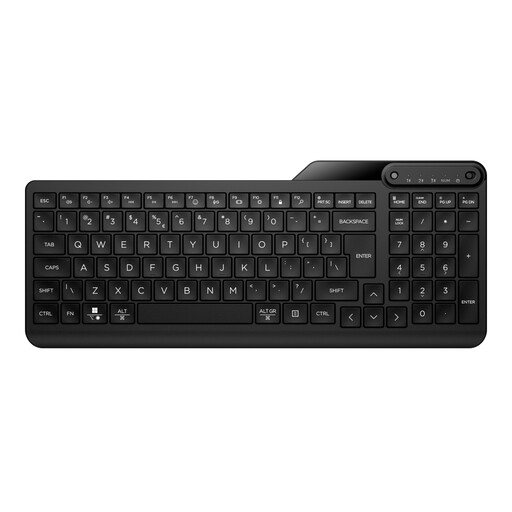
HP 460 Multi-Device BT Keyboard
Consider this multi-device keyboard if you need physical typing on more than one compatible device. Check Bluetooth support on each device and whether the key layout, spacing and feel meet your access needs.
View on Joybuy
Common questions
Should I try built-in settings before buying a specialist keyboard?
Yes, if a relevant setting is available on your device, try it against the task that is difficult. GOV.UK notes that phones, computers and tablets often have built-in accessibility features; a different keyboard becomes worth considering when you need a physical layout or input method those settings do not provide.
Will a Bluetooth or USB peripheral work with my device?
Check the exact pairing method and device requirements before ordering. AbilityNet describes different keyboard and mouse connection options; your available ports, operating system, keyboard layout and any work or education restrictions affect whether a particular option is usable.
Can Windows Voice Access replace my keyboard and mouse?
It can provide another way to control a PC and enter text for supported tasks, but test it with the applications you actually use. Microsoft specifies Windows 11 version 22H2 or later and an internet connection for initial setup; language support and your microphone environment also matter.
Can I arrange work equipment through Access to Work or my employer?
Check both routes before selecting equipment for work. GOV.UK describes Access to Work support for specialist equipment and assistive software, while Acas says reasonable adjustments are specific to the individual; your eligibility, assessment and employer’s approval process need to be established for the proposed tool.


