
24/7 全天候客户支持

免费退货

当日/次日达

品质保障

开启新人专享福利: 全场免邮 | 低至 2 折 | 免费试用 30 天 JoyPlus 会员
下载 Joybuy
Choosing between computer monitors can be surprisingly difficult. A low price may hide limited connectivity, while a high refresh rate may offer little value if your computer cannot produce enough frames. Some screens also advertise eye-care modes or vivid colour without explaining the panel type, adjustment range or colour coverage.
For UK shoppers, the most common buying pitfalls are:
A 24-inch monitor offers a sensible small-footprint solution for UK desks, home offices and dual-screen arrangements. At this size, 1920 × 1080 Full HD generally provides clear text for office work, web browsing and casual entertainment.
If you regularly work with long documents, spreadsheets or coding windows, consider a 16:10 WUXGA monitor with a 1920 × 1200 resolution. The extra vertical pixels can reduce scrolling compared with a standard 16:9 Full HD screen. For photo editing, design or detailed creative work, a QHD display such as 2560 × 1440 offers more working space than Full HD.
An ultrawide monitor can replace two screens for timelines, spreadsheets and side-by-side applications, but check your desk width and graphics output before ordering.
An IPS monitor usually offers consistent colours and wide 178-degree viewing angles, which is useful when sharing a screen or working across multiple displays. IPS models are common in office, professional and creator monitors.
VA panels can provide a higher stated contrast ratio and deeper-looking blacks, which may suit films and general entertainment. However, panel response behaviour varies between models, so look beyond the panel label.
For colour-sensitive tasks, check measurable coverage such as 100% sRGB, factory calibration or a stated colour standard. These specifications do not guarantee that every workflow will match a professional reference display, but they provide more useful information than vague claims about “true colour”.
A standard office monitor may run at 60Hz, while 75Hz or 100Hz can make scrolling and cursor movement appear smoother. A 144Hz monitor is more relevant to gaming, particularly when paired with a computer capable of delivering higher frame rates.
A 240Hz monitor is aimed at competitive gaming where motion clarity and input responsiveness are priorities. It is not automatically a better choice for office work. Check whether your computer, DisplayPort or HDMI connection supports the intended resolution and refresh rate.
Response time figures can be measured in different ways, including GTG and MPRT. Treat them as useful reference points rather than direct guarantees of identical performance. Adaptive-Sync can help reduce tearing when the display refresh rate follows the graphics output.
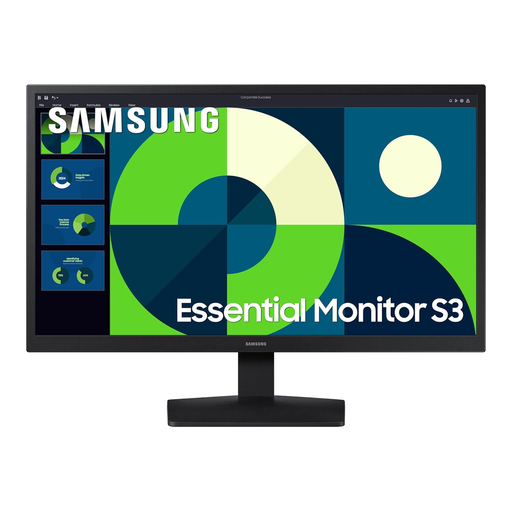
Why This Fits Their Persona: A practical 24-inch Full HD monitor for students, first home-office setups and everyday computing where straightforward connectivity matters.
Its 75Hz refresh rate is clearly suited to everyday work and light gaming rather than an unnecessarily high gaming specification.
VA panel with 3000:1 stated contrast ratio; HDMI and VGA inputs; Eye Saver Mode and Flicker-Free technology.
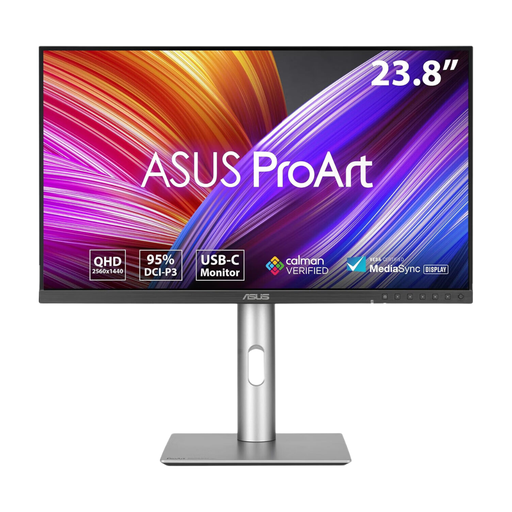
Why This Fits Their Persona: Designed for creators and professionals who need QHD detail, flexible positioning and USB-C laptop integration.
It provides stated calibration information and colour tools rather than relying only on general colour marketing.
24-inch QHD IPS panel; USB-C with up to 96W Power Delivery; height, swivel, tilt and pivot adjustment.
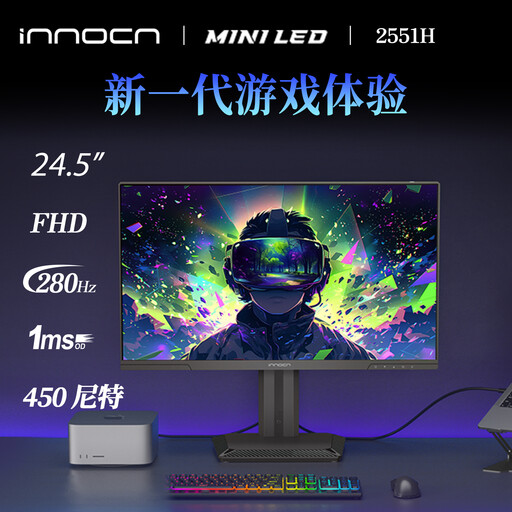
Why This Fits Their Persona: Suits PC and console players who prioritise high refresh rates, adaptive sync and HDR-oriented contrast in a compact format.
Its listed HDMI and DisplayPort limits make it easier to check which connection is required for the target refresh rate.
280Hz listed refresh rate, Mini LED backlight, 180-zone HDR1000 specification and height-adjustable stand.
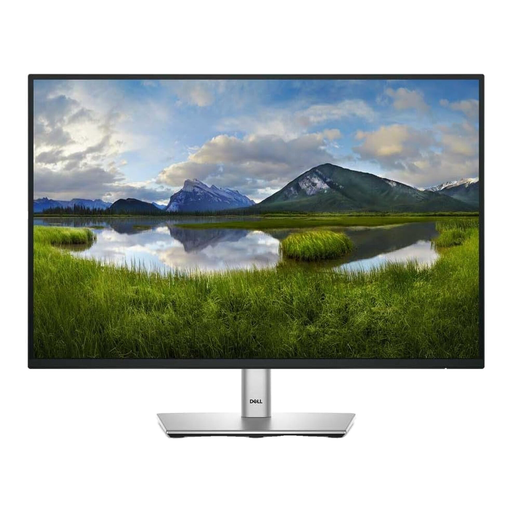
Why This Fits Their Persona: A useful choice for documents, spreadsheets and general productivity where additional vertical space and a fully adjustable stand are priorities.
The WUXGA 16:10 format provides more vertical workspace than standard 16:9 Full HD, while the specification lists its refresh rate as 60Hz.
1920 × 1200 IPS display with 99% sRGB coverage; USB-C, HDMI, DisplayPort and a built-in USB hub.
We have compiled a complete, real-time list of products that fully satisfy these strict selection criteria and UK safety regulations.
Adjust the screen so your eyes meet the upper area of the display without needing to tilt your head upwards. Use height adjustment, a monitor arm or a stable riser where necessary. Keep the screen far enough away to read comfortably without leaning forwards.
Lifespan depends on usage, heat, power conditions and the panel type. A monitor used in a ventilated room and protected from impact can remain suitable for many years, but brightness, ports or backlighting may change over time. Check the manufacturer’s warranty and keep purchase documentation.
Consumption varies by size, brightness, resolution and refresh rate. Look at the product’s typical and standby figures on its specification sheet. Lowering brightness, enabling power-saving mode and switching the display off when not needed can reduce running costs.