
24/7 Customer Support

Free returns

Same-day & Next-day Delivery

Quality Guaranteed

Unlock Your Welcome Offers: FREE Delivery | Up to 80% OFF | Free 30-day JoyPlus trial
Download the APP
Choosing between computer monitors can feel straightforward until you compare resolution, panel type, refresh rate and connections. A screen may look impressive on a product page yet prove unsuitable for your desk, laptop or daily workload.
For UK home-office workers, students, professionals and creators, the main challenge is matching specifications to actual use. A high-resolution display is not automatically the right choice, while a low-cost Full HD model may be perfectly suitable for emails, documents and video calls.
A 4K monitor offers a 3840 × 2160 image, but it also demands more from your computer and may make interface text appear smaller at default scaling. For spreadsheets, browsing and office software, a QHD monitor can provide useful extra workspace without the same level of graphics demand.
Full HD remains practical for smaller screens, including many 21.5-inch and 22-inch models. On a 27-inch monitor, however, QHD generally provides a denser image and more room for side-by-side windows.
A 100Hz monitor can make scrolling and window movement appear smoother than a 60Hz display. However, refresh rate does not determine colour quality, brightness, viewing angles or resolution. A monitor with 144Hz or more may be unnecessary for office work if the rest of the specification does not suit your workflow.
Also check response-time measurements carefully. MPRT and GTG are different testing methods, so figures should not be compared as though they are identical.
A display may include HDMI but lack DisplayPort, USB connectivity or a headphone output. Check whether your computer, docking station or games console supports the available inputs.
Stand adjustment is another frequently missed detail. Many entry-level models only tilt, while a professional workstation may benefit from height, swivel and pivot movement. VESA monitor compatibility, such as 75 × 75mm or 100 × 100mm, is useful if you plan to add a monitor arm or wall bracket later.
Measure your desk before buying. A 31.5-inch or 32-inch screen needs more depth and viewing distance than a compact office monitor. Larger displays can also make multi-window work more comfortable, but they may not suit a narrow desk or shared workspace.
An IPS monitor typically offers wide viewing angles and consistent colours across the screen. This makes IPS a sensible choice for office work, shared viewing, graphic design and general content creation.
VA panels can provide a higher stated contrast ratio, which may help darker scenes appear deeper. The MSI PRO MP223 E2, for example, uses a VA panel with a 3000:1 contrast ratio and 99% sRGB coverage. For a professional colour-accurate monitor, look beyond the panel label and check the stated gamut, bit depth, factory calibration and calibration support.
The ASUS ProArt model listed below includes hardware calibration support and broad colour-gamut specifications. These features are more relevant to photographers, video editors and designers than to someone primarily writing documents.
For flexible everyday use, look for a monitor with HDMI and DisplayPort. HDMI is common on laptops, consoles and desktop computers, while DisplayPort is widely used with desktop graphics cards and docking hardware.
Anti-glare surfaces can help limit reflections from windows and lamps. Flicker-free backlighting and low-blue-light modes are also common eye-care monitor features. They may make long sessions more comfortable, but they do not replace sensible brightness, suitable viewing distance and regular breaks.
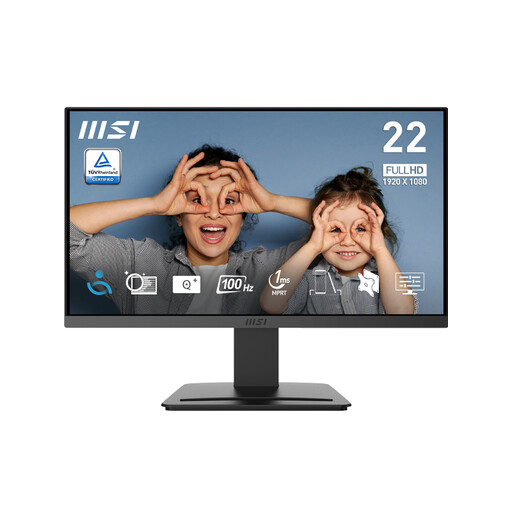
Why This Suits Their Persona: Its compact Full HD format suits a first home-office screen, student desk or smaller UK bedroom workspace where desk depth is limited.
The specification clearly lists HDMI, DisplayPort, tilt adjustment and 75mm VESA support, rather than relying on screen size alone.
1920 × 1080 VA display, 100Hz refresh rate, 99% sRGB coverage and anti-flicker and low-blue-light features.

Why This Suits Their Persona: A 27-inch office monitor gives document work and video calls a more spacious layout without moving to QHD or 4K.
It combines IPS viewing angles, 100Hz refresh and listed HDMI and DisplayPort connectivity, with VESA 100 × 100mm compatibility.
IPS panel, 99% sRGB coverage, anti-glare surface and ePaper, flicker-free and low-blue-light modes.
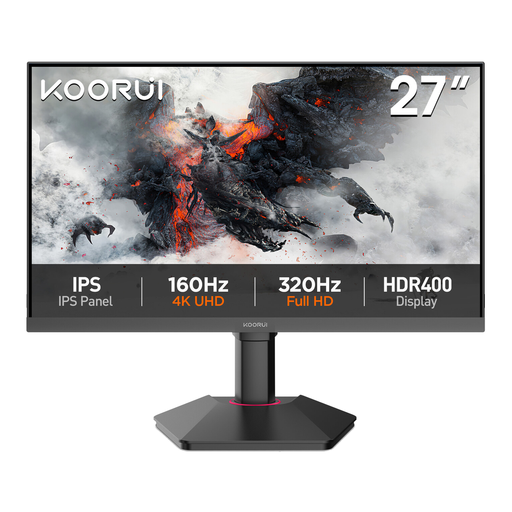
Why This Suits Their Persona: QHD resolution on a 27-inch screen suits users working with design tools, research windows, large spreadsheets and multimedia.
The detailed specification confirms 2560 × 1440 resolution, 99% sRGB coverage and three video inputs: HDMI, DisplayPort and VGA.
IPS viewing angles, 75Hz Adaptive-Sync, anti-glare coating, low-blue-light mode and 100 × 100mm VESA mounting.
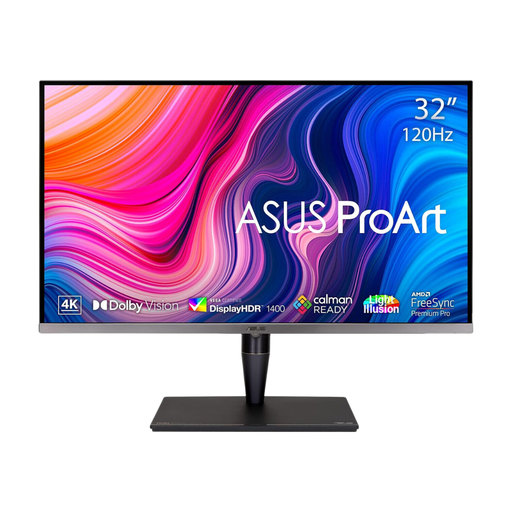
Why This Suits Their Persona: Photographers, video editors and designers who need detailed 4K imagery, HDR support and wide colour coverage may value this larger professional display.
It provides specific creative-workflow details, including hardware calibration support, Mini LED backlighting, HDR formats and multiple professional inputs.
We have compiled a complete, real-time list of products that fully satisfy these strict selection criteria and UK safety regulations.
Yes. A 27-inch monitor provides a comfortable workspace for documents, web research and video calls. Full HD can be suitable for general use, while QHD offers sharper text and more room for multiple applications. Make sure your desk allows a sensible viewing distance.
It can be useful for detailed images, high-resolution video and extensive desktop space. For basic office tasks, it may cost more than necessary and could require display scaling. Check your computer’s graphics output and choose 4K when the additional detail supports your work.
Lifespan depends on usage, operating temperature, power management and component quality. Keeping ventilation clear, using an appropriate mains connection and avoiding unnecessary maximum brightness can support reliable operation. Before purchase, check the warranty, stand quality, ports and mounting options rather than judging durability from appearance alone.