
24/7 Customer Support

Free returns

Same-day & Next-day Delivery

Quality Guaranteed

Unlock Your Welcome Offers: FREE Delivery | Up to 80% OFF | Free 30-day JoyPlus trial
Download the APP
Buying computer monitors in the UK is not simply a matter of choosing the largest screen or highest refresh rate. The right display depends on your desk, computer, console, software and daily habits. A monitor for spreadsheets has different priorities from one for competitive gaming, photo editing or travel.
This guide explains the specifications that matter, highlights common buying traps and presents Our Top Recommendations for 2026 from the current Joybuy range.
A high refresh rate can make movement appear smoother, but the benefit depends on your computer or console producing enough frames per second. A 240Hz gaming monitor may offer limited practical value if a laptop or older graphics card only delivers 60–100 frames per second.
Check the connection standard as well. Resolution and refresh-rate support can vary between HDMI versions, DisplayPort and USB-C. Some monitors also require DisplayPort to reach their advertised maximum refresh rate.
A larger panel does not automatically provide more usable space. A 27-inch Full HD monitor has a lower pixel density than a 27-inch 2K QHD monitor, so text and interface elements may appear less refined. Conversely, 4K monitors provide sharper detail but can require display scaling and more graphics performance.
Ultrawide monitors can replace two conventional screens, but they need a sufficiently deep and wide desk. Check the dimensions with the stand, not only the panel size.
Terms such as “wide colour gamut”, “HDR” and “99% sRGB” describe different aspects of image performance. They do not necessarily mean that a display is factory-calibrated or suitable for colour-critical production.
For monitors for content creation, check the stated gamut, calibration information, panel type, brightness and whether the software you use supports colour management. For office work, a matte coating, suitable brightness and ergonomic adjustment may matter more than HDR.
Use the following as a practical starting point:
IPS monitors generally offer wide viewing angles and consistent colour across the screen. They are commonly chosen for office work, design and mixed use. VA panels can provide stronger stated contrast, while OLED monitors offer individually lit pixels and very deep blacks. OLED buyers should review the manufacturer’s guidance on static images and warranty coverage.
For routine productivity, 60–75Hz is often sufficient. High refresh rate monitors at 100Hz, 144Hz, 165Hz or 240Hz are more relevant to fast games and responsive scrolling.
Response-time figures can use different measurement methods, so compare like with like. Adaptive Sync or similar variable-refresh technology can help reduce visible tearing when the monitor and graphics output operate at different frame rates.
Before ordering, match the monitor’s inputs to your devices. USB-C monitors may carry video, data and power through one cable, but confirm the laptop supports USB-C video output and that the power-delivery wattage is adequate.
For home office use, height, tilt, swivel and pivot adjustment can be more valuable than decorative features. A VESA-compatible monitor also gives you the option of using a wall bracket or monitor arm. Check the VESA pattern and the mount’s weight rating before installation.
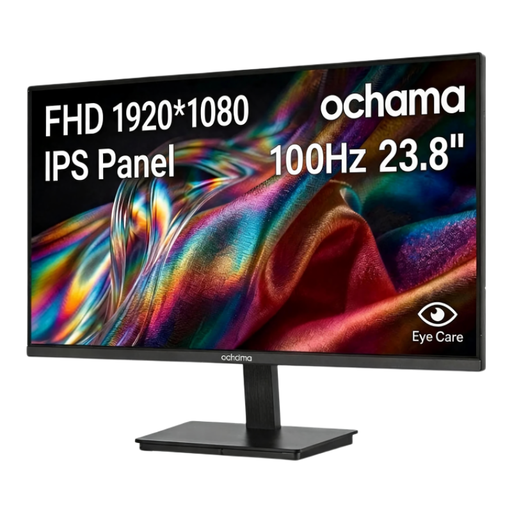
Why This Fits Their Persona: A compact choice for students, first home offices and everyday browsing where a 23.8-inch Full HD screen is sufficient.
Its 100Hz specification is clearly suited to smoother everyday motion without paying specifically for an extreme gaming refresh rate.
23.8-inch 1920 × 1080 resolution, three-sided narrow bezels and a built-in blue-light filter.
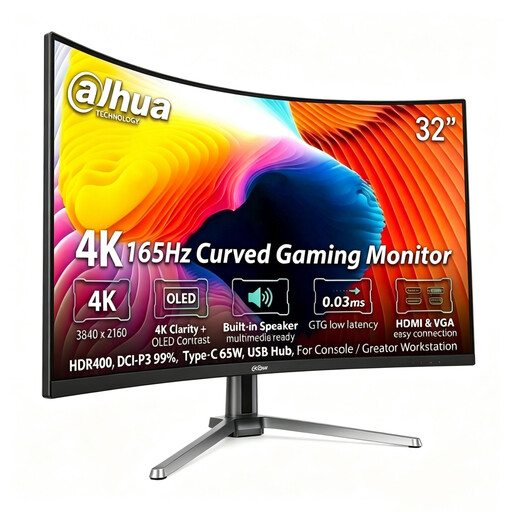
Why This Fits Their Persona: Suited to users seeking detailed 4K imagery, fast gaming performance and USB-C connectivity in one desktop display.
It lists separate figures for resolution, refresh rate, ports and panel technology, allowing buyers to check compatibility rather than relying on a single headline claim.
31.5-inch 3840 × 2160 QD-OLED panel, 165Hz refresh rate, HDMI 2.1 and Type-C with 65W power delivery.

Why This Fits Their Persona: A practical second screen for hybrid workers, commuters and students moving between home, university and shared workspaces.
The listing identifies its 14-inch Full HD IPS panel, 60Hz rate and USB-C connection requirements, helping buyers check device compatibility first.
10-point touch support, 100% sRGB specification, adjustable 180° stand and VESA compatibility.
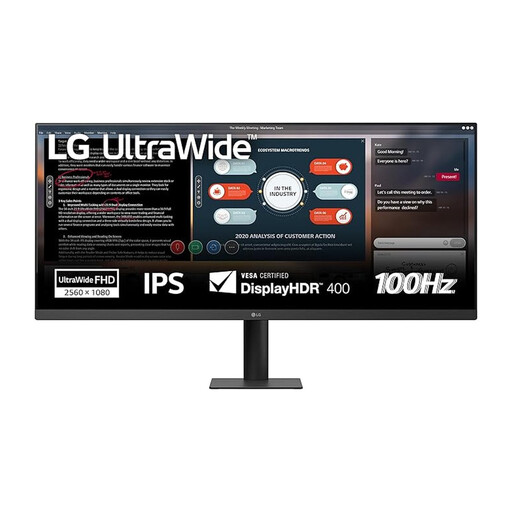
Why This Fits Their Persona: Suitable for users who regularly keep documents, timelines and communication tools open side by side.
Its 21:9 format makes the available workspace clear, while the 2560 × 1080 resolution avoids implying 4K detail where it is not provided.
34-inch IPS panel, 100Hz refresh rate, 5ms response time and height-adjustable stand.
For colour-focused work, the ASUS ProArt PA278CV combines a 27-inch WQHD IPS panel, stated 100% sRGB coverage, USB-C power delivery and a height-adjustable stand. For a larger 4K workspace, the LG 32UN650K offers a 32-inch IPS panel, HDR10 support, built-in speakers and VESA mounting.
Console and PC gamers comparing gaming monitors may also consider the CRUA 32-inch 2K 165Hz curved monitor, while the UPERFECT 16-inch 2K portable monitor provides a travel-friendly option with USB-C and Mini HDMI connections. Always confirm current stock, included cables and compatibility on the product page before purchasing.
We have compiled a complete, real-time list of products that fully satisfy these strict selection criteria and UK safety regulations.
They can be worthwhile for detailed editing, large screens and users who value sharper text. For gaming, check whether your graphics card or console can output 4K at the desired refresh rate. For basic office work, a Full HD or 2K QHD monitor may provide sufficient clarity at a lower purchase and running cost.
Lifespan varies by panel technology, usage, heat and power conditions. Keep ventilation clear, avoid impact and use the correct power adapter. OLED monitor owners should follow the supplied guidance on static images. A VESA-compatible design can also extend practical usability by making it easier to reposition the display as your desk setup changes.
Power consumption depends on size, brightness, resolution and panel type. Check the product’s typical wattage rather than relying only on energy labels or marketing language. Using sleep settings, reducing unnecessary brightness and switching the display off when not needed can help manage household electricity use.