What matters when choosing?
Begin with the task and access method you need most, then test your current device before deciding whether a new device, an input accessory, specialist software or setup support would address the problem.
| Concern |
What to check |
Who this matters to |
| Spoken reading and navigation |
Try your messages, documents and essential websites with the intended screen reader. Check whether its touch gestures or keyboard commands work for you. |
If I depend on speech to read and move around a page, I need to finish everyday tasks without relying on visual cues. Around 31% of consumers put spoken access first. |
| Magnification and display adjustments |
Read and enter text at your required zoom level; check how much of the page remains visible and whether you can navigate it. |
I can use visual content when it is enlarged, but I need enough usable space to follow a document or form. Roughly 25% of consumers prioritise visual enlargement and personalisation. |
| Specialist software compatibility |
Confirm the exact software release against the device’s operating system and processor architecture, then test essential applications. |
My work or study depends on a particular desktop tool, so the new device has to run that workflow. Around 19% of consumers place specialist-software compatibility first. |
| Setup and support |
Ask what is configured before delivery and which training, accessories and support arrangements are included. |
I need help getting the device ready and resolving problems before I can use it independently. About 13% of consumers make setup and support their primary concern. |
| Keyboard or alternative input |
Check the accessory’s connection and device compatibility, including the commands you need at sign-in and during use. |
I rely on physical keys or non-touch input to write and navigate, rather than using touch alone. Around 12% of consumers put input access first. |
Joybuy Windows laptops to consider
These laptops are options for trying a keyboard-led computer with Windows accessibility tools. Choose by testing your essential tasks and, if you use specialist software, confirming its requirements for the exact configuration.
 No image available
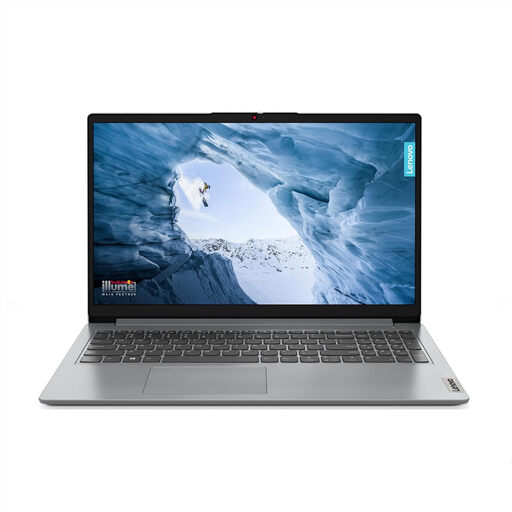
Lenovo IdeaPad 1 15-inch, Ryzen 3 7320U, 8GB, 128GB, Windows 11 Home in S Mode
Consider this laptop if you want to trial keyboard-led reading and magnification on a 15-inch display. Its listed configuration includes a Full HD screen, AMD Ryzen 3 7320U, 8GB RAM and a 128GB SSD.
It is listed with Windows 11 Home in S Mode. Before choosing it for third-party assistive software, check what can be installed in that configuration and try your essential apps and documents.
View on Joybuy
 No image available
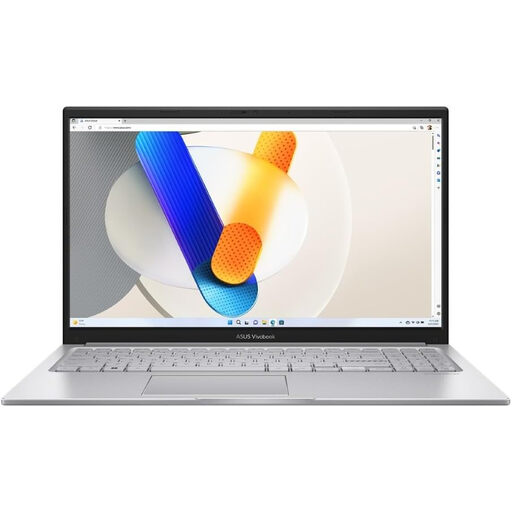
ASUS Vivobook 15 X1504VA, Core 5 120U, 24GB, 1TB SSD
Consider this laptop for a trial of keyboard input and visual enlargement on its listed 15.6-inch display. The named configuration has an Intel Core 5 120U processor, 24GB memory and a 1TB SSD.
Check the operating-system configuration and try your screen reader, documents and usual websites before deciding whether it meets your access needs.
View on Joybuy
 No image available
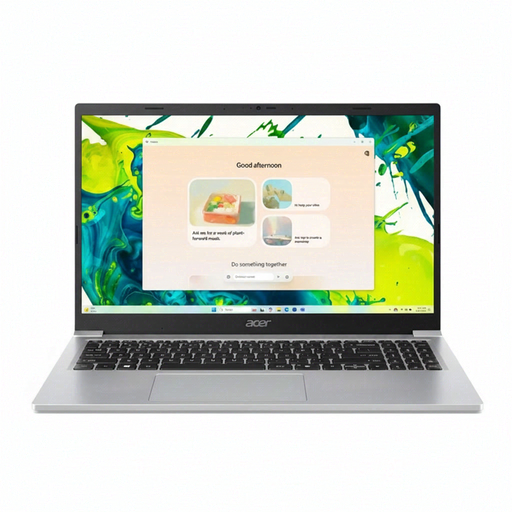
Acer Aspire Lite AL15-36P-C29Z, 15.6-inch, Intel N150, 8GB, 128GB SSD
Consider this model if you want to test reading and keyboard navigation on a 15.6-inch Full HD laptop. Its product name lists an Intel N150 processor, 8GB DDR4 RAM, a 128GB SSD and Windows 11 Home.
If you rely on third-party assistive software, confirm whether the exact device is supplied in S Mode and whether your required software can be installed. Test the display at your usual magnification level.
View on Joybuy
 No image available
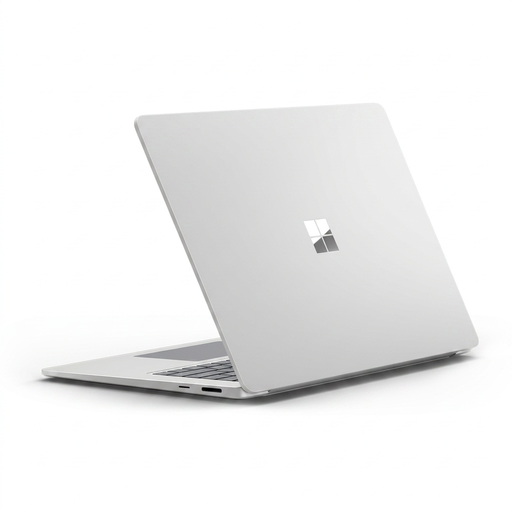
Microsoft Surface Laptop 7 15-inch, Snapdragon X Elite, 16GB, 256GB SSD
Consider this touchscreen laptop if you want to compare keyboard and touch input during your accessibility trial. Its product name lists a 15-inch PixelSense touchscreen, Snapdragon X Elite processor, 16GB RAM and a 256GB SSD.
If a specialist screen reader or other desktop software is essential, check the developer’s requirements against this processor and configuration. Try your everyday reading tasks at the magnification you need.
View on Joybuy
 No image available
ASUS Vivobook 14 X1407QA-LY003W, Snapdragon X, 16GB, 512GB SSD
Consider this 14-inch laptop if that screen size and keyboard layout suit your intended use. Its product name lists a Snapdragon X processor, 16GB RAM and a 512GB SSD.
Try reading and navigating at your required zoom level. If you need specialist software, check its requirements against this processor and the exact device configuration.
View on Joybuy
Common questions
Should I replace my current computer before trying its accessibility features?
No: try its built-in tools against your essential tasks first. RNIB advises checking accessibility features on a computer or laptop you already own before buying another device; use your own messages, documents, websites and input method for the trial.
Can a Windows laptop read the screen aloud without a separate screen-reader purchase?
Yes, Windows 11 includes Narrator, according to Microsoft Support. Whether it meets your needs depends on how well you can navigate your essential applications, documents and websites with it.
What should I check before choosing a laptop for NVDA, JAWS or SuperNova?
Check the exact software release against the laptop’s Windows version and processor architecture, then test the applications you must use. NV Access, Freedom Scientific and Dolphin publish product-specific requirements; compatibility with an operating system does not by itself establish that your complete workflow will work.
What does a pre-configured accessible tablet or computer include?
It depends on the particular package, so confirm its hardware, software, accessories, training and support terms. RNIB Shop describes devices configured with screen readers and magnification, while Synapptic describes setup and training for its A11 PLUS tablet package.


