Speech-first computer users
People who are blind or have very limited usable vision and rely on keyboard commands, speech output or a refreshable braille display to use email, documents and online services.


Start with a computer or tablet whose built-in accessibility tools let you read, navigate and complete your essential tasks. If you need NVDA, JAWS or ZoomText, check the required Windows version and your applications before choosing hardware; if screen size or tactile input matters more, compare a fixed workstation and suitable accessories with a portable device.
People who are blind or have very limited usable vision and rely on keyboard commands, speech output or a refreshable braille display to use email, documents and online services.
Partially sighted users who can read a screen but need magnification, colour changes, a clearer pointer or assistance following the cursor and focus.
Users deciding whether portability matters more than a fixed arrangement with a chosen display, full-size keyboard or alternative input device.
Try the operating system’s built-in tools with your essential tasks before deciding whether you need specialist software or different input hardware. AbilityNet advises that assistive technology is not one-size-fits-all; a familiar device is not necessarily the right fit for every website or workflow.
| Concern | What to check | Who this matters to |
|---|---|---|
| Non-visual access | Try keyboard navigation and speech output on your essential services and documents; check braille-display compatibility if you use one. | If I depend on speech and keyboard commands, I need to complete everyday tasks without relying on the screen. Around 36% of consumers put non-visual access first. |
| Visual reading | Test your preferred zoom level, colours and pointer settings in the browser and applications you use. | Reading on screen still works for me if text and controls remain easy to follow when enlarged; around 29% of consumers primarily need visual adjustments. |
| Specialist software | Confirm the required Windows version and test the specific software with your applications, online services and assistive hardware. | When my work depends on NVDA, JAWS or ZoomText, keeping that workflow matters more than choosing a device first. Specialist-software compatibility is the primary concern for around 21% of consumers. |
| Workspace and input | Compare portability with the space needed for a separate display, accessible keyboard or alternative pointing device. | I need keys, a display and input devices I can arrange comfortably at a desk, even if that means giving up portability; around 14% of consumers put the physical setup first. |
NV Access develops NVDA for Windows, while Freedom Scientific publishes Windows requirements for JAWS and ZoomText. Built-in tools on another platform do not make those applications compatible with it.
List the applications, online services, document formats and assistive devices you rely on, then test them on the intended operating system before choosing a computer.
Changing platforms later could also mean changing the computer used for that workflow.
Freedom Scientific says its software runs for 40 minutes before activation, after which a reboot is needed to continue using it.
Prepare a short checklist of essential tasks for a demo session and confirm the applicable activation terms before relying on the software.
Repeated reboots can interrupt a longer evaluation.
A laptop may be convenient to move, but a fixed setup can better accommodate a separately chosen display, larger keyboard or alternative mouse. AbilityNet describes these as options to consider when matching a computer to accessibility needs.
Decide where and how you will use the device, then try the screen and input arrangement alongside the computer.
Screen-reading tools provide ways to navigate computers and applications, but their presence alone does not establish that your particular website, document or employer system will work for you.
Test the services and file formats you cannot do without, and ask the relevant service provider for help if you encounter an accessibility barrier.
Windows computers and built-in accessibility tools, including Narrator and Magnifier.
Mac accessibility features for people considering built-in screen reading and visual adjustments.
Developer of the Windows screen reader NVDA.
Provider of Windows-focused JAWS screen-reading and ZoomText magnification software.
UK accessibility guidance and support, rather than a computer manufacturer.
These laptops address the computer side of the choice. Check their operating system and built-in tools, then try your essential tasks before deciding whether you also need specialist software or accessible peripherals.
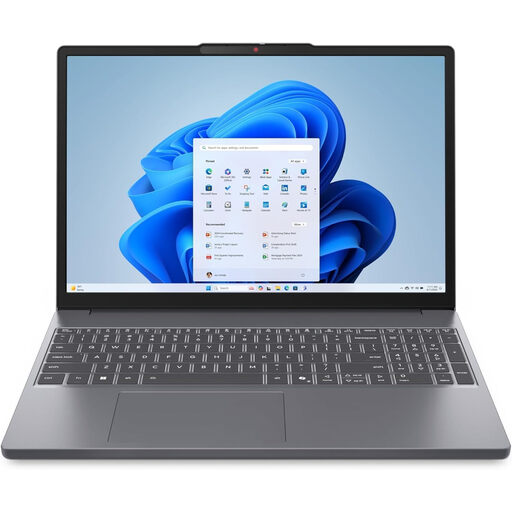 No image available
Consider this Windows laptop if you want to try the built-in Narrator screen reader with your own documents and online services.
AMD Ryzen 5 7535HS, 24GB DDR5 RAM, 512GB PCIe SSD and Windows 11 Home.
Try the keyboard layout and check compatibility with any braille display or other input device you need.
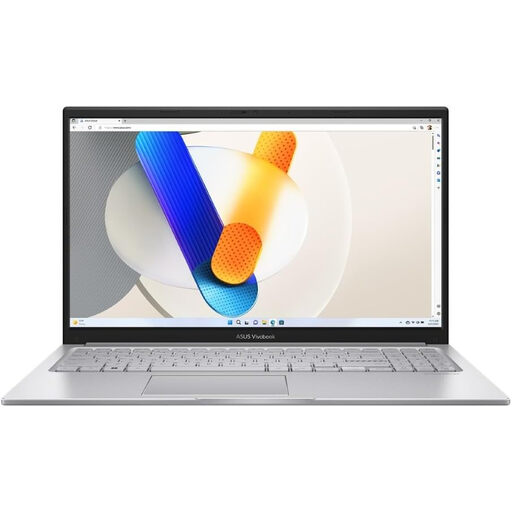 No image available
Consider the screen size for visually adjusted reading, and try your preferred zoom and keyboard settings before choosing it.
Intel Core 5 120U, 24GB RAM and 1TB SSD.
Confirm the operating system and compatibility with any specialist software or assistive hardware you require.
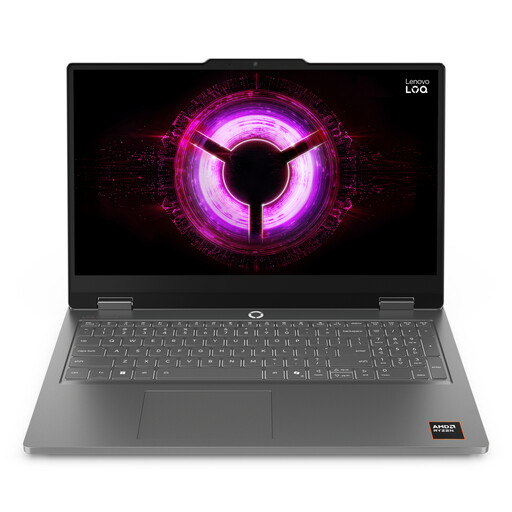 No image available
Consider this laptop if its display size suits your preferred visual settings, but check the keyboard in person if tactile orientation is important.
AMD Ryzen 7 170, 16GB RAM, 1TB SSD and GeForce RTX 5050.
Confirm the operating system and test any required screen reader, magnifier or online service.
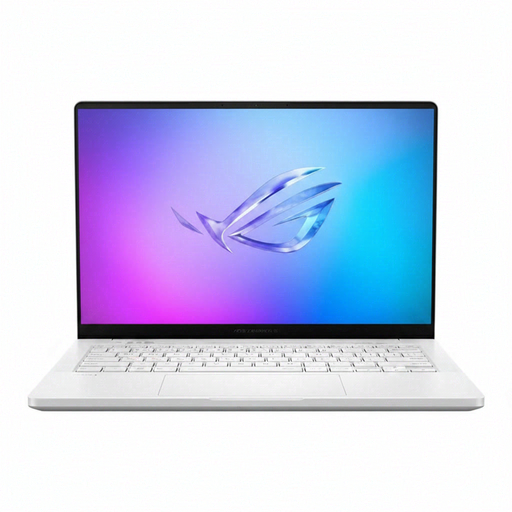 No image available
Consider this 14-inch Windows laptop if a smaller display fits your setup; try the zoom level and keyboard access your tasks require.
AMD Ryzen AI 9 HX 370, 32GB LPDDR5x-SDRAM, 2TB SSD, GeForce RTX 5070 Ti and Windows 11 Home.
Check its weight, display finish and keyboard suitability if those affect how you will use it.
 No image available
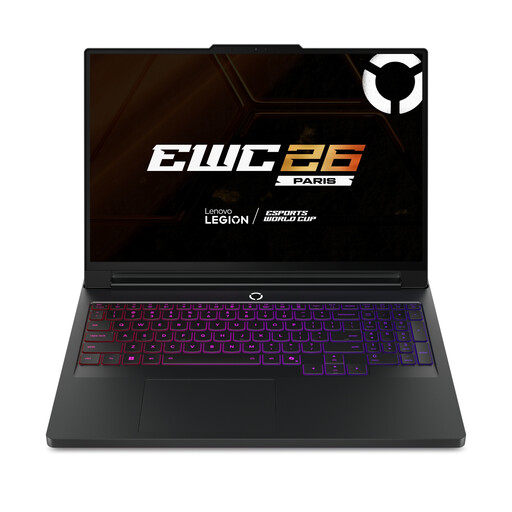
Consider the 16-inch screen if you prefer more display area, while testing whether your chosen magnification and input arrangement work for you.
Intel Core Ultra 9, 64GB RAM, 2TB SSD, GeForce RTX 5090 and Windows 11 Home.
Check its weight, display finish and keyboard suitability before treating it as a portable alternative to a fixed workstation.
Built-in tools are a sensible starting point if they let you complete your essential tasks. Windows includes Narrator, while Mac includes VoiceOver and visual adjustments; AbilityNet recommends trying options because screen-reader choice is individual. Consider specialist software when you need its particular workflow or visual controls, and test it with the services you use.
Do not choose a Mac or Chromebook expecting to run the Windows versions of those programs. NV Access describes NVDA as a Windows screen reader, and Freedom Scientific publishes Windows requirements for JAWS and ZoomText. Check the exact software and version you need before choosing a computer.
Use the pre-activation period to test your most important tasks. Freedom Scientific says its software runs for 40 minutes before a reboot is required, so plan to check documents, required websites and your preferred input device during that time.
Microsoft’s Disability Answer Desk offers support for customers with disabilities using Microsoft products, including Windows and Office. For a problem with a particular third-party website or application, also contact that service’s provider.