Desk-based solo meeting hosts
If you usually lead meetings while seated, concentrate on keeping your face visible and your voice intelligible from your normal desk position. A wider presentation view may matter less than dependable everyday framing.


For a seated, one-person planning meeting, a 1080p webcam with light correction and suitable framing is a sensible starting point. Choose adjustable framing when you need to show notes or a board without exposing more of your home than necessary; consider 4K capture or Picture-in-Picture when presentations regularly call for those features. Check work-device permissions and your meeting service before relying on advanced controls or higher-resolution video: Zoom, for example, places conditions on sending 1080p.
If you usually lead meetings while seated, concentrate on keeping your face visible and your voice intelligible from your normal desk position. A wider presentation view may matter less than dependable everyday framing.
If you show notes, sketches or a small whiteboard, or stand while explaining a plan, check how easily the camera can change its view. Capture resolution alone does not tell you whether the material will fit in frame.
In a shared home or a meeting involving work information, consider what remains visible behind you and whether your organisation permits the camera and any companion software. The Information Commissioner's Office advises home workers handling personal data to use approved technology.
Decide what needs to appear in the shot, then check whether your work device and meeting service can use the camera features you plan to buy.
| Concern | What to check | Who this matters to |
|---|---|---|
| Framing people and materials | Check the available field of view and how framing changes. For example, AnkerWork specifies software-selectable 65°, 78° and 95° views for PowerConf C200. | When I switch between addressing the group and showing a sketch, I need the sketch in view without exposing the rest of my room. Around 29% of consumers put framing their planning materials first. |
| Video in uneven light | Look for the stated light-correction feature, then check your meeting service's video settings; a 4K camera does not by itself mean a 4K call. | With a window behind my desk or changing light during the day, I want colleagues to see my face clearly. For around 21% of consumers, that image is the primary concern. |
| Compatibility and setup | Confirm the connection, meeting service and permission to install companion software. Test the selected camera and audio before an important call. | If my work computer restricts apps, I need the features I depend on to work with its permitted setup. Getting the meeting running reliably comes first for around 29% of consumers. |
| Privacy and call audio | Check for a physical lens cover if you want one, keep the shot as narrow as practical and test microphone pickup in your room. | In a shared home, I want to control what colleagues can see and make myself heard without relying on a noise-reduction label alone. Around 21% of consumers make privacy and audio control their first priority. |
Capture resolution is not necessarily the resolution sent to participants. Zoom says group-meeting HD activates 720p for the active-speaker layout, while sending 1080p is subject to service, device, setting and bandwidth conditions.
Check the service, account and connection used for your planning meetings before choosing higher-resolution capture for that reason alone.
A wide shot may fit a board or notes, but it can also include private areas or work material unrelated to the discussion.
Start with the narrowest view that includes what you need to show. Reposition the camera or materials before widening the shot.
Logitech's Brio 500 auto-framing uses Logi Tune, and AnkerWork's PowerConf C200 field-of-view adjustment uses AnkerWork software. A managed work device may restrict those utilities.
Confirm software permission with your organisation before making either feature central to your choice. The Information Commissioner's Office advises using approved technology when handling personal data at home.
Logitech and AnkerWork describe noise-reducing microphone features, but those descriptions do not establish how speech will sound from your particular desk and room.
Make a short test call from your usual position. If speech is unclear, adjust placement or consider an approved headset or microphone.
The Brio 500 is a desk-based 1080p webcam option for a solo planning-meeting host.
The PowerConf C200 offers a way to switch between a closer personal view and a wider planning view.
The PanaCast 20 is a presentation-oriented option when framing a moving speaker or showing material alongside a face view matters.
These webcams offer different ways to frame a home-office planning call: remote-controlled digital zoom on one model and an adjustable wide view on the other. Check which view suits your desk, as well as any work-device requirements.
 No image available
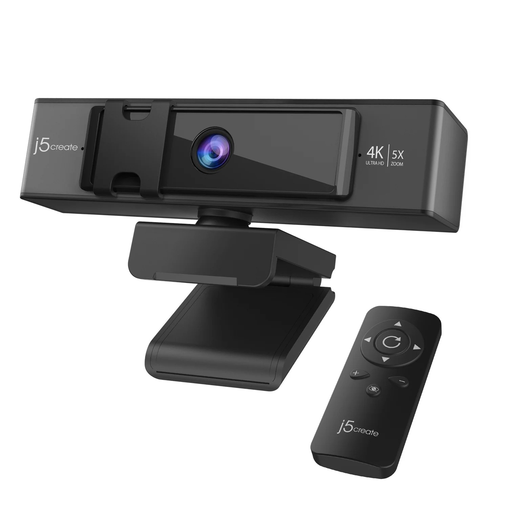
Consider this model if you want to adjust digital zoom by remote control during a planning call.
The product name specifies USB connection, 4K capture and 5x digital zoom. Check separately whether its controls provide any other framing mode you need, and whether your meeting service can send your intended video resolution.
 No image available
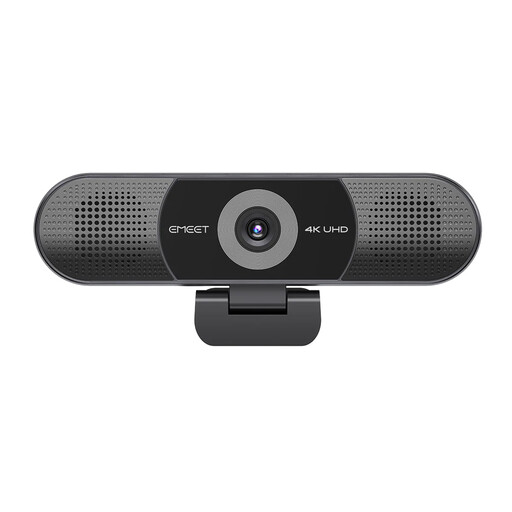
Consider this model when your planning discussion calls for a wider adjustable view rather than only a close face shot.
The product name specifies a Sony sensor, fixed focus, a 98° adjustable field of view, a four-microphone array, dual AI speakers and plug-and-play USB connection. Check its exact privacy controls if covering the lens matters to you.
No: a 1080p webcam with light correction can suit a seated, one-person meeting. Consider 4K capture when you have a specific presentation or framing need, but check your meeting service first. Zoom says its group-meeting HD setting activates 720p for the active-speaker layout, and sending 1080p has additional conditions.
Test the view from your usual seat, what is visible in the background and how your voice sounds. For a Teams meeting, Microsoft's Device Test can check the selected camera, microphone, speaker and network; confirm that any companion camera software is permitted on your work device.
Not automatically. Test a call in the room and lighting you normally use, then consider an approved microphone or light if speech is unclear or your face is difficult to see. Built-in microphone and lighting features alone cannot establish the result in your setup.
Keep the shot limited to what the meeting needs and follow your organisation's rules for cameras and software. For home working that involves personal data, the Information Commissioner's Office advises using approved technology and organisational communication facilities where available; it also advises sharing only necessary information securely.