Solo tutors at a noisy desk
If you teach close to a laptop or monitor, focus on how clearly your voice comes through and how tightly you can frame yourself. A personal USB webcam need not cover an entire room.


A personal webcam is a sensible starting point when one tutor teaches close to a computer; consider an all-in-one video bar when several people need to be seen and heard across a small room. Choose the microphone arrangement and field of view for the actual seating positions, then check the computer connection and the video quality your conferencing service can deliver.
If you teach close to a laptop or monitor, focus on how clearly your voice comes through and how tightly you can frame yourself. A personal USB webcam need not cover an entire room.
If a colleague or local learners join the tutorial, check whether the camera, microphones and speaker can serve their seating positions. A room-oriented device may make more sense than a webcam aimed at one desk.
If you move, show physical materials or use a second visual source, look at framing and presentation features as well as resolution. Check that your conferencing service supports the video layout you intend to use.
Decide whether the tutorial takes place at one desk or across several seats, then assess speech clarity, framing and setup in that space.
| Concern | What to check | Who this matters to |
|---|---|---|
| Speech in office noise | Check the microphone arrangement, stated noise-reduction features and your distance from the camera; test a call with normal office noise. | If nearby conversations make my explanations hard to follow, I need my voice to remain understandable. Around 36% of consumers put speech clarity first. |
| Solo framing and demonstrations | Check field-of-view settings and whether autofocus, automatic framing or picture-in-picture suits your teaching materials. | When I switch between speaking to camera and showing an object, I need the useful part of the scene to stay in view. Framing is the main concern for around 29% of consumers. |
| Shared-office coverage | Compare seating width and speaker distance with the stated view and microphone pickup range; check whether a speaker is built in. | If a colleague joins the lesson, both of us need to be seen and heard from our usual seats. Around 21% of consumers prioritise coverage for more than one person. |
| Setup and privacy | Confirm the computer connection, mounting method and whether a physical cover or shutter meets your needs. | If I move between desks, I need a camera I can set up and put away without disrupting the next session. Simple setup and privacy come first for around 14% of consumers. |
Camera resolution and outgoing video quality are different. Zoom Support describes account and setup conditions for HD video, including 720p active-speaker video in group meetings when HD is enabled.
Check your conferencing account, app settings, computer and upload connection before choosing a camera mainly for its capture resolution.
A room-wide view can include unnecessary office background and leave the presenter occupying less of the picture.
Measure the area you need to show, then choose a view that includes the presenter and teaching materials without unnecessarily widening the shot.
Manufacturer microphone and noise-reduction specifications do not establish how speech will sound from your desk with colleagues or ventilation nearby.
Record a call from the intended teaching position under typical office conditions and listen to the sound at the remote end.
If the built-in microphones do not suit the room, a closer microphone or headset may be needed.
AnkerWork positions the PowerConf C200 as a personal USB webcam, with 2K video and selectable 65°, 78° and 95° views.
Jabra offers the personal PanaCast 20 camera and the room-oriented PanaCast 50 video bar.
Logitech describes MeetUp as a USB conference camera for huddle and small rooms, combining a camera, beamforming microphones and a speaker system.
Yealink specifies the UVC34 as an all-in-one USB video bar with a 120° view, microphone array and electric privacy shutter.
These webcams offer a choice between remote-controlled framing at a personal workstation and an all-in-one camera with microphones and speakers. Check either option from the teaching position before relying on it in a noisy office.
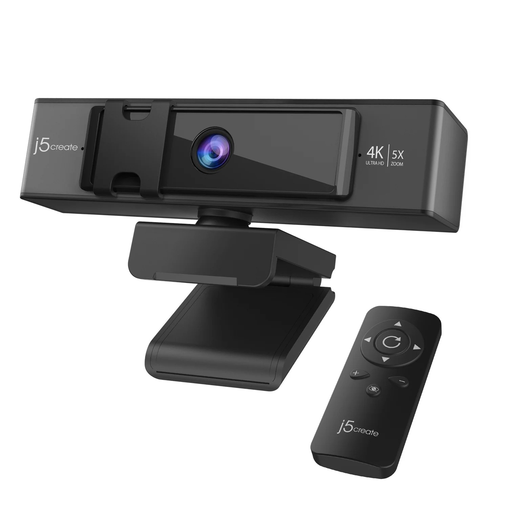 No image available
Consider this for a tutor working at a computer who wants to adjust the shot during a tutorial.
The product name specifies 5x digital zoom with remote control. Test speech clarity at your desk, and check the outgoing video settings of your conferencing service before choosing it for 4K capture.
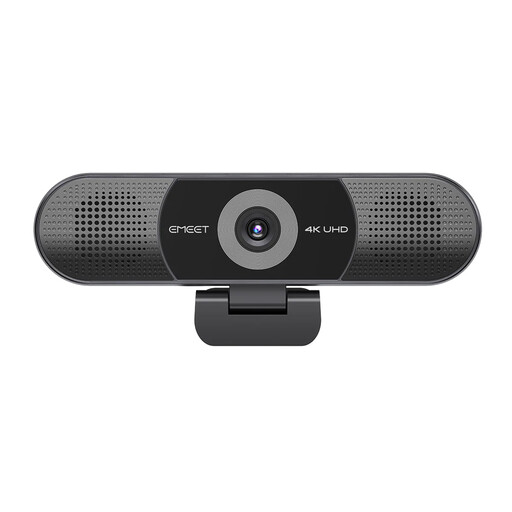 No image available
Consider this when an office tutorial calls for built-in microphones and speakers rather than a camera alone.
The product name specifies four microphones, dual speakers, an adjustable 98° field of view and fixed focus. Check whether that framing and focus suit your seating position and close-up materials, and test how speech sounds in the room.
No: 4K capture does not by itself determine the video learners receive. Zoom Support describes conditions for HD output, including 720p active-speaker video in group meetings when HD is enabled; check your account, settings, computer and connection if higher outgoing resolution matters.
For one seated tutor, choose a view that contains your face and normal demonstration area without unnecessarily showing the office. A wider view becomes useful when a co-tutor, whiteboard or several seats must remain in frame; check the actual room layout before choosing a room bar.
They may suit the setup, but a stated microphone array or noise-reduction feature does not guarantee clear speech in your particular office. Test a recorded call with your usual background noise and teaching distance; if speech is still unclear, consider a closer microphone or headset.
Use an appropriate electronics-recycling route rather than putting it in general waste. GOV.UK describes waste electrical and electronic equipment rules intended to reduce electrical waste; check the collection or take-back options available where you live.