Desk workers adding one screen
If you want more room for documents, email or reference material, start with the laptop’s existing video output and the monitor’s input. A matching cable or suitable adapter may meet that need without a dock.


Choose the connection by checking your exact laptop model’s video-capable ports and external-display limits against the monitors you want to use. A compatible cable or adapter may be enough for one screen; a native USB-C or Thunderbolt dock needs the right laptop video capability, while a USB-A DisplayLink dock offers a different route for some older laptops but requires compatible software. Check charging separately if you want one cable to handle the whole desk.
If you want more room for documents, email or reference material, start with the laptop’s existing video output and the monitor’s input. A matching cable or suitable adapter may meet that need without a dock.
For a regular desk with monitors and peripherals, check the laptop’s supported display count and modes alongside the dock’s host connection and outputs. Decide whether charging through the dock is part of the setup too.
If the laptop cannot supply the native USB-C video a dock needs, check whether a USB-A DisplayLink product supports your operating system and intended displays. Changing a plug’s shape alone does not create a video signal.
Start with the laptop manufacturer’s specifications for your exact model, then match its display capability to your monitor inputs and intended number of extended screens. The connection routes differ in what the laptop must provide.
Choose when: The laptop already supplies compatible video and you need to connect a monitor, whether directly or through an adapter for its input.
Trade-off: An adapter cannot create video from a data-only USB-C port or increase the laptop’s native display limit.
Choose when: The laptop supports the dock’s host video connection and you want to connect displays and desk peripherals through it.
Trade-off: The laptop still determines supported display modes; dock charging is a separate specification.
Choose when: An older laptop has suitable USB-A connectivity but lacks the native video connection needed for your additional work displays.
Trade-off: DisplayLink uses USB graphics hardware and compatible software, so check operating-system support and setup requirements before buying.
A monitor with an integrated USB-C dock is another way to connect a desk, but its video input and charging output must still match the laptop’s supported USB-C functions. The table below helps narrow the checks according to what matters most to you.
| Concern | What to check | Who this matters to |
|---|---|---|
| Laptop display capability | For the exact model, check video-capable ports and the supported number, resolution and refresh rate of external displays. | If I am planning several screens, I need to know whether my laptop can run the arrangement before choosing a dock; around 36% of consumers put that capability check first. |
| Expansion from USB-A | Check for a DisplayLink-based product with a suitable USB-A host connection, operating-system support and the required display outputs. | When my older laptop has no suitable USB-C video port, I need a way to add work displays rather than a change of plug shape; roughly 29% of consumers prioritise that expansion route. |
| One-cable desk setup | Compare the dock’s host video connection and charging capability with the laptop’s supported display modes and charging requirements. | If I regularly connect monitors and peripherals at my desk, I want to know whether the same connection can also handle charging; around 21% of consumers make desk consolidation their main concern. |
| Matching monitor inputs | Match the laptop’s video output to the monitor’s input, and check an adapter’s signal direction if their connectors differ. | When I already have a monitor, I want a connection that works with its input without buying an unnecessary converter; about 14% of consumers put connector matching first. |
A USB-C socket does not by itself establish support for native display output. VESA describes DisplayPort Alt Mode as a capability of the video source, not a property guaranteed by the connector shape.
Check the exact laptop model’s specifications for the video mode required by the cable, monitor or native dock.
Two sockets on a dock do not establish that a particular laptop can run two extended external screens. Apple notes, for example, that a MacBook Pro’s supported count depends on its model and the displays’ resolution and refresh rate.
Confirm the manufacturer-stated display limit and the intended modes for your exact laptop before selecting a multi-output dock.
Changing the connector does not provide the native DisplayPort Alt Mode or Thunderbolt signal required by a dock that relies on it. DisplayLink is a separate USB graphics approach.
For a USB-A laptop, check for a dock or adapter explicitly designed for DisplayLink, including its software and operating-system requirements.
Monitor connections and host charging are separate specifications. StarTech.com documents a USB-C/USB-A dual-monitor dock that does not provide USB-C Power Delivery.
If you want to leave the laptop charger off the desk, match the chosen dock or monitor’s stated charging output to the laptop’s accepted charging method and requirement.
These brands offer product lines relevant to laptop display connections. Compare the documentation for a specific model rather than assuming every dock in a range has the same host connection, display support or charging capability.
StarTech.com lists hybrid USB-C/USB-A docking products, including DisplayLink-based models for desk setups.
Targus lists dual-display docks across several connector categories and provides docking-station support materials.
Plugable groups docks by laptop connection, display count and output type, including DisplayLink-oriented products.
These products cover USB-C desk connections, display adapters and a direct HDMI cable. Match any choice to your laptop’s video capability and monitor inputs; the USB-C products are not substitutes for a USB-A DisplayLink connection.
 No image available
Consider this dock for a desk that needs two HDMI monitor connections, provided your laptop supports the intended display arrangement.
The product name specifies dual HDMI 4K connections and 100W Power Delivery pass-through. Check the laptop’s USB-C video capability and charging requirements before relying on either function.
 No image available
This hub is a candidate when you need HDMI connections alongside desk peripherals and have a laptop with the required USB-C video capability.
Its product name lists two HDMI outputs, individually described as 4K at 120Hz and 4K at 60Hz, plus USB, RJ45, SD/TF and USB-C PD connections. Check the hub’s simultaneous display modes against your exact laptop; the individual output figures do not establish what both screens can run together.
 No image available
Consider this adapter if you need a choice of display connectors as well as peripheral connections at a desk.
The product name lists two HDMI outputs, one DisplayPort output, USB 3.0 and USB 2.0 ports, RJ45, PD, SD/TF and audio. Confirm its required laptop video protocol and supported simultaneous display modes before planning multiple extended screens.
 No image available
This adapter offers HDMI and VGA connections for a monitor with either input, provided the laptop can send video through its USB-C port.
The product name also specifies Gigabit Ethernet and two USB 3.0 ports. Check the exact adapter documentation for its display arrangement rather than treating its two connector types as confirmation of two simultaneous external screens.
 No image available
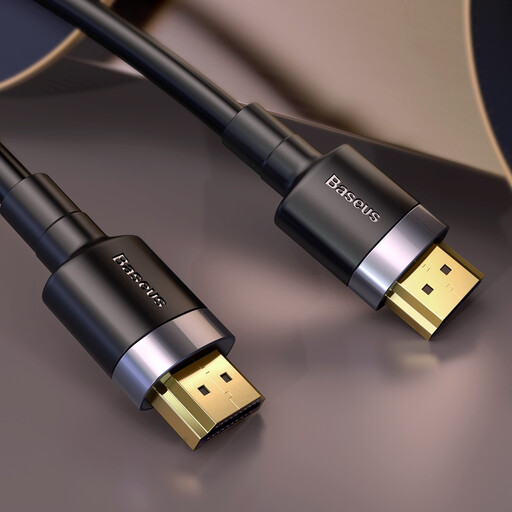
Use a direct cable route when the laptop already has a compatible HDMI video output and the monitor has an HDMI input.
This is a 3m male-to-male HDMI cable, not a dock or signal-converting adapter. Check both devices’ specifications for the display mode you intend to use.
Start with the exact laptop model and its manufacturer-stated external-display support. Note its video-capable ports, supported display count and modes, operating system, monitor inputs and whether you need extended rather than duplicated screens. If charging through the connection matters, check that separately.
A change of plug shape will not supply the native DisplayPort Alt Mode or Thunderbolt video required by a dock that depends on it. For a laptop relying on USB-A to add screens, look instead at a product explicitly designed around DisplayLink USB graphics and check its host and software requirements.
Yes, a DisplayLink-based setup requires compatible software for its operating system. Synaptics provides Windows DisplayLink drivers, while DisplayLink Support says DisplayLink Manager on macOS requires explicit Screen Recording permission; check the chosen device maker’s instructions as well.
No: the dock’s outputs must work with the laptop’s host connection and supported display configuration. Check the exact model and intended resolutions and refresh rates; Apple notes that simultaneous external-display support on MacBook Pro varies with the model and those display modes.