USB-A-only laptop owners
If your laptop lacks video-capable USB-C but you want two external screens and shared desk peripherals, compare a specified USB-A DisplayLink dock with the video outputs your laptop already supports.


Start with your exact laptop model, operating system, supported external-display count and video-capable ports, then match those capabilities to both monitors. Direct video connections can work if the laptop supports two extended displays at the modes you need; a compatible dock can consolidate connections, while a USB-A DisplayLink dock is an option when native outputs are insufficient and its software suits your setup. A conventional USB-A dock does not charge the laptop through its host connection.
If your laptop lacks video-capable USB-C but you want two external screens and shared desk peripherals, compare a specified USB-A DisplayLink dock with the video outputs your laptop already supports.
If you want monitors, keyboard and mouse to stay connected at your desk, check that your laptop’s USB-C or Thunderbolt port supports the video and charging functions you need.
If you need two positionable displays, check their inputs, stands and cable routes against your laptop and the space available on your desk.
Check the laptop’s native display support first, then decide whether direct cables or a compatible dock best suit your desk and connection needs.
Choose this when: Your exact laptop supports two external displays at the resolutions and refresh rates you need, and its outputs can connect to both monitors.
Trade-off: You may have more cables to unplug when moving the laptop. Apple Support notes that Mac display limits depend on the model and display settings.
Choose this when: The exact host port, operating system and dock support two extended displays, and you want fewer connections at the laptop.
Trade-off: A USB-C-shaped socket alone does not confirm video or charging support; display behaviour can also differ by operating system and dock.
Choose this when: Your laptop lacks a suitable USB-C video connection and the specific dock supports its operating system and two independent displays.
Trade-off: DisplayLink software is required for models specified that way; a conventional USB-A dock does not charge the laptop through its host connection.
| Concern | What to check when buying | Who this matters to |
|---|---|---|
| Two independent displays | Check the laptop’s external-display limit and supported modes; distinguish Extend from Duplicate. | I need two separate workspaces, not just two connected screens, so I would check the laptop’s display support first. About 31% of consumers put two-screen compatibility first. |
| No suitable USB-C video port | Check for explicit USB-A DisplayLink support, compatible software and outputs for both monitors. | If my laptop has no suitable USB-C video connection, I need a route that can still support two screens and works with its operating system. Around 25% of consumers prioritise a no-USB-C route. |
| Fewer daily connections | Count the dock’s required monitor outputs and USB ports; verify charging separately. | I want the keyboard and mouse to stay at the desk, with fewer cables to reconnect when I return. Roughly 19% of consumers prioritise a quicker desk reconnection. |
| Desk fit and screen position | Compare monitor inputs, stand adjustments, footprint and supplied cables with your available space. | I need both screens to fit and sit comfortably alongside my keyboard and mouse. About 13% of consumers put desk fit and viewing position first. |
| Software and display limitations | Check the exact dock’s operating-system support, installation permissions and any relevant protected-video conditions. | If I rely on particular software or protected video, I need to know whether the dock’s drivers and display behaviour suit those tasks. Around 12% of consumers prioritise software limitations. |
The laptop’s display limit, video-capable ports and operating-system behaviour affect whether both screens can run in the intended modes.
Check the exact laptop and dock display specifications together before choosing a connection route.
A conventional USB Standard A–B dock does not charge the computer through its host connection.
Plan to keep the laptop’s own power supply connected. For a USB-C dock, check the laptop’s charging support and the dock’s stated power delivery separately.
DisplayLink docks require compatible software. DisplayLink Support also specifies macOS permissions for DisplayLink Manager and notes that some protected video may not play while DisplayLink screens are connected.
Check the software and permissions for your operating system, and consider whether protected-video use matters to your setup.
Two monitors also need suitable inputs, power leads, stands and space for the connected peripherals.
Measure the usable desk area and plan the screen, keyboard and mouse positions before selecting monitors and cables.
These examples relate to specific models or product lines; stated features are manufacturer specifications, not independent performance tests or endorsements of an entire brand.
The UD-6950H is a USB-A or USB-C DisplayLink option for two external displays and desk peripherals.
The SD4700P is a DisplayLink dock specified for USB-A or USB-C hosts.
The USB3DOCKH2DP is a USB-A host dock with a dual-monitor option and peripheral connections.
The INC002vfBK is a USB-C dual-display dock for a laptop with a suitable host connection.
The P2425H illustrates a separately selected external monitor; its USB downstream ports do not create a second laptop video path.
These Joybuy options cover USB-C hubs and docks alongside individual monitors for building a multi-screen laptop workspace. Check each laptop’s video support and the intended two-display configuration before choosing.
 No image available
For a USB-C laptop desk needing a display connection alongside peripheral connections; plan a second supported display route for a two-screen setup.
The product name lists USB-C, 4K HDMI and SD/TF card slots.
 No image available
For a USB-C setup needing several display and peripheral connections; check that the laptop and adapter support the intended two-screen mode.
The product name lists 2 HDMI, DisplayPort, 2 USB 3.0, 2 USB 2.0, RJ45, PD, SD/TF and audio connections.
 No image available
For a USB-C laptop whose host connection supports the stated video route; check USB-C DisplayPort Alt Mode on the exact laptop.
The product name lists dual HDMI 4K and 100 W power delivery pass-through.
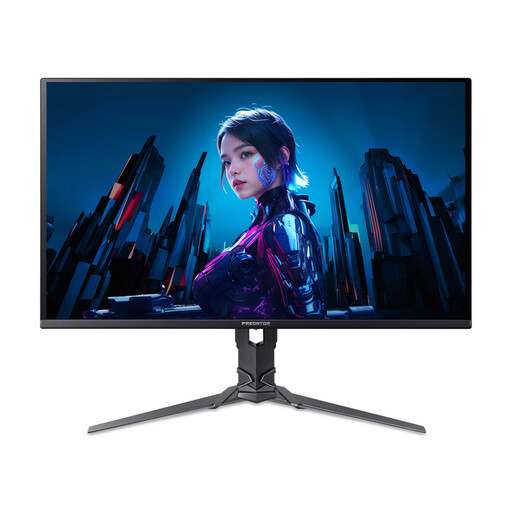 No image available
This is one display in a two-screen setup, so include a second screen and confirm the laptop supports both.
The product name lists a 2560 × 1440 resolution, QD-OLED panel and 240 Hz refresh rate.
 No image available
This is one display in a two-screen setup, so confirm the laptop can support the second monitor and check that the screen fits your desk.
The product name lists a 3440 × 1440 resolution, 2 HDMI ports and DisplayPort, with stated refresh rates of 100 Hz over HDMI and 175 Hz over DisplayPort. The stand is listed with height, swivel and tilt adjustment.
Find the exact model and operating system, then check the manufacturer’s external-display specifications and which ports carry video. Compare the intended monitor modes with the precise dock and host-port requirements; a USB-C connector’s shape alone does not confirm video or charging support.
Do not assume it will. Changing the plug shape does not establish that a laptop without the required video capability can use a USB-C video dock. For a USB-A host, check for a dock explicitly specified for USB-A DisplayLink and confirm its software requirements.
After connecting supported monitors, select Extend in the operating system’s display settings and arrange the screens to match their positions on your desk. Microsoft Support recommends checking the Extend setting when troubleshooting a Windows external display; also check monitor inputs, cables and the laptop or dock’s display limits.
Check the exact dock’s operating-system support and install DisplayLink software if required. DisplayLink Support says macOS users need to grant Screen Recording permission for DisplayLink Manager; on a work-managed laptop, confirm that software installation and permissions are allowed.
A conventional USB Standard A–B docking connection does not charge the laptop through its host connection, so keep the laptop’s own power supply connected. For a USB-C dock, check the laptop’s charging support and the dock’s stated power delivery separately.