What should you check before choosing?
USB-C or Thunderbolt dock
Consider it when: your exact laptop supports the required native video connection, display count and monitor arrangement.
Trade-off: a USB-C-shaped port alone does not confirm video support, and a dock cannot remove the laptop’s display limit.
USB-A DisplayLink dock
Consider it when: native video connections are insufficient and the exact dock supports your laptop and operating system.
Trade-off: DisplayLink requires software; USB-A does not provide laptop charging, and some applications or protected video may have limitations.
Direct display connections
Consider them when: the laptop’s own outputs and graphics support the intended independent screens.
Trade-off: separate display and peripheral connections may mean more cables at the desk.
Monitor hub or multiport adapter
Consider it when: its video method, host connection and port selection match the laptop and desk setup.
Trade-off: multiple sockets do not prove support for multiple extended displays; MST depends on the host and operating system.
For consumers choosing a connection for an existing laptop, the table pairs each primary concern with the checks that matter for that setup.
| Concern |
What to check when buying |
Who this matters to |
| Independent displays |
Check the exact laptop’s supported external-screen count and the resolution and refresh rate for the intended simultaneous setup. |
If I need two separate desktops at specific screen settings, I put the laptop’s display capability first; around 36% of consumers share independent displays as their primary concern. |
| Host and software compatibility |
Check the laptop’s full port specification and operating system; for DisplayLink, confirm driver support and permission to install it. |
If my available port or managed operating system limits what I can install, I prioritise a compatible connection route; around 29% of consumers put host and software compatibility first. |
| Charging and peripherals |
Compare the dock’s stated host charging output with the laptop’s requirement, and check its ports against the devices used at the desk. |
If I want to reconnect screens, peripherals and supported charging together, I focus on the dock’s actual connections and power; around 21% of consumers put charging and peripheral consolidation first. |
| Simplest sufficient connection |
Check whether the laptop’s existing outputs can run both screens independently before choosing direct cables, an adapter or a dock. |
If my laptop already supports the screens I need, I would rather avoid extra dock features unless they simplify the desk; around 14% of consumers prioritise using existing display outputs. |
Joybuy product options
These Joybuy options are USB-C docks and multiport hubs for connecting a laptop display and desk peripherals. Check each model’s output arrangement and your laptop’s supported simultaneous displays before expecting two independent screens.
 Image unavailable
Targus USB-C Universal Dual HDMI 4K Docking Station, 100W Power Delivery Pass-Thru
For a USB-C host with compatible DisplayPort Alt Mode, this dock is listed with two HDMI outputs for a multi-screen desk.
The description specifies dual 4K UHD at 60 Hz and 100 W Power Delivery pass-through; it also specifies an external 100 W+ adapter as the dock’s power source.
Joybuy
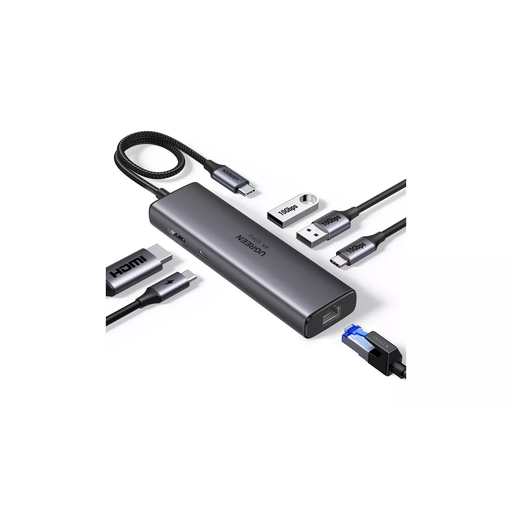 Image unavailable
UGREEN USB-C Multi-function Docking Station, HDMI, 2×USB-A 3.2, USB-C 3.2, RJ45, PD 4K/60
For a desk needing an external HDMI screen and wired peripherals, the listed connections include HDMI, USB-A, USB-C data and Ethernet.
The description specifies HDMI up to 4K at 60 Hz and up to 100 W Power Delivery pass-through.
Joybuy
 Image unavailable
AJAZZ AKP01E 8-in-1 Expansion Dock
For a USB-C desk setup needing HDMI and several peripheral connections, the listed ports include USB, Ethernet and SD/TF card slots.
The description lists 100 W PD input and USB 3.0 connections.
Joybuy
Frequently asked questions
Can an HDMI splitter give me two separate extended desktops?
No. Microsoft Support explains that a splitter duplicates the same signal rather than creating two independent displays. Check your laptop’s other supported outputs or a compatible alternative video method.
What should I do if Windows detects only one screen after I connect a dock?
Check the cables and your laptop’s graphics limit, then use Windows display settings to detect and arrange the screens and select an extended display mode. Microsoft Support’s display guidance cannot make hardware support a display capability it lacks.
Does DisplayLink need installation or permission on a Mac?
Yes. DisplayLink Support says its macOS Manager needs Screen Recording permission to render displays over the USB device. Check the exact dock’s supported macOS version and whether your managed laptop permits the software installation.
Will a USB-A dock charge my laptop?
Do not assume it will. DisplayLink Support says USB Standard A-B docks are not designed to charge the computer; Kensington and StarTech.com also specify separate laptop power for the USB-A arrangements described for their models.
What UK product-safety rules and after-sales rights should I check?
Check the product documentation and the rules for the part of the UK where the equipment will be used. GOV.UK describes different electrical-equipment regimes for Great Britain and Northern Ireland. For most online purchases, GOV.UK describes 14 days from receiving an item to notify the seller of cancellation and a further 14 days to return it, subject to statutory exceptions; cancellation rights are separate from remedies for faulty goods.


