Start with your laptop’s exact external-display limit and video-capable ports, then check that the chosen dock or adapter supports both monitors’ connections, resolutions and refresh rates. A compatible USB-C or Thunderbolt dock can bring screens and peripherals together; USB-A DisplayLink or separate connections may suit laptops without the right native video connection, but each route has its own software and compatibility checks.
Who these connection options suit
One-cable desk builders
If your laptop has a documented video-capable USB-C or Thunderbolt connection, a compatible dock may connect two screens and desk peripherals through one host connection. Check charging separately; VESA describes DisplayPort over USB-C as an Alt Mode function, and CalDigit notes that dock performance depends on the host computer.
USB-A laptop owners
If your laptop lacks suitable native USB-C video, a USB-A DisplayLink dock may be an option when its software, operating-system support and display outputs match your setup. StarTech’s DK30A2DH is one model-specific example, not a compatibility guarantee for other docks or laptops.
Separate-connection users
If your laptop already supports two external screens through its own video outputs, separate connections or a specific adapter may be enough. Apple Support notes that Mac display capacity depends on the exact model and the displays’ resolution and refresh rate.
What to check before buying
For a two-screen laptop desk, check the laptop and the exact dock or adapter as a pair; the number of sockets alone does not establish that both screens will work.
USB-C DisplayPort Alt Mode or Thunderbolt dock
Consider when: your laptop supports the dock’s required host connection and its intended two-display mode.
Trade-off: a USB-C-shaped port alone does not establish video support, and a dock cannot override the laptop’s display limit.
USB-A DisplayLink dock
Consider when: the laptop has a suitable USB-A connection but lacks a suitable native USB-C video route, and the operating system supports the dock’s software.
Trade-off: software installation is part of setup; DisplayLink on macOS requires Screen Recording permission, and some protected video may not play while DisplayLink screens are connected.
Direct display adapters or hubs
Consider when: you need display adaptation or selected peripherals rather than a full dock.
Trade-off: model-specific operating-system and display-mode limits matter; for example, StarTech specifies its USB32HD2 for Windows, not macOS, ChromeOS or Linux.
Separate monitor connections
Consider when: the laptop’s documented video outputs support both screens and a single dock connection is unsuitable.
Trade-off: this avoids relying on one dock’s display mode but does not provide the same single-connection setup.
| Concern |
What to check when buying |
Who this matters to |
| Two screens through one native-video connection |
Check the exact laptop’s simultaneous external-display limit, host video support and the dock’s stated display mode, including the monitors’ resolutions and refresh rates. |
If I want one native-video connection for both screens, I need the laptop and dock to support that exact setup. Around 36% of consumers put native two-screen compatibility first. |
| USB-A DisplayLink compatibility |
Check the USB-A host connection, extended-display support, operating system, software installation requirements and whether laptop charging is separate. |
If my laptop lacks suitable USB-C video, I need to know whether a USB-A dock’s software and outputs fit my system. Around 29% of consumers prioritise this USB-A route. |
| Screen and peripheral fit |
Match both monitors’ inputs and intended display modes to the dock’s simultaneous outputs; check the peripheral ports and charging specification you need. |
If I plan to connect existing screens and desk peripherals, their connections and intended modes need to match the dock. Around 21% of consumers prioritise this display-and-peripheral fit. |
| Dock, adapter or separate cables |
Check the laptop’s documented display support and whether the specific adapter provides two extended screens; compare that with the peripherals and connections you need. |
If the laptop can already drive both screens, I may prefer an adapter or separate cables to avoid a full dock. Around 14% of consumers prioritise a minimal-hardware setup. |
Buying pitfalls to avoid
-
Assuming a USB-C port guarantees two-screen video
The host computer determines which display modes a dock can deliver. CalDigit notes that TS4 functionality depends on the host, and USB-C-based hosts may have reduced functionality.
Check the exact laptop’s video and external-display specifications against the dock’s host requirements and stated dual-display mode.
-
Overlooking DisplayLink software and power
DisplayLink requires software, and some models do not charge the laptop. StarTech specifies that its DK30A2DH does not provide laptop USB-C Power Delivery; macOS also requires Screen Recording permission for DisplayLink to work.
Check the model’s operating-system support, software requirements and charging provision before choosing this route.
-
Counting HDMI sockets instead of checking display modes
Two physical outputs do not by themselves confirm that an adapter supports the two-screen mode you need. StarTech specifies different maximum modes for the two outputs on its USB32HD2.
Read the exact model’s simultaneous-output and operating-system specifications, then compare them with both monitors.
-
Assuming DisplayLink behaves like native video for every use
DisplayLink says some protected content may not play while its screens are connected, and macOS requires Screen Recording permission.
If protected video or macOS permissions matter to your setup, check those conditions before choosing a DisplayLink dock.
Relevant brands to consider
StarTech.com
Its DK30A2DH is a hybrid DisplayLink dock for USB-A or USB-C hosts; its USB32HD2 is a separate Windows-only dual-HDMI adapter.
- StarTech’s DK30A2DH specifications describe USB peripheral ports and several pairs of display outputs.
- The DK30A2DH does not provide laptop USB-C Power Delivery. The USB32HD2’s Windows-only compatibility and output limits apply to that model, not the brand’s other products.
Dell
The Dell Pro Dock WD25 is a USB-C desk-docking option to assess when display connections, peripherals and charging matter.
- Dell publishes dual-display modes and up to 100 W Power Delivery for Dell systems and 96 W for non-Dell systems on this model.
- Those figures do not establish that a particular laptop supports every listed display mode; check compatibility for the exact host.
CalDigit
The TS4 is a Thunderbolt-focused dock for a desk that needs extensive connections, subject to host-specific display support.
- CalDigit specifies up to 98 W host charging and model-dependent dual-display support.
- CalDigit states that original M1 Macs do not support two external displays through the TS4; USB-C-based hosts may also have reduced functionality.
Lenovo
The ThinkPad Universal USB-C Dock 40AY0090UK offers a USB-C route with DisplayPort, HDMI and desk-peripheral connections.
- Lenovo describes compatibility with most USB-C laptops running Windows 10 or later.
- That description is not a guarantee for every laptop-and-monitor combination; check compatibility and video configuration for the exact host.
Plugable
The UD-3900 illustrates a USB 3.0-connected dual-display dock route for comparing USB-based video with native-video docks.
- Plugable describes dual-display connectivity through a USB 3.0 host connection on this model.
- Plugable states that the UD-3900 does not charge the laptop. Check software, operating-system and monitor compatibility for the intended setup.
Joybuy product options
These USB-C hubs and docks offer HDMI-based display connections and peripheral ports. Check that your laptop supports the required USB-C video mode and can drive the intended two-screen setup; listed outputs alone do not confirm compatibility.
 No image available
AJAZZ AKP01E 8-in-1 USB-C Hub
Consider it if you need USB-C-connected display and peripheral expansion, but check that your laptop supports the required video mode and two external displays.
Listed connections: HDMI, three USB 3.0 interfaces, Ethernet, SD and TF card slots.
View on Joybuy
 No image available
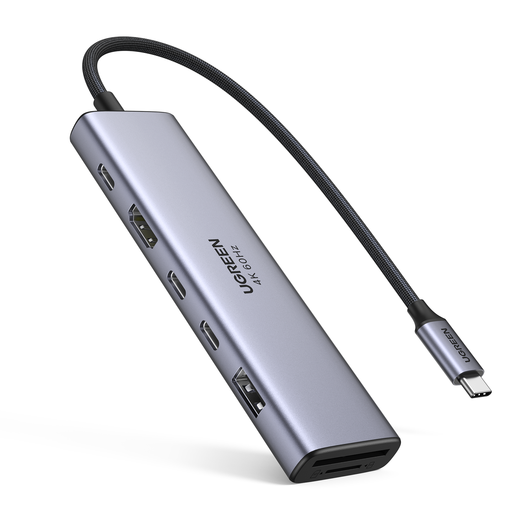
UGREEN 7-in-1 USB-C Multi-Function Docking Station
Consider it if you need a USB-C hub with HDMI and additional desk connections; confirm your laptop’s video support and whether the listed display connection meets your two-screen needs.
Listed connections: HDMI, two USB-C 3.2 ports, USB-A 3.2, SD and TF slots, and PD.
View on Joybuy
 No image available
USB-C Hub with 2 HDMI and DisplayPort
Consider it if you need multiple display and peripheral connections from USB-C, but check the laptop’s display limit and the hub’s supported simultaneous modes.
Listed connections: two HDMI outputs, DisplayPort, USB 3.0, USB 2.0, RJ45, PD, SD, TF and audio.
View on Joybuy
 No image available
Targus USB-C Universal Dual HDMI 4K Docking Station
Consider it if your laptop supports USB-C Alt Mode and you want a dock with two HDMI outputs; check the host’s display limit and compatibility before relying on a two-screen setup.
The listing specifies two 4K UHD displays at 60 Hz, 100 W Power Delivery pass-through, USB-A ports, Ethernet and SD/Micro SD readers.
View on Joybuy
Frequently asked questions
How do I check whether my laptop can run two external monitors?
Check the exact laptop model’s published simultaneous external-display limit, including the planned resolution and refresh rate, then match its video-capable ports to the dock or adapters. Two sockets on a dock do not increase the laptop’s own display limit.
What must I do to use a DisplayLink dock?
Check the exact dock and operating system against DisplayLink’s software requirements and make sure you can install the software. On macOS, DisplayLink says Screen Recording permission must be granted for its displays to work.
Will a USB-A DisplayLink dock charge my laptop?
Do not assume that it will; check the chosen model’s charging specification. StarTech says its DK30A2DH does not provide laptop USB-C Power Delivery, and Plugable identifies no laptop charging for its UD-3900, so a separate laptop charger may be needed.
What if an online dock purchase proves unsuitable in the UK?
For qualifying UK distance purchases, GOV.UK says customers can notify the seller within 14 days of receiving the item that they wish to cancel, then have another 14 days to return it. Faulty or misdescribed goods have separate rights; check the seller’s instructions without treating a manufacturer’s warranty as a replacement for statutory rights.


