Choose storage your console can run games from if you want to play current-generation titles without moving them back: a compatible M.2 NVMe SSD for PS5, a Storage Expansion Card for Xbox Series X|S, or the appropriate microSD format for your Nintendo model. USB storage can help with archiving on supported consoles, but capacity alone does not establish that a game will launch from it. Check your exact console and game types before choosing a drive.
Who needs which kind of space?
The useful distinction is not just how much space you need, but whether the games must remain playable from the added storage.
PS5 owners who want games ready to launch
If you regularly play PS5 games from an expanded library, check the M.2 NVMe route rather than assuming a USB drive will launch them. PlayStation says a compatible installed M.2 SSD can download, copy and launch PS5 and PS4 games; the drive must also meet the console’s physical and cooling requirements.
Xbox Series X|S players avoiding transfers
If you want Optimised for Xbox Series X|S games to remain playable from added storage, Xbox Support identifies the Storage Expansion Card as the expansion route. Ordinary external USB storage can hold those games for later transfer, but does not serve the same direct-play role.
Nintendo players expanding a digital library
Check the console generation before choosing a card. Nintendo UK specifies microSD Express for Switch 2, while Nintendo Switch uses compatible microSD cards. A physically similar card is not enough reason to assume the two systems use it in the same way.
What to check before buying
Decide first whether you need to launch games from the added space or are willing to transfer them. Then size the storage against the library you actually keep installed.
| Concern |
Buying check |
Who this matters to |
| Playing from added storage |
Match the format to the console: PS5 M.2 NVMe requirements, an Xbox Series X|S Storage Expansion Card, or microSD Express for Switch 2. Check physical fit and cooling for a PS5 M.2 SSD. |
If I switch between current-generation games, I want the added space to launch them without moving them back. About 31% of consumers put direct play first. |
| Usable library space |
Check the space used in your console’s storage settings and allow for the games, updates and downloadable content you intend to retain. PlayStation specifies 250GB–8TB for compatible PS5 M.2 expansion; Nintendo UK supports microSD Express cards up to 2TB on Switch 2. |
When new downloads repeatedly displace installed games, I need room for the library I use, not just a larger number on the packaging. Roughly 31% of consumers prioritise capacity for a larger installed library. |
| Archiving and transfers |
Confirm which games can run from USB and which must be copied back. PlayStation says PS5 games cannot launch from PS5 USB extended storage; Xbox Support requires Optimised Series X|S games on internal SSD or a Storage Expansion Card for play. |
I can wait for a transfer if it lets me keep games stored locally rather than downloading them again. For about 23% of consumers, an archive-and-transfer route is the primary need. |
| Managing the existing library |
Review installed games before buying storage. Check the console’s archive or deletion options and how to retain save data before removing anything. |
If I play only a few titles at once, clearing space may solve the immediate problem without another device. Around 15% of consumers primarily want to manage the library they already have. |
EE notes that system files reduce the space available for games below a console’s advertised capacity. Game install sizes also differ, so a capacity label alone cannot tell you how many titles will fit. USB is not a universal alternative: Nintendo UK says external USB hard drives are not currently supported for Nintendo Switch game storage.
Storage mistakes to avoid
-
Choosing capacity before identifying the console
A PS5 M.2 SSD, an Xbox Storage Expansion Card, a USB archive drive and Nintendo removable cards have different roles. Nintendo UK, for example, specifies microSD Express for Switch 2; Xbox Support requires internal SSD or a Storage Expansion Card to play Optimised Series X|S games.
Start with the exact console model and the games you want to run. Compare capacities only among formats suitable for that use.
-
Expecting a USB drive to launch every game
PlayStation says PS5 games cannot run directly from PS5 USB extended storage. Xbox Support says Optimised Series X|S games stored on USB must be transferred to internal SSD or a Storage Expansion Card before play.
Use USB as an archive if you are comfortable moving affected games back. If avoiding that step is the priority, check the console’s direct-play expansion format.
The transfer adds a wait before an archived game is ready to play.
-
Checking a PS5 SSD’s speed but not its fit
A read-speed figure does not establish that an M.2 SSD and its cooling structure fit inside a PS5. PlayStation also specifies an interface, supported capacity and physical requirements.
Compare the complete drive-and-heatsink dimensions with PlayStation’s PS5 requirements before choosing an SSD.
A suitable cooling structure may need to be obtained separately if it is not part of the chosen drive.
-
Treating a Nintendo card move as a data transfer
Nintendo UK cautions that software downloaded to a microSD card on one Nintendo Switch system will not be playable simply by putting that card in another system. Switch 2 also requires microSD Express for its game storage.
Follow Nintendo’s transfer guidance for the consoles involved, and check how software and save data move before changing cards or systems.
Brands relevant to these formats
These examples relate to particular storage lines, not every drive or card sold under each brand.
Seagate
Seagate makes a Storage Expansion Card for the dedicated Xbox Series X|S expansion slot.
- Seagate says its card matches the internal SSD’s performance role and lets players run Optimised for Xbox Series X|S games directly from the card.
- That claim concerns the Storage Expansion Card, not Seagate external USB drives generally. Check the product’s exact format before choosing one for direct play.
SanDisk
SanDisk offers a Nintendo-licensed microSD Express card line for Switch 2.
- SanDisk describes a 1TB option designed, tested and approved for Switch 2; Nintendo UK specifies microSD Express as that console’s compatible card format.
- The suitability of that line does not make an ordinary microSD card suitable for Switch 2 game storage. Check the format and capacity of the particular variant.
Lexar
Lexar offers PLAY PRO microSDXC Express cards for microSD Express-compatible devices.
- Lexar lists capacities up to 1TB in this line, giving Switch 2 owners a capacity choice within the format Nintendo UK specifies.
- Lexar’s stated maximum speeds require a microSD Express host, and actual performance varies. Compatibility with a different card host does not change Switch 2’s microSD Express requirement.
Joybuy options for Switch 2 and PS5 archives
These cards address Switch 2 removable storage; the portable SSDs address PS5 game archiving and transfer. PlayStation says PS5 games stored on USB extended storage must be copied back before they can be played.
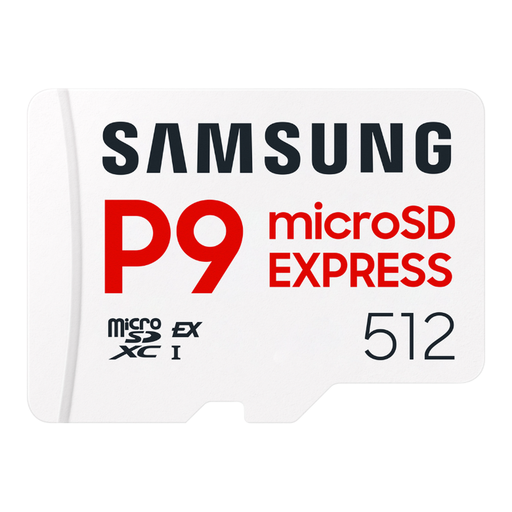 Image unavailable
Samsung P9 Express 512GB microSD
Consider this removable-card option for a Switch 2 library after confirming that the listed P9 Express variant is the microSD Express format Nintendo UK requires.
Capacity: 512GB. Follow the console’s setup instructions before storing games on a new card.
View on Joybuy
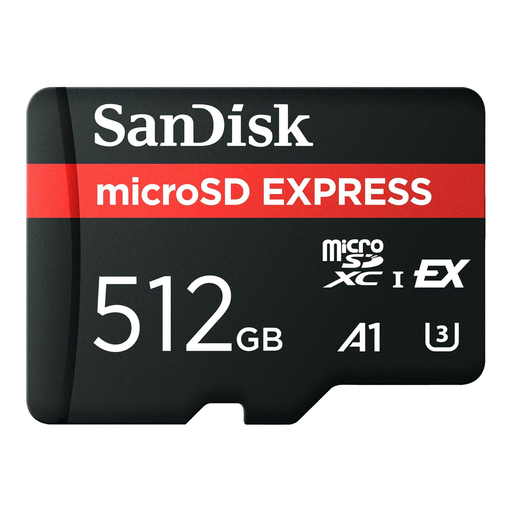 Image unavailable
SanDisk Express 512GB microSD
This is another removable-card choice for a Switch 2 library, provided the particular card is labelled microSD Express rather than ordinary microSD.
Capacity: 512GB. Nintendo UK specifies microSD Express for Switch 2 game storage.
View on Joybuy
 Image unavailable
Samsung T7 Shield 1 TB Portable SSD, Blue
For a PS5 player willing to keep games on USB storage and copy PS5 titles back before playing, this is an archive-oriented option.
Capacity: 1 TB. Interface stated in the product name: USB 3.2 Gen 2. PlayStation says PS4 games can be played directly from PS5 USB extended storage, but PS5 games cannot.
View on Joybuy
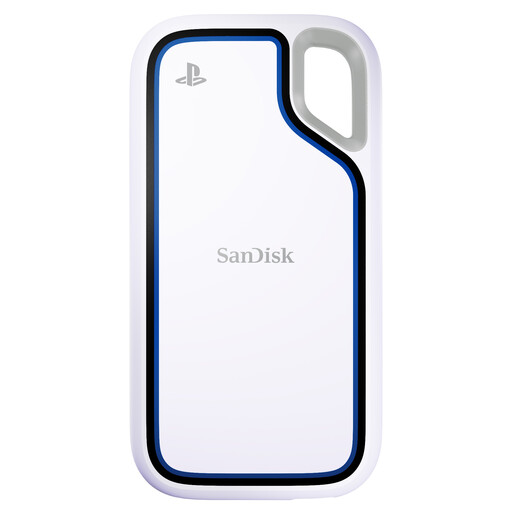 Image unavailable
SanDisk Extreme 1TB Portable SSD for PlayStation 5
Use this PS5-oriented external SSD for an archive-and-transfer approach, not as a way to launch PS5 games from USB.
Capacity: 1TB. Check your available console space before moving an archived PS5 game back for play.
View on Joybuy
Image unavailable
SanDisk Extreme 2TB Portable SSD for PlayStation 5
If you want more PS5 archive space than the 1TB variant offers, this portable SSD provides a 2TB capacity choice with the same essential transfer limitation.
PS5 games stored on USB extended storage must be copied back to playable console storage before launch, according to PlayStation.
View on Joybuy
Common questions
Can I play PS5 games from an external USB SSD?
No. PlayStation says PS5 games cannot launch directly from PS5 USB extended storage; copy them back to playable console storage first. PS4 games can be installed and played directly from PS5 USB extended storage.
What should I check before buying an M.2 SSD for PS5?
Check PlayStation’s PCIe Gen4 x4 M.2 NVMe requirement, supported 250GB–8TB capacity, physical dimensions and cooling fit. PlayStation recommends a sequential read speed of 5,500MB/s or faster; speed alone does not establish that a drive fits.
Will an ordinary USB drive run Optimised Xbox Series X|S games?
No. Xbox Support says those games must be on the console’s internal SSD or a Storage Expansion Card to play. A compatible USB drive can hold them until you transfer them back.
Can Switch 2 use the same microSD card as Nintendo Switch?
Do not assume so. Nintendo UK specifies microSD Express cards for Switch 2 game storage, whereas Nintendo Switch uses compatible microSD cards. Check for the Express designation on the card you intend to use with Switch 2.
Can archiving a Nintendo Switch game free space without erasing its save?
Yes. Nintendo says archiving downloaded Switch software frees space while retaining its HOME Menu icon and leaving save data unaffected. Use the console’s software archive option rather than treating removal of a user account as the same action.


