Start with the games a child plays with friends, then choose a platform whose child-account settings the household can manage. A console can keep a shared gaming setup centred on one device, while a Windows PC or laptop may be needed for PC-only games but brings Windows accounts, browsers and other apps into the decision. Headsets and controllers can make play more practical; neither replaces age, communication and purchase settings.
Who is this setup for?
Parents setting up a child’s first online multiplayer device
The device is only part of the choice. A separate child account, suitable game settings, communication permissions and workable play-time rules all need to fit the games the child wants to play.
Families sharing a console or computer
Settings need to work when children and adults use the same hardware. Check how profiles are separated and whether the household has the controllers and charging arrangements it needs. Nintendo says Switch 2 console parental controls apply to everyone using that console.
Parents of children who play and talk with friends online
Before adding a headset, check both the child account’s communication permissions and the chat options in the games they play. UK Government Kids Online Safety guidance notes that games can provide voice and message contact with other people.
What matters when choosing?
Games console
Consider it when: The child’s games and friends’ platforms fit a console that the family can set up with a separate child account.
Plan for: Controls differ between PlayStation, Xbox and Nintendo; on Switch 2, console-level parental controls also affect other users of that device.
Windows gaming PC or laptop
Consider it when: The child needs a PC-only game or the household wants to manage gaming alongside other connected Windows devices.
Plan for: Windows accounts, browsers, launchers and chat apps may each need attention. Microsoft warns that a child with administrator access can change or break Family Safety settings.
Check game access and account setup before choosing accessories. Then decide which communication and shared-device rules the household can maintain.
| Concern |
What to check |
Who this matters to |
| Child account and content |
Can you create a child account with the correct age and manage game restrictions and purchase approval? Check how the parent accesses those settings. |
If I am setting up a child’s first device, I want age and content rules attached to their own profile rather than an adult account. Roughly 33% of consumers put account and content supervision first. |
| Voice and messages |
Check the platform’s child communication settings and the game’s own chat options before choosing a headset. |
When my child plays with friends, I want to know who can reach them through voice or messages without assuming one setting covers every game. For around 27% of consumers, managing communication is the primary concern. |
| Games and multiplayer |
Confirm the child’s games, friends’ platforms and any cross-play or account requirements. Match controllers and headsets to the chosen device. |
If a game does not work with the way my child’s friends play, an extra accessory will not solve that mismatch. Multiplayer access and practical use come first for roughly 20% of consumers. |
| Shared-device rules |
Check whether play-time limits apply to a child profile or the whole device. On Windows, set up a standard child account rather than an administrator account. |
In a shared household, I need limits that remain workable when siblings or adults use the same equipment. Around 20% of consumers prioritise play time and shared-device arrangements. |
Common setup mistakes
-
Leaving the child account until after online play begins
Age, communication, purchase and time settings depend on the account the child actually uses. Ofcom advises parents to check the age registered on a child’s gaming account.
Create the child profile and add it to the family group before opening multiplayer games. Configure the chosen limits and test a restriction from that profile.
-
Assuming a headset controls who can talk to the child
A headset makes voice chat usable; it does not set contact permissions or control a game’s own messaging features.
Check the device connection, child-account communication settings and each game’s chat options before enabling voice chat.
-
Giving a child administrator access on a Windows PC
Microsoft warns that an administrator can change or break Family Safety settings, undermining the limits a parent has configured.
Use a standard Windows account for the child and keep software installation and family-setting changes with the parent account.
-
Treating a shared Switch 2 restriction as child-specific
Nintendo says Switch 2 console parental controls apply to the console, not separately to each user. A restriction set for a younger child can therefore affect older siblings or adults.
Choose a console-level baseline with the youngest player in mind, then review which additional restrictions can be managed through individual Nintendo Account family settings.
Platform brands to consider
Compare the controls available for the child’s intended account and device; a brand’s family features do not establish that every game or chat service uses the same settings.
PlayStation
Relevant to families considering a PlayStation console and child settings managed through the PlayStation Family app, console or website.
- PlayStation says its UK family tools cover play time, privacy, games and apps, online communication and spending restrictions.
- Check whether the particular control you need is available through the management method you intend to use; some family features may require the app.
Xbox / Microsoft
Relevant to households deciding between Xbox and Windows gaming, particularly where connected devices are part of the same family setup.
- Microsoft says app and game limits can extend across connected Windows, Xbox and Android devices; Xbox also provides family content and purchase settings.
- Microsoft says app and game filtering works on Windows and Xbox, not every connected device. A Windows child account with administrator access can change or break Family Safety settings.
Nintendo
Relevant to families considering Nintendo Switch 2 or Nintendo Switch and app-managed play-time, age-rating and communication restrictions.
- Nintendo says its parental-controls app can set play-time limits, restrict communication features and show play activity.
- On Switch 2, console parental controls affect every user. Check the account and app setup needed for the child’s intended communication features, particularly in a shared household.
Accessories for an existing setup
These Joybuy headsets, controllers and charging accessories are choices to consider after deciding which games, device and child-account settings the household will use. Check each accessory against that specific setup.
 No image available
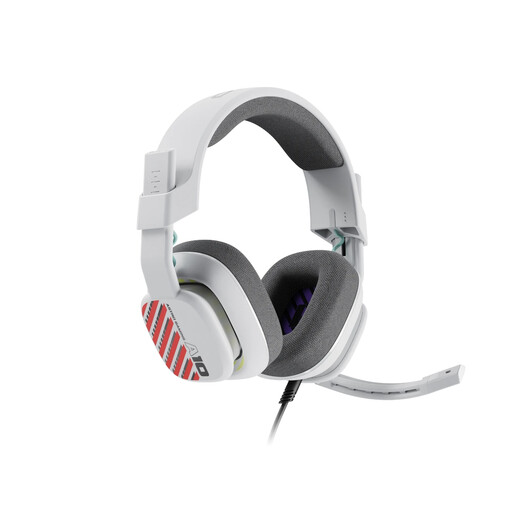
Logitech ASTRO A10 Gen 2 Wired Headset – White
Consider this wired headset once the child’s voice-chat permissions are set. Check that the intended device has a compatible 3.5 mm connection and that the fit suits the child; the headset itself does not control contacts.
View on Joybuy
 No image available
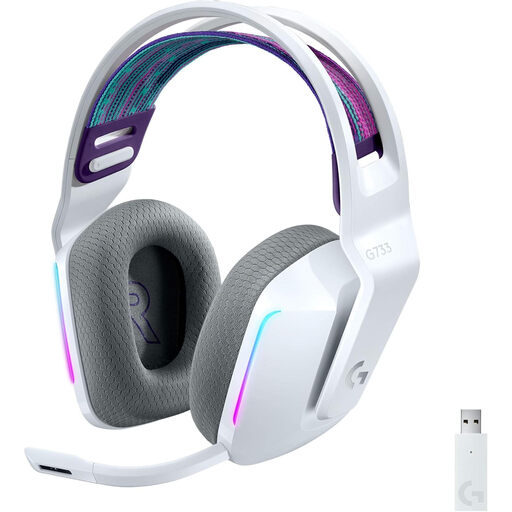
Logitech G G733 LIGHTSPEED Wireless Headset – White
This wireless headset may suit a family whose device supports its connection method. Confirm compatibility before purchase, particularly for Xbox use; for Nintendo Switch, the stated use is in dock mode. Set contact and game-chat permissions separately.
View on Joybuy
 No image available
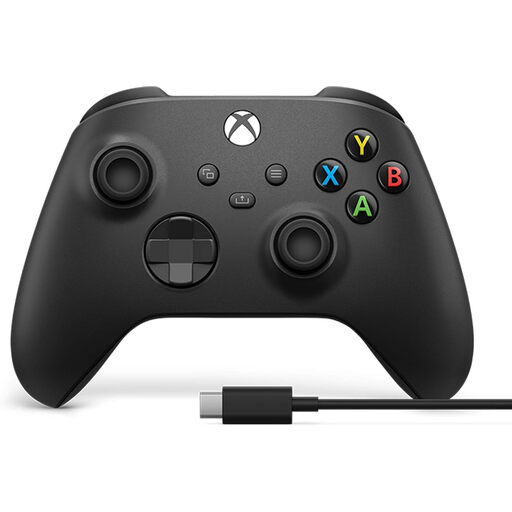
Xbox Wireless Controller with USB-C Cable – Series X|S, One and Windows
Consider this controller for a compatible Xbox or Windows setup that needs another way to play. The named bundle includes a USB-C cable; check that the child’s games support the intended controller use. Family-account settings remain a separate task.
View on Joybuy
 No image available
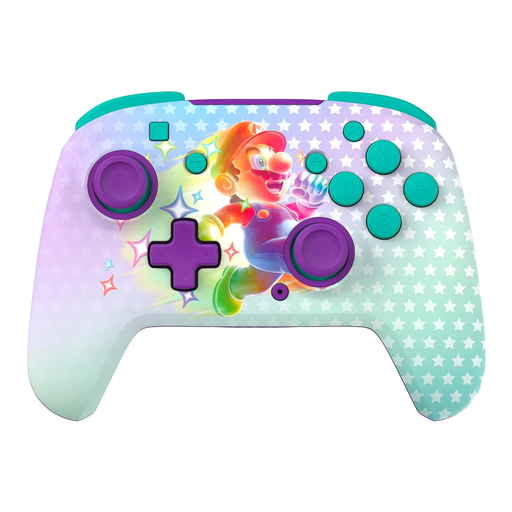
Turtle Beach Rematch Wireless Controller for Nintendo Switch – Invincible Mario
This wireless controller is a choice for a Nintendo Switch household adding a controller. The stated Switch 2 compatibility has a limitation: it does not include the Switch 2 C Button. Check whether the intended games or features require that button.
View on Joybuy
 No image available
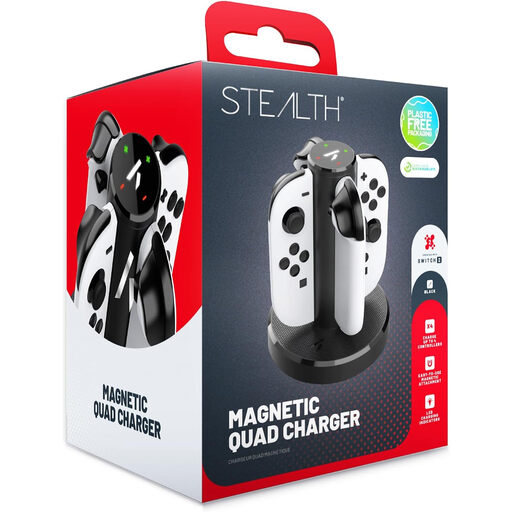
Stealth Quad Charging Dock for Switch 2 Joy-Cons
Consider a charging dock if the household already uses multiple Switch 2 Joy-Cons. Check the controller type before purchase: this is a charging accessory for Switch 2 Joy-Cons, not an additional controller or a way to manage child accounts.
View on Joybuy
Questions parents ask
Should my child use my gaming account?
Use a separate child account in the platform’s family group where available, rather than an unrestricted adult profile. Ofcom advises checking the child’s registered age because platforms can use it when restricting features, games or content; configure the family settings before online play.
Does a gaming headset control who can talk to my child?
No. A headset provides a way to use voice chat, but contact permissions come from account and game settings. Check both before enabling chat; UK Government Kids Online Safety guidance notes that games can provide voice and message contact with other people.
Can Switch 2 parental controls differ for each person sharing the console?
Not at the console-control level: Nintendo says those controls apply to the Switch 2 console rather than each individual user. Set shared restrictions with the youngest player in mind, then review what can be managed separately through Nintendo Account family settings.
Can Microsoft Family Safety limit gaming across Windows and Xbox?
Yes, Microsoft says app and game limits can extend across connected Windows and Xbox devices when the relevant family accounts are configured. On a Windows gaming PC, give the child a standard account: Microsoft warns that administrator access can allow them to change or break Family Safety settings.


