Browser-and-editor layout worker
You arrange form fields, labels and validation states while comparing an editor with a browser preview and reference material. Decide how much screen detail you need at a text size you find comfortable.


For contact-form layout work with a browser, editor and reference material open, a 27-inch QHD monitor is a practical starting point if you can position it comfortably. Consider USB-C when a compatible laptop needs video and charging through one cable; consider 27-inch 4K when closer visual detail matters, after checking interface scaling and connections.
You arrange form fields, labels and validation states while comparing an editor with a browser preview and reference material. Decide how much screen detail you need at a text size you find comfortable.
You want fewer desk connections between your laptop and monitor. Check that the particular monitor and laptop can carry video and the required charging power over a compatible connection.
You need a screen that fits your desk and viewing position during regular work. The Health and Safety Executive’s positioning guidance concerns the whole workstation, not a monitor feature in isolation.
Start with the space and readability your layout tools need, then check laptop connections and how the monitor will sit on your desk.
| Concern | What to check | Who this matters to |
|---|---|---|
| Layout workspace | Compare 27-inch QHD and 4K at a scaling setting that keeps your browser and editor readable. | I need to see the form preview beside the editor and still read labels clearly. Around 38% of consumers put layout workspace and detail first. |
| Laptop connection | Check USB-C video support, the monitor’s charging wattage and the cable required by your laptop. | If I move my laptop on and off the desk, I want fewer connections without losing the charging it needs; around 31% of consumers prioritise that connection. |
| Screen positioning | Check stand adjustment or mount compatibility against your desk and viewing position. | For long sessions, I need to place the screen comfortably rather than work around a fixed position. Roughly 31% of consumers make workstation positioning their primary concern. |
A movable screen cannot correct an unsuitable chair, desk height or lighting. The Health and Safety Executive’s guidance treats screen position as part of the wider workstation.
Measure your desk depth and plan where the screen will sit before choosing a stand or suitable mount. The Health and Safety Executive advises placing the top near eye level and the screen about an arm’s length away.
Charging power varies by model: BenQ states up to 65W for the GW2790QT, while LG states up to 90W for the 27UP85ZK-W. Neither figure establishes compatibility with every laptop.
Compare your laptop’s video and charging requirements with the exact monitor’s ports, power-delivery rating and required cable.
A 27-inch 4K screen has a higher native resolution than a 27-inch QHD screen, but the useful view of your form tools also depends on interface scaling and readable text.
Where possible, try your usual browser and design application at a comparable resolution and scaling setting before deciding which screen suits your work.
Dell’s P2725DE is an example of a business-oriented 27-inch QHD monitor for a desk where connectivity matters.
BenQ’s GW2790QT represents a QHD USB-C desk setup centred on a compatible laptop.
LG’s 27UP85ZK-W is a 27-inch 4K example for consumers who also want to inspect finer visual detail.
These monitors offer QHD or 4K options for contact-form layout work. Check each model’s laptop connections and positioning features against your own setup rather than assuming that every screen supports a single-cable desk.
 No image available
Consider this for a Mac-centred desk where 4K detail and USB-C are priorities; confirm video and charging compatibility with your laptop.
The product name specifies a 27-inch IPS 4K UHD screen and a height-adjustable stand. Check that your usual tools remain readable at your preferred scaling.
 No image available
This is a 4K option for layout work if its USB-C connection meets your laptop’s video and charging needs.
The product name specifies an IPS screen, USB-C 65W and Google TV. Check readability at your preferred 4K scaling.
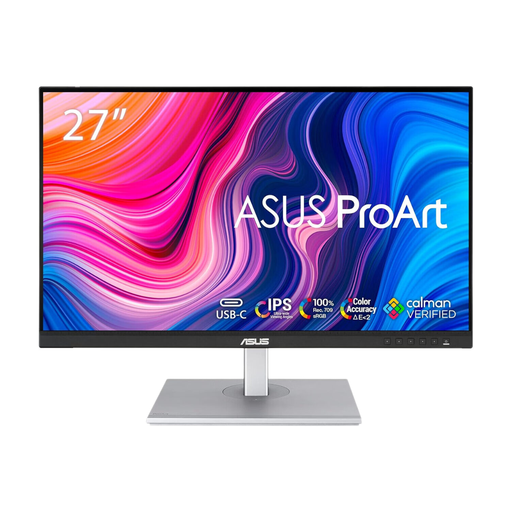 No image available
Consider this QHD model if readable editor and browser windows are more important to you than choosing 4K detail.
The product name specifies an IPS panel and 100Hz refresh rate. If you need a one-cable laptop setup, confirm the ports and charging capability of this exact variant before ordering.
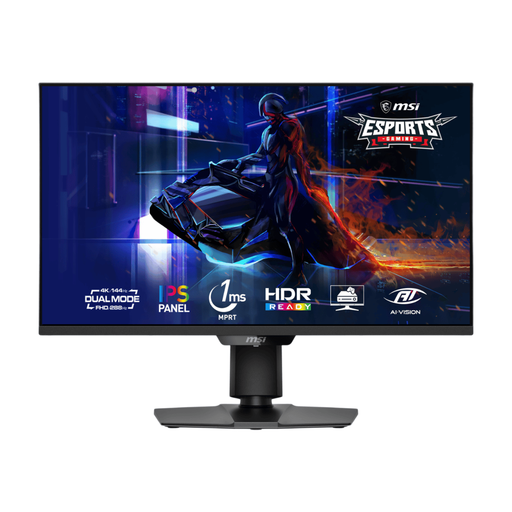 No image available
Its 4K mode is relevant when you want to inspect form details; assess your layout tools at a comfortable scaling setting.
The product name distinguishes UHD 144Hz and FHD 288Hz modes. Confirm the connection you need, particularly if laptop video or charging over USB-C matters.
 No image available
Consider this for closer visual checks of a contact-form layout, provided 4K scaling keeps your browser and editor comfortable to read.
The product name specifies 60Hz, HDMI and DisplayPort. Confirm the exact model’s connections before choosing it for a USB-C laptop setup.
No. The Health and Safety Executive says employers must assess the workstation when a worker uses display screen equipment daily as part of normal work, continuously for an hour or more. An adjustable monitor can help with positioning, but it does not replace assessment of the whole workstation.
The Health and Safety Executive advises placing the top of the screen near eye level and the screen about an arm’s length away. Check that your stand or a suitable mount lets you achieve that position on your desk.
An eye-care label alone does not establish that result. The Health and Safety Executive advises suitable screen positioning, lighting and breaks when working with display screen equipment.
For a faulty or misdescribed item, GOV.UK says the seller must offer a full refund. Keep the product details and order information so you can explain the fault or discrepancy to the seller; this is distinct from a change-of-mind return.
Use an appropriate electrical-equipment collection or recycling route rather than putting the monitor in general waste. Check the arrangements available through your local authority, retailer or an authorised collection service.