Choose programmable keys if you mainly want one-touch recording, scene and source controls while filming a controller tutorial. Dials are worth considering when you repeatedly adjust supported audio controls; a combined capture and audio interface makes more sense when you also need its video and microphone connections. Check the actions, software compatibility and number of controls your own setup requires before choosing.
Who is each setup for?
Solo tutorial recorder using OBS
If you film controller demonstrations alone, physical controls can put recording, scene changes and source visibility within reach without returning to the keyboard. Elgato documents these types of actions for its OBS integration.
Hands-on audio demonstrator
If you adjust or mute sources during a take, rotary controls or an audio-routing surface may matter more to you than a large grid of shortcuts. Check whether the intended software action works with the physical control you choose.
Multi-device home-studio creator
If your setup also needs HDMI capture and external audio connections, a device combining capture, audio and control may cover several jobs. RØDE describes Streamer X as an integrated device of this kind.
What matters when choosing?
Start with the actions you need during a take: separate one-press commands from repeated adjustments, then decide whether video capture and audio connections are part of the same purchase.
| Concern | What to check | Who this matters to |
|---|
| Recording and scene control |
Check that your recording software and controller integration offer the specific record, scene and source actions you intend to assign. |
When I film alone, I want to start a take and change what viewers see without hunting through on-screen controls. Around 36% of consumers put this one-touch workflow first. |
| Audio adjustment |
Identify the sources you need to adjust, then check whether the intended actions support dials or require audio-routing software. |
If I change microphone or application levels during a demonstration, tactile adjustment takes priority over extra shortcut keys. Roughly 29% of consumers place hands-on audio control first. |
| Controls within reach |
Count the actions needed in your busiest take and decide whether moving between folders or pages would interrupt filming. |
With several scenes and source changes to manage, I would rather keep the controls I use together visible at once. Around 21% of consumers prioritise directly reachable actions. |
| Capture and audio connections |
Check your video source, microphone connection and monitoring needs before choosing a combined interface. |
When my tutorial needs HDMI video and external audio as well as trigger controls, I want those connections considered together. About 14% of consumers make integrated production hardware their primary concern. |
Common buying mistakes
-
Choosing by button count alone
More keys help when you need more actions visible at once; they do not replace rotary adjustment or audio routing.
List the commands you use during a typical take and separate one-press actions from controls you adjust repeatedly.
-
Assuming every action works with dials
Elgato says not all Stream Deck plugins support the dials on Stream Deck +, so a button action may not have the rotary control you expect.
Check the precise plugin and action you plan to assign before choosing a dial-equipped controller.
-
Choosing capture hardware for a shortcut-only task
RØDE Streamer X combines HDMI capture, audio connections and four SMART Pads. Those additional functions may not address your main need if you already have suitable capture and audio equipment.
Confirm which video and audio connections your tutorial actually requires, as well as how many shortcut triggers you need within reach.
-
Overlooking software and computer requirements
The intended workflow depends on the controller application, recording software and computer working together.
Check the exact operating system, USB connection and software versions. Elgato lists Windows 10 64-bit or newer and macOS 10.15 or newer for Stream Deck MK.2 and XL; its OBS integration lists Stream Deck 5.3 or newer and OBS Studio 27.0 or newer.
Relevant brands to consider
Elgato
Its Stream Deck range focuses on programmable shortcuts, with key-only and dial-equipped options.
- Elgato lists 15 LCD keys for Stream Deck MK.2, eight keys and four dials for Stream Deck +, and 32 keys for Stream Deck XL. Its OBS integration includes recording, scene, audio-mixer and source-visibility actions.
- Dial actions depend on the plugin: Elgato says not all Stream Deck plugins support dials.
RØDE
Streamer X combines a control surface with video capture and audio connections.
- RØDE describes HDMI input and pass-through, an XLR/TRS input, headset connections and four customisable SMART Pads.
- Its four pads provide fewer immediately available triggers than a large-key controller; consider whether you need the capture and audio functions as well.
BEACN
Mix Create focuses on software-based control of audio sources and routing.
- BEACN describes assigning application and hardware sources to knobs, with submixes and separate listening and audience mixes.
- Mix Create requires the BEACN App and is an audio-focused choice rather than a broad grid of labelled scene controls.
Joybuy controllers for shortcut workflows
These AJAZZ desktop controllers are relevant if you want programmable, one-press actions while filming. Check the exact OBS actions and computer compatibility you need; this selection is not a substitute for choosing dedicated dials or capture and audio connections.
 No image available
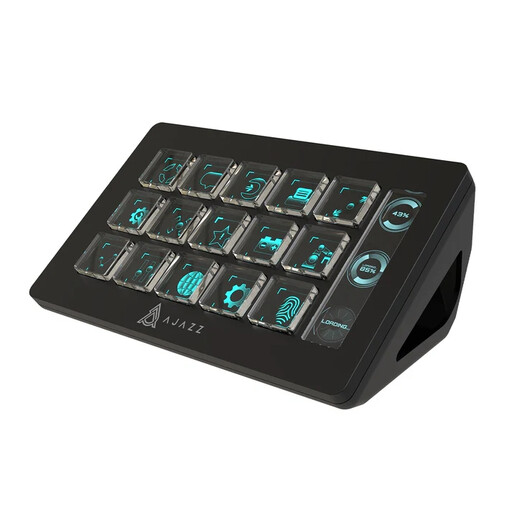
AJAZZ AKP153 Studio Controller, 15 macro buttons (Black)
Consider this controller if you want physical buttons for repeatable shortcuts during a tutorial.
The listed variant has 15 macro buttons and names OBS among the software it can trigger. Before buying, confirm that its controller software supports your computer and the specific recording actions you need.
View on Joybuy
 No image available
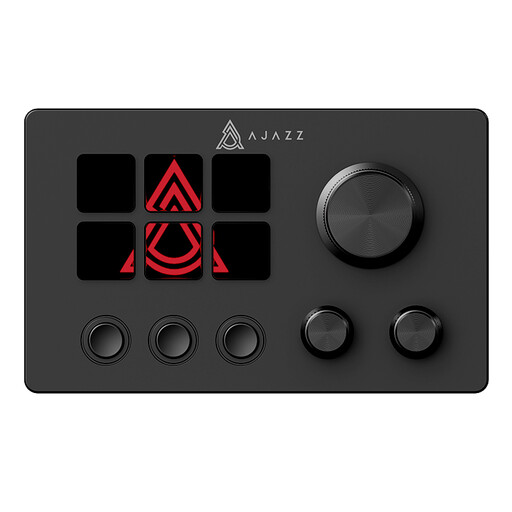
AJAZZ AKP03E Desktop Assistant LCD Controller
Consider this desktop controller if your tutorial calls for customisable, one-press operations.
Its name identifies an LCD display and customisable buttons. Confirm the exact button configuration, computer requirements and any OBS actions you intend to use before choosing it.
View on Joybuy
Frequently asked questions
Is a stream controller useful if I record tutorials but do not livestream?
It can be useful if you repeatedly start recordings, change scenes or show and hide sources while filming. Elgato documents recording-oriented actions in its OBS integration; the deciding factor is whether physical shortcuts would help your own workflow.
How many keys do I need for a controller tutorial?
Count the actions you want immediately available in your busiest take. Elgato lists 15 keys on Stream Deck MK.2 and 32 on Stream Deck XL; a smaller surface can also use folders or pages if an extra navigation step works for you.
Will every Stream Deck action work with Stream Deck + dials?
No. Elgato says not all Stream Deck plugins support dials, so check the exact plugin and action you want before choosing Stream Deck + for rotary control.
When should I choose an integrated device such as RØDE Streamer X?
Consider Streamer X when your tutorial setup needs HDMI capture and audio connections as well as physical trigger controls. RØDE lists four customisable SMART Pads; if you already have suitable capture and audio hardware and mainly need numerous shortcuts, compare that pad count with the actions you want within reach.


