For a spare-room co-op stream, choose programmable keys if scene changes, muting and stream controls are your main tasks. Consider dials if you need frequent hands-on audio adjustments, or a larger key grid if you need many actions visible at once. Before buying, check desk fit, current computer requirements and the exact actions available in your streaming software.
Who needs which controls?
Hosts switching between scenes and guests
If you manage game, camera and guest layouts while talking, labelled controls can put your most-used OBS actions within reach. Elgato documents Stream Deck actions for scenes, source visibility, audio muting and streaming; confirm that your intended controller supports the actions you need.
Hosts adjusting audio live
If microphone, game, chat or music levels need frequent adjustment during a session, physical dials may suit your workflow better than keys alone. Check how each dial can be assigned to the audio sources you use.
Creators sharing a spare-room desk
If the controller must sit alongside a keyboard, mouse and streaming equipment, measure the usable desk area before choosing a layout. If you also edit at that desk, check the controller’s shortcuts for those applications separately from its streaming controls.
What matters when choosing?
Decide which actions must be immediately accessible during the show, then check whether the controller fits both your desk and your computer.
Programmable keys
Choose when: A small, repeatable set of scene, mute and stream actions covers most of your show.
Trade-off: Without dedicated dials, frequent level changes need mapped keys or another control method.
Keys and dials
Choose when: You want to adjust assigned audio levels while also switching scenes.
Trade-off: A dial-equipped layout may leave fewer actions visible on keys, and each dial needs configuring for the intended source.
Large key grid
Choose when: A complex show needs many game, guest and media actions visible at once.
Trade-off: It takes more desk area than a compact deck and does not necessarily provide rotary controls.
| Concern |
What to check |
Who this matters to |
| Scene and guest controls |
List the actions needed during a stream, then check how many can remain visible and whether your OBS version supports them. |
When I am managing game and guest layouts, I want to reach the right action without searching through OBS. Roughly 33% of consumers would put direct show control first. |
| Live audio adjustment |
Decide whether you need continuous level changes or occasional mute controls; check how physical controls map to your sources. |
While talking to a co-host, I may need to change game or microphone levels without interrupting the conversation. Around 42% of consumers would prioritise hands-on audio control. |
| Desk fit and compatibility |
Measure the available space and check the current controller software, operating system and required connection. |
At a shared spare-room desk, I need the controller to fit and work with the computer I already use. Approximately 25% of consumers would make desk fit and compatibility their primary concern. |
Mistakes to avoid
-
Assuming every programmable keypad has the same OBS controls
Similar-looking keys do not establish identical software integration. Elgato documents specific OBS actions, while Logitech’s MX Creative Console page focuses on creative applications and other desktop integrations.
Write down the scenes, source controls, audio actions and stream commands you need, then check each one against the controller and software version you plan to use.
-
Choosing by key count when audio is the main task
Elgato lists 32 LCD keys for Stream Deck XL, but no dedicated rotary encoders. Stream Deck + has eight LCD keys alongside four push-function encoders and a touch strip.
Map a typical co-op session before choosing: prioritise dials for repeated level adjustments and visible keys for numerous distinct actions.
-
Checking hardware compatibility but overlooking the software
Older hardware specification pages and current software requirements can differ. Elgato currently lists Windows 11 (64-bit) with an Intel or AMD processor, or macOS Ventura 13.0 or later, for Stream Deck software; it warns that Windows on ARM may not work as expected.
Check the current software requirements against the computer that will run the stream, particularly if it is an older Mac or a Windows-on-ARM system.
-
Overlooking support plans for Loupedeck Live S
Loupedeck describes Live S streaming controls, but its UK pages also display an end-of-sales and future-development notice.
Before choosing Live S, confirm current availability, warranty arrangements, support and expected software updates.
Brands to consider
Elgato
Stream Deck offers key-only, dial-equipped and larger key-grid layouts. Elgato documents OBS actions for scenes, source visibility, audio muting and streaming.
- Different layouts let you weigh visible actions, physical dials and desk space against your show’s needs.
- Check current Stream Deck software requirements rather than relying on an older hardware specification page; Elgato warns that Windows on ARM may not work as expected.
Loupedeck
Loupedeck presents Live S as a touch-button and dial controller for streaming and other desktop work.
- Loupedeck lists touch-sensitive buttons, analogue dials and controls for switching scenes and sources.
- Its UK pages display an end-of-sales and future-development notice. Confirm availability and ongoing software support before choosing Live S.
Logitech
MX Creative Console pairs a keypad with a separate dialpad and is positioned chiefly for creative-application workflows.
- Logitech lists integrations with creative applications including Adobe tools and DaVinci Resolve, making it worth considering for a desk also used for editing.
- Do not assume its creative-app integrations provide the OBS scene, audio and stream actions you need; check those actions individually.
Joybuy product choices
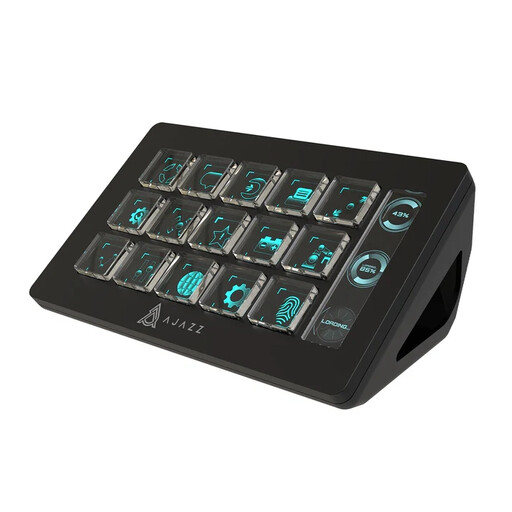
This programmable-button controller is a choice to examine if you want mapped stream actions at a shared streaming and editing desk. Check its exact OBS actions and computer requirements against your setup.
 No image available
AJAZZ AKP153 Studio Controller, 15 macro buttons (Black)
Consider this controller if your co-op show uses a set of mapped actions and the same desk is used for editing.
The listing describes 15 customisable LCD buttons and names OBS and editing software among its uses. Before buying, confirm the exact OBS actions and versions you need, current software and computer compatibility, the USB connector type, and whether its controls meet any need for frequent live level adjustments.
Joybuy
Frequently asked questions
Can an Elgato Stream Deck control OBS scenes and audio?
Yes, with the documented integration and required versions: Elgato lists scene selection, source visibility, Audio Mixer mute and unmute, stream start and stop, and Studio Mode actions. Its support guidance specifies Stream Deck 5.3 or newer and OBS Studio 27.0 or newer.
What should I configure before a co-op stream?
Start with the actions you will use during the show: stream controls, scene changes, microphone mute and any guest or game layouts. Confirm that the controller software connects to the intended OBS installation, then test the mapped actions and OBS audio and output settings before going live.
Will Stream Deck software run on an older Mac or a Windows-on-ARM PC?
Check the current software requirements before buying rather than assuming hardware compatibility is enough. Elgato lists macOS Ventura 13.0 or later, or Windows 11 (64-bit) with an Intel or AMD processor, and warns that Windows on ARM may not work as expected.


