Detail-focused route planners
If you inspect road labels, contours and alternative routes while keeping elevation information visible, compare the resolution of both screens and how their layouts will work together.


For planning cycle routes across two displays, consider a matching QHD pair if you want a map on one screen and route notes or elevation information on the other; consider 4K if finer map detail matters more to you. Choose USB-C, Thunderbolt or daisy-chaining only after checking that your computer supports two external displays at the intended resolutions and that your planned ports and cables match.
If you inspect road labels, contours and alternative routes while keeping elevation information visible, compare the resolution of both screens and how their layouts will work together.
A USB-C or Thunderbolt connection may carry video alongside other laptop connections, depending on the equipment. Check your computer’s external-display limit before choosing a hub or daisy-chain arrangement; Apple Support notes that a Mac’s supported display count depends on the particular Mac and its connections.
If you spend extended periods comparing maps, tabs and bookings, allow room to position a primary and secondary screen. The Health and Safety Executive advises placing the main screen directly in front of you and using a separate keyboard and mouse when a laptop screen needs raising.
Decide what each screen needs to show, then check the computer and connection plan before settling on monitor ports or stands.
| Concern | What to check | Who this matters to |
|---|---|---|
| Map and text detail | Compare each screen’s native resolution and check what resolution your computer supports on two external displays. | When small road labels and route alternatives compete for space, I want the map to remain useful beside my planning tools. Around 40% of consumers put map detail first. |
| Two-screen connectivity | Check the computer’s external-display limit and whether its ports, dock and cables support the intended connection. | If I plan on a laptop, I want both external screens working without an unsuitable cable or dock interrupting the setup. For around 30% of consumers, dependable connectivity is the primary concern. |
| Screen positioning | Check stand adjustments or compatible mounting, desk depth and room for separate input devices. | During long planning sessions, I need the main map in front of me and the second display within a comfortable viewing arrangement. Positioning comes first for around 20% of consumers. |
| Complete desk setup | Account for both monitors and confirm the cables, adapters and mounting hardware your arrangement requires. | I do not want to arrange two screens only to find that a connection or mount is still needed. Completing the setup is the main concern for around 10% of consumers. |
A monitor’s ports cannot override the connected computer’s external-display limit. Apple Support advises checking the particular Mac’s supported displays, ports and connections.
Identify your exact computer model and check its supported display count, resolution and refresh-rate combinations against the monitors, dock and cables you intend to use.
The connection plan may also require an adapter, dock or additional cable.
A route map and planning tools on separate displays require two screens and a workable way to connect and position them.
Check what comes with each monitor and identify any other cables or mounting hardware needed for your desk.
Two stands can leave little room to place the primary screen directly ahead. The Health and Safety Executive advises suitable screen height and a separate keyboard and mouse when raising a laptop screen.
Measure the desk and check stand adjustment or mounting compatibility before choosing where both displays will sit.
LG UK marks its 27QP88D-B2 dual-QHD model as discontinued, so its listed features should not be taken as an indication of current availability.
If considering an older unit, check its current availability and support terms before making it part of your two-screen plan.
The GW2790QT is a reference point for a 27-inch QHD setup with USB-C and a DisplayPort daisy-chain route.
The UltraSharp models provide distinct QHD, Thunderbolt hub and 4K configurations to compare for a route-planning desk.
The 27BA750-B provides a Full HD option with laptop-oriented connections and stand adjustment.
These individual QHD and 4K monitors are options for a two-screen cycle-route planning desk. Choose the connection plan for the pair, then confirm that your computer supports both external displays.
 No image available
Consider this QHD model as one screen in a separately connected mapping setup. Check the exact unit’s USB-C ports if your plan relies on USB-C video or charging, and confirm that your computer can drive both displays.
 No image available
Consider this 4K model if fine map detail is a priority and you want USB-C in your laptop connection plan. Its title identifies a Nano Glossy IPS panel and height-adjustable stand; confirm the computer and dock support the intended two-screen arrangement.
 No image available
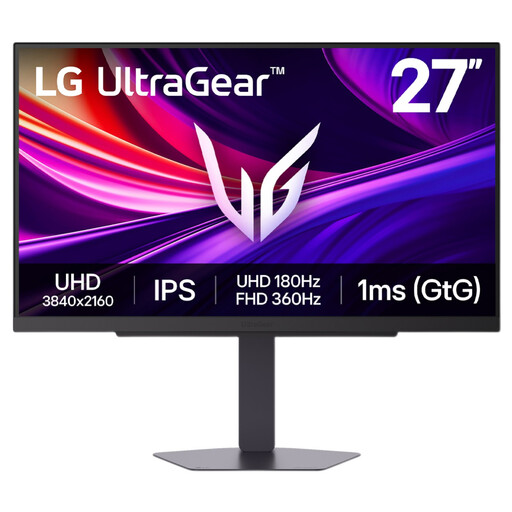
This IPS model is an individual 4K display to consider when map detail takes priority. Its Dual Mode gaming feature is separate from the question of whether your computer can run two external screens; check the intended connection and display settings.
 No image available
Consider this 4K model if your desk plan calls for USB-C laptop charging: its product title specifies 65 W USB-C. Check mounting compatibility if you intend to use an arm, and confirm support for two external displays on your computer.
 No image available
This 2560 × 1440 model is an option for a separately connected map or planning screen. Its product information specifies a 26.5-inch panel despite the 27-inch title wording, so check the dimensions if you want matching screens; confirm your computer’s two-display support as well.
No: check the exact laptop model’s supported number of external displays and its resolution and refresh-rate limits. Apple Support advises checking the particular Mac’s display support and connections; USB-C or DisplayPort on a monitor cannot establish what the computer supports.
Use an extended desktop if you want the route map on one screen and notes or planning tools on the other. Mirroring shows the same desktop content on both screens.
USB-C power delivery is worth considering if your compatible laptop can use the planned connection for charging and video and you want fewer separate connections. If you already have suitable video outputs, check those against both monitors before choosing a hub-based arrangement.
Place the primary screen directly in front of you and position the second without requiring sustained twisting. The Health and Safety Executive advises keeping the top of a screen around eye level and the screen about an arm’s length away; use a separate keyboard and mouse if a laptop screen needs raising.