Choose a desktop that runs your course software before choosing its size or graphics card. A compact model can suit notebook-based study when its operating system and display connections fit your requirements; a configurable tower gives you more configuration choices, while a specialist workstation makes sense only for a confirmed local workload. At a standing desk, the separate screen, keyboard, mouse and moving cables need as much planning as the computer.
Who is this setup for?
Standing-desk notebook learner
You mainly use coding notebooks, data analysis tools and course applications, and want a permanent workstation with a separate screen and input devices that remain well positioned as the desk moves. The Health and Safety Executive advises keeping the screen and keyboard directly in front of you.
Course-environment compatibility seeker
Your module specifies an operating system, virtual-machine tools, compilers or another local software environment. Check those requirements before deciding whether a compact computer or a particular tower configuration will work.
Local GPU-computing learner
You have an assignment or project that specifically requires local CUDA work, rather than a browser notebook, university computing resource or CPU-only workflow. NVIDIA's Windows CUDA guidance makes the graphics card and supported software stack part of the same decision.
What should you check before buying?
Separate the platform decision from the workload decision: confirm the course environment, then decide how much local computing and desk space the setup needs.
Compact macOS desktop
Consider when: Your required tools work on macOS and you want the computer to take up little desk space. Apple lists Mac mini configurations with support for external displays.
Check first: A course requiring NVIDIA's specified Windows CUDA environment needs an approved alternative workflow before you choose this route.
Configurable tower
Consider when: You need to select a Windows configuration, memory, storage or graphics around known course requirements. Lenovo lists materially different ThinkStation P3 Tower Gen 2 configurations.
Check first: Compare the exact configuration and its included peripherals; a tower family name does not identify its graphics or memory.
Specialist local-compute tower
Consider when: A confirmed project calls for substantial local multi-threaded work or a specified specialist configuration that available university or remote computing cannot meet. Dell positions its Precision 7875 for multi-threaded workloads.
Check first: Establish the actual workload and desk placement before committing to a larger, more demanding setup for ordinary coursework.
| Concern |
What to check |
Who this matters to |
| Standing-desk fit |
Plan the screen and keyboard positions, then check display connections and cable reach across the desk's height range. |
If I alternate between sitting and standing, I need the screen and controls to remain comfortably positioned without pulling on cables. Around 31% of consumers put standing-desk fit first. |
| Course compatibility |
Check the module's required operating system, applications and local development environment against the exact configuration. |
I cannot rely on a powerful computer if it will not run the software used for my assessments. For around 31% of consumers, matching the course environment is the primary concern. |
| Memory and storage |
Compare the exact memory and storage configuration with your local files, simultaneous applications and any virtual-machine requirements. |
When my datasets and development tools must stay on the desktop, I need capacity that fits that work rather than just a familiar model name. Around 23% of consumers place local memory and storage first. |
| Local CUDA work |
Confirm that CUDA is required locally, then check the exact GPU and the supported operating system and toolchain. |
If an assignment specifically needs local CUDA, I must establish the complete compatible setup before choosing graphics. That is the leading need for around 15% of consumers. |
Buying pitfalls
-
Treating the computer as the whole standing-desk setup
A capable desktop will not fix a screen that sits too low or cables that become taut when the desk rises. The Health and Safety Executive advises placing the top of the screen at eye level and the keyboard just below elbow height.
Plan the monitor and input-device positions, and check cable reach throughout the desk's movement.
A monitor arm or stand, input devices, display cables and cable-management equipment may need to be obtained separately.
-
Assuming any discrete GPU meets a CUDA requirement
NVIDIA's Windows CUDA installation guidance calls for a CUDA-capable GPU, supported Windows and Visual Studio versions, and the CUDA Toolkit. A graphics-card label alone does not establish that the course workflow will run.
Get the module's exact requirement and check the proposed GPU and software versions together.
-
Comparing desktop families instead of configurations
Lenovo lists ThinkStation P3 Tower Gen 2 configurations with different memory and graphics, so two computers with the same family name can present different choices for local work.
Compare the processor, memory, storage, operating system, graphics and included peripherals of the specific configuration you intend to buy.
-
Using Windows installation minimums as study targets
Microsoft's 4GB memory and 64GB storage figures are Windows 11 installation or upgrade minimums, not recommendations for data-science notebooks, datasets or virtual environments.
Size the configuration against your course applications and local files; use operating-system requirements as an eligibility check.
Brands to consider
Apple
The Mac mini is a compact-desktop option when required course tools work on macOS and the student wants separate displays without a tower on the desk.
- Apple's UK Mac mini specifications list 16GB to 64GB unified-memory configurations and support for up to three external displays, depending on the selected chip.
- Those specifications do not establish an alternative to a course's required Windows CUDA workflow; confirm one with the course provider before choosing macOS.
Lenovo
The ThinkStation P3 Tower Gen 2 offers a configurable tower route for students selecting a machine around a defined Windows workload.
- Lenovo's UK listings include configurations with integrated graphics and others with NVIDIA graphics, making the exact configuration worth comparing.
- Lenovo says the monitor, keyboard and mouse are optional and sold separately for the listed tower; plan the complete workstation.
Dell
The Precision 7875 is a specialist tower to examine when substantial local multi-threaded work or a particular workstation configuration is required.
- Dell describes the Precision 7875 as a scalable tower for multi-threaded applications and lists Ubuntu Linux 24.04 as an option.
- Check the selected configuration against the actual workload and available desk space rather than treating a specialist workstation as the default for coursework.
Joybuy desktop choices
These compact desktops and towers provide different starting points for a standing-desk study setup. Match each machine's operating system, memory, storage and graphics to your course before deciding how to position its monitor and cables.
 No image available
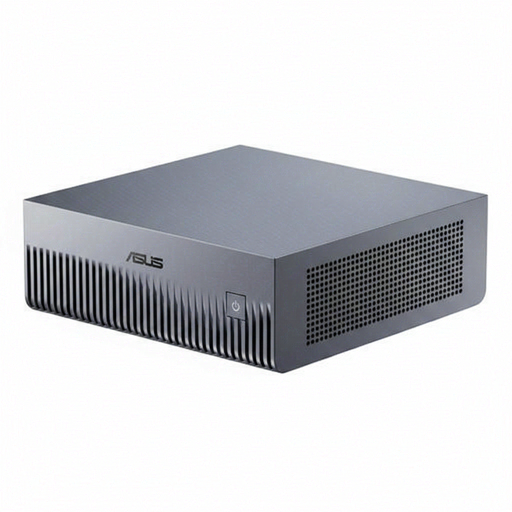
ASUS Ascent GX10, NVIDIA GB10, 128GB, 1TB
A compact option to consider for local development if the course workflow supports NVIDIA DGX OS.
The named configuration has NVIDIA GB10 Grace Blackwell, 128GB unified memory and a 1TB NVMe SSD. Check the required applications, power arrangement and display connections before buying.
Joybuy
 No image available
FIREBAT F1 Mini PC, Ryzen 5 7640HS, 24GB, 512GB
Consider this mini PC where desk space is limited and its operating system fits the course.
The named configuration includes AMD Ryzen 5 7640HS, 24GB LPDDR5 memory, a 512GB PCIe 4.0 SSD and integrated Radeon 760M graphics; it lists 4K triple-screen output. Confirm the operating system, monitor connections and any local CUDA requirement.
Joybuy
 No image available
Lenovo IdeaCentre Mini PC 01IRH10R, 16GB, 512GB, 91B2000XUK
A compact choice to assess for Windows-based coursework that does not specify a local CUDA setup.
The named variant has an Intel Core 5 processor, 16GB RAM and a 512GB SSD. Check its operating system and exact video output against your course and monitor requirements.
Joybuy
 No image available
CyberPowerPC JOYB1013, Ryzen 7 9800X3D, RTX 5080 16GB
Assess this Windows tower if your work calls for its specific local hardware and you have room to place and cable a tower.
The named configuration has 32GB DDR5 memory, a 2TB NVMe SSD and Windows 11 Home. Confirm the course toolchain and any local CUDA requirement against the exact graphics configuration; plan separately for a monitor, keyboard and mouse.
Joybuy
 No image available
CyberPowerPC JOYB1010, Core Ultra 7 265KF, RTX 5070 12GB
Consider this Windows tower only after checking that its configuration fits your local coursework and standing-desk layout.
The named variant includes 32GB DDR5 memory, a 1TB NVMe SSD and Windows 11 Home. Verify course software and any CUDA toolchain requirements, and allow space and cable reach for a separate monitor and input devices.
Joybuy
Frequently asked questions
Does a standing desk call for a more powerful desktop?
No: choose computing power for your course software and workload, not for the desk's height adjustment. The Health and Safety Executive's posture guidance concerns the complete workstation, including screen and keyboard position; check those positions at both seated and standing heights.
Will a desktop include everything needed for the study setup?
Not necessarily. Lenovo says the monitor, keyboard and mouse are optional and sold separately with its listed ThinkStation P3 Tower Gen 2 configurations. Check what your chosen desktop includes, along with the monitor inputs and cables you need.
Do I need an NVIDIA GPU for data-science study?
Only choose one for a defined local workflow that needs it. If your module requires CUDA on Windows, NVIDIA's installation guidance calls for a CUDA-capable GPU, supported Windows and Visual Studio versions, and the CUDA Toolkit; check the module's requirements before selecting a graphics configuration.
What if I use the same desk for paid work and study?
Ask your employer about its display screen equipment assessment process if you use the workstation for work. The Health and Safety Executive says employers must assess workstations for workers who use display screen equipment daily as part of their normal work for continuous periods of an hour or more; its posture advice is also useful when arranging a study-only setup.


