Small-desk schema designers
If diagrams and SQL tools must share a shallow desk with a keyboard, measure the stand as well as the screen. Height adjustment or a compatible mount may help you position the display without crowding the work surface.


Measure the usable desk width and depth before choosing screen size: a compact QHD monitor may leave more room for your keyboard, while a 27-inch screen needs enough depth to sit comfortably in front of you. For denser diagrams and documentation, consider 4K or a taller 3:2 display, but check the stand footprint, text scaling and mounting options. If you use a laptop, confirm its video and charging compatibility before relying on a USB-C connection.
If diagrams and SQL tools must share a shallow desk with a keyboard, measure the stand as well as the screen. Height adjustment or a compatible mount may help you position the display without crowding the work surface.
If you regularly keep relationships, field lists, queries and documentation in view, compare resolution and vertical workspace alongside the physical room each monitor needs.
If fewer cables are a priority, look at the monitor’s video, data and charging connections together. A laptop still needs to support the relevant USB-C video mode and accept the available charging power.
Start with desk fit and screen position, then choose the resolution that suits your schema work and check the connections your computer can use. The Health and Safety Executive advises placing the screen directly in front of you, with its top around eye level and the display about an arm’s length away.
| Concern | What to check | Who this matters to |
|---|---|---|
| Desk fit and placement | Measure clear desk width and depth, including the stand and cable clearance. If considering an arm, check the monitor’s mounting pattern, the arm’s load rating and the desk clamp. | I need space for my keyboard without bringing the screen too close. Roughly 34% of consumers put workable desk fit and placement first. |
| Room for schemas and SQL | Compare native resolution, screen size and aspect ratio. Consider whether text remains comfortable at the display-scaling setting you plan to use. | When I compare diagrams with queries and documentation, I want fewer windows competing for visible space; around 33% of consumers prioritise information density. |
| Laptop docking | Check the laptop’s USB-C video support and charging requirements against the monitor’s connections and power-delivery specification. | I want to connect my laptop without adding unnecessary cables to the desk. For roughly 20% of consumers, docking is the primary need. |
| Glare and viewing comfort | Check screen finish and stand adjustment, then consider the display’s position relative to windows and lighting. | During long sessions, reflections or an awkward screen position can distract me from the work; around 13% of consumers put viewing comfort first. |
A larger panel may bring a stand that takes up too much of a shallow desk. BenQ lists the RD280U stand at 610.4 × 244.5 mm at its widest and deepest points; its extra vertical pixels will not help if the resulting position puts the screen too close.
Measure the area behind your keyboard and allow for cables and viewing distance. Before choosing a monitor arm, check its load rating, the monitor’s VESA pattern and whether the desk can take the clamp.
An arm or reinforcement plate may be needed if the supplied stand crowds the working area.
USB-C monitors differ in video, hub and charging capabilities. A laptop also has to support the required video connection and accept the power the monitor offers.
Compare the laptop’s USB-C or Thunderbolt specification and charging requirement with the exact monitor model before planning a one-cable setup.
Depending on that compatibility, you may still need a separate charger, dock or video adapter.
A display mode cannot correct a screen that sits too close, off-centre or in reflected light. The Health and Safety Executive’s workstation guidance makes placement part of a workable display setup.
Choose adjustment or a compatible mount that lets you position the screen properly, manage reflections and take breaks or vary your activity during long sessions.
The ThinkVision P24h-30 is a compact QHD option to consider when desk width and laptop connections matter more than choosing a larger panel.
Selected UltraSharp models offer different approaches to 27-inch QHD, 4K and hub-monitor setups.
The RD280U is worth examining if vertical room for table definitions, SQL and documentation is a priority.
The ProArt PA279CRV may suit a setup that calls for a 27-inch 4K display, USB-C power delivery and mounting flexibility.
These models cover compact QHD and 27-inch QHD or 4K choices for database work. Check the stand’s fit on your desk before buying; if laptop docking matters, confirm the exact monitor and computer connections rather than judging by screen resolution.
 No image available
Consider this compact-screen option when preserving desk space is a priority for schema and SQL work.
 No image available
This 27-inch option is relevant if detail in dense diagrams matters and your desk has room for the larger display.
 No image available
Consider this QHD model if a 27-inch screen fits your viewing position and you prefer that size for working across schema and query windows.
 No image available
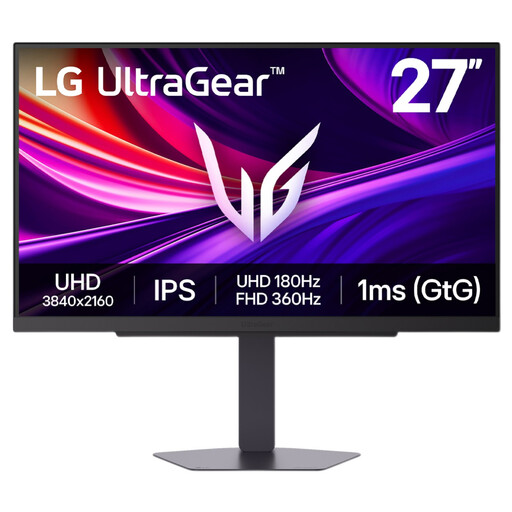
This 27-inch 4K option may suit dense database diagrams if its dimensions allow comfortable placement on your desk.
 No image available
Consider this model when 4K detail matters and a 27-inch display can sit at a workable distance on your desk.
Choose by usable desk depth and screen position rather than diagonal size alone. A roughly 24-inch QHD model is the more compact route; a 27-inch model is worth considering if its stand fits and you can place the screen directly in front of you at around arm’s length, in line with Health and Safety Executive guidance.
Choose QHD when a compact screen or conventional 27-inch workspace meets your needs; consider 4K for more pixels, allowing for text scaling if necessary. A 3:2 display such as the BenQ RD280U adds vertical pixels for definitions and documentation, but its listed 244.5 mm stand depth needs checking on a shallow desk.
Only if the laptop and monitor support compatible USB-C video and charging arrangements. Check the laptop’s DisplayPort Alt Mode or Thunderbolt support, its charging requirements and the exact monitor’s power-delivery specification before relying on one cable.
Place it directly in front of you, with the top around eye level and the screen about an arm’s length away, following Health and Safety Executive guidance. Adjust the chair, keyboard and display together, and manage reflections rather than relying on a monitor mode to compensate for poor placement.