For debate research, drafting and presentations, choose a laptop around the files and applications you must use, then weigh comfortable typing and screen space against how often you carry it. Windows is a route when you need Windows applications; a Chromebook suits a browser-led workflow if its file-sharing arrangements work for your team, while a macOS laptop requires the same check for your essential software. Which? describes writing, presentations and browsing as ordinary study tasks that generally do not call for unusually powerful hardware.
Who this laptop is for
Research-and-writing debaters
You move between source tabs, notes, drafts and presentation files. A usable keyboard and screen, together with a configuration suited to those simultaneous tasks, matter more to this workflow than graphics-focused specifications.
Cloud-first school or club users
You prepare and share arguments mainly through browser tools. If teammates use Microsoft 365 files, check the intended Chromebook workflow: Google says Microsoft 365 editing on a Chromebook requires OneDrive.
Portable all-rounder buyers
You draft at the kitchen table but also take the laptop to lessons, meetings or competitions. Consider carrying weight and the charger alongside the space you want for reading and writing.
What matters when choosing
Windows laptop
Choose when: Your school or club requires an application that runs locally on Windows.
Keep in mind: Confirm that the required application works with the particular Windows laptop you choose.
Chromebook
Choose when: Your research, drafting and collaboration can take place in browser and cloud tools.
Keep in mind: Google says Microsoft 365 editing on a Chromebook requires connecting OneDrive.
macOS laptop
Choose when: The applications and services you already use for debate work are available on macOS.
Keep in mind: Check any school, club or tournament software before committing to this route.
Once the software route is clear, use your main kitchen-table task to decide which hardware details deserve attention.
| Concern | What to check | Who this matters to |
|---|
| Research and drafting together |
Check the selected configuration’s memory and storage against the tabs, documents and calls you expect to use together. Microsoft’s Windows 11 installation minimums are not a multitasking recommendation. |
I want to keep sources open while building a case and preparing slides, without choosing around specialist software I do not use. Around 36% of consumers put this simultaneous workload first. |
| File and application compatibility |
List required applications and shared file formats; try an actual team document in the intended workflow. |
If teammates send files or require a particular application, I need to know I can work on them as intended. For around 29% of consumers, compatibility is the primary concern. |
| Reading and typing comfort |
Check the exact screen and keyboard layout, and try the keyboard if possible. Display options can differ within one model line. |
During a long session at the table, I need to read evidence and draft rebuttals without struggling with the screen or key layout. Typing and reading comfort comes first for around 21% of consumers. |
| Portability and proportionate specifications |
Compare the listed weight and charger with how often you travel; check the conditions behind battery claims rather than treating them as a promised runtime. |
I mostly do ordinary writing and research, but I also need to carry the laptop to a meeting or competition. Around 14% of consumers make that balance their first priority. |
Buying pitfalls
-
Choosing a Chromebook before checking the document workflow
A browser-led approach may not cover a required locally installed application. Google also says Microsoft 365 editing on a Chromebook requires OneDrive.
List your team’s applications and open a representative shared document and presentation using the setup you intend to use.
-
Treating Windows installation minimums as a comfort target
Microsoft lists 4 GB of memory and a 64 GB storage device as Windows 11 installation minimums. Those figures do not establish how a laptop will handle your combination of tabs, drafting and calls.
Check the exact configuration against your usual workload rather than choosing by the operating-system minimum alone.
-
Assuming every configuration in a laptop family is alike
Acer lists different display options for the Swift Go 14 line, while Lenovo’s ThinkPad E14 specifications refer to a particular configuration. A family name alone does not settle the screen, keyboard or memory you will receive.
Check the full model and variant, screen, keyboard layout, memory, storage and included charger on the product listing.
-
Equating similarly named laptops with an external pick
Expert Reviews lists an M2 MacBook Neo, whereas a Joybuy listing identifies a MacBook Neo with an A18 Pro chip. They should not be treated as the same configuration.
Compare the complete model name and core specifications before applying advice about a ranked product to another listing.
Relevant brands to consider
Lenovo
The ThinkPad E14 line is worth examining if you want a 14-inch Windows laptop with a keyboard layout suited to your drafting habits.
- Lenovo lists an English (UK) keyboard and a 14-inch 1920 × 1200 anti-glare screen for its cited ThinkPad E14 Gen 7 configuration.
- Memory, storage and other options vary; check the exact E14 configuration rather than applying those specifications to the whole line.
Acer
The Swift Go 14 line offers configurations to examine if a portable 14-inch Windows format interests you.
- Acer describes touchscreen and OLED display options in the Swift Go 14 line and states a weight of 1.3 kg for the line it presents.
- Those display and memory options need not appear together; confirm the panel and other specifications of the particular variant.
HP
HP’s Pavilion Aero 13 and Chromebook Plus lines illustrate different Windows and ChromeOS routes for research and document work.
- HP describes the Pavilion Aero 13-bg0003na as weighing under 1 kg and presents its Chromebook Plus 15a as an option for coursework and research.
- HP’s Chromebook battery-life figure is a manufacturer claim, not a promised runtime for debate preparation; check the chosen configuration and intended workload.
Laptops for debate preparation on Joybuy
These laptops cover Windows choices for drafting and research, plus a Chromebook for a browser-led workflow. Choose between them by your required software first, then compare the listed configuration with your table space and travel needs.
 No image available
ASUS Vivobook 14 X1407QA-LY003W Copilot+ PC, Quiet Blue
Consider this Windows-route model if you want a 14-inch laptop for research and drafting at the table. Its title specifies a Snapdragon X processor, 16GB RAM and a 512GB SSD; confirm the keyboard layout and battery expectations for your use.
View on Joybuy
 No image available
HP 14-fh0006na OmniBook Ultra Flip 2-in-1 Copilot+
Consider this Windows model if a convertible format appeals alongside your writing and research workflow. Its title specifies 16GB RAM, a 1TB SSD and Windows 11 Home; try the keyboard if prolonged drafting matters, and check its layout and battery expectations.
View on Joybuy
 No image available
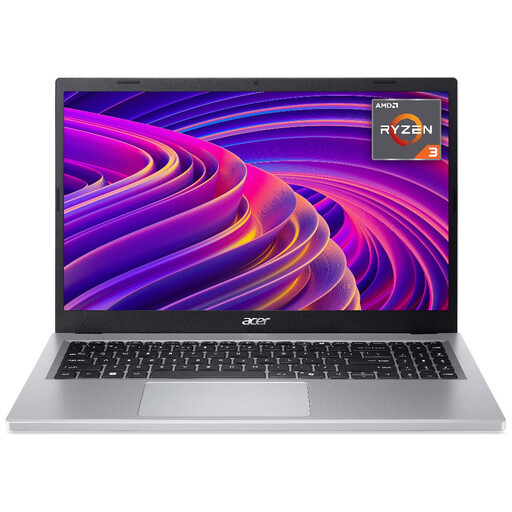
Acer Aspire Go 15 AG15-21P, Silver
Consider this Windows-route laptop if you want a 15.6-inch screen for working at the table. Its title lists Full HD resolution, an AMD Ryzen 3 7320U processor, 8GB RAM and a 256GB SSD; confirm the exact configuration and keyboard layout before choosing it.
View on Joybuy
 No image available
ASUS Vivobook 15 X1504VA, Cool Silver
Consider this Windows-route model if you want a 15.6-inch laptop for reading sources and drafting at the table. Its title lists an Intel Core 5 120U processor, 24 GB memory and a 1 TB SSD; confirm the keyboard layout and ask about battery runtime during ordinary use rather than relying on a standby figure.
View on Joybuy
 No image available
Acer Chromebook Plus 514 CB514-5H, Iron
Consider this Chromebook if your debate files and applications work in a browser-led workflow. Its title lists a 14-inch 1920 × 1200 display, an Intel Core 5 120U processor, 8GB RAM and a 512GB SSD. Google says Microsoft 365 editing on a Chromebook requires OneDrive; also check the keyboard layout and carrying weight.
View on Joybuy
Common questions
Do I need a powerful laptop to prepare debate arguments?
Not usually for writing, presentations, email and web research: Which? describes these as ordinary study tasks suited to an all-rounder. If your work also requires specialist, resource-heavy software, choose a configuration against that software’s requirements instead.
Can I edit Word and PowerPoint files on a Chromebook?
Yes, if your team’s Microsoft 365 workflow is acceptable on ChromeOS. Google says editing Microsoft 365 files on a Chromebook requires setting up Microsoft 365 and connecting OneDrive, so try the shared files you actually use before buying.
What if an online laptop purchase in the UK does not work out?
The reason matters: GOV.UK distinguishes remedies for faulty, misdescribed or unfit goods from returning an item simply because you have changed your mind. Check the retailer’s instructions for a change-of-mind return, and do not treat that policy as a replacement for rights concerning a fault.
What should I do with an old laptop?
Look for an appropriate electrical-equipment reuse or recycling route rather than putting it in general waste. GOV.UK describes UK waste-electrical-equipment measures as encouraging recovery, reuse and recycling; erase your personal data before handing over the device.


