Control the window light before choosing a monitor: position the screen to avoid direct reflections and use blinds or curtains where needed, as the Health and Safety Executive advises. For a compact recording desk, a 27-inch 4K display is a practical starting point; consider a larger screen when you have room for more DAW windows, and prioritise colour-calibration features only if the demo also involves visual work.
Who this monitor suits
Daytime DAW editor by a window
You need to read tracks and controls while daylight creates reflections. Screen position and window coverings matter alongside the display itself: the Health and Safety Executive advises arranging a workstation to avoid glare and bright reflections.
Compact-desk demo producer
You need space for tracks, mixer channels and plug-ins without crowding a small desk. Screen dimensions, stand adjustment and connections to your computer deserve attention before specialised colour modes.
Audio-and-visual demo creator
You master the recording and prepare video, cover art or other colour-referenced material. Defined colour spaces and calibration claims may therefore matter as well as everyday DAW usability.
What to check when choosing
Start with the desk and window: the Health and Safety Executive advises arranging the screen to avoid glare, while size and colour features become useful according to the work you do on that screen.
| Concern |
What to check |
Who this matters to |
| Daylight glare and reflections |
Check the screen coating and stand adjustment, and whether you can angle the desk away from the window. |
When the window reflects in my timeline, I need to see small controls without fighting the light; around 42% of consumers put glare control first. |
| DAW workspace and desk fit |
Compare panel and stand dimensions with your desk, then confirm the computer can drive the intended resolution. |
If tracks, meters and plug-ins compete for space, I need a screen that fits alongside my other equipment; roughly 33% of consumers prioritise DAW workspace and desk fit. |
| Colour-referenced visual work |
Check the exact model's calibration claim and colour modes against your visual workflow. |
For a demo with cover art or video, I need to make deliberate colour decisions as well as edit audio; around 25% of consumers place that visual work first. |
Buying pitfalls
-
Relying on brightness to overcome direct sunlight
A bright screen can still be uncomfortable when the window creates glare or reflections. The Health and Safety Executive recommends arranging the workstation to avoid bright reflections.
Check whether you can turn the desk or screen and control the light with curtains or blinds. Then consider a matte or anti-glare surface and a stand you can adjust.
-
Treating colour specifications as audio specifications
Factory calibration, wide colour coverage and reference modes describe visual work; they do not establish the accuracy of an audio master.
Prioritise those features when you also make colour-referenced video or artwork. For an audio-only task, focus on readability, desk fit, adjustment and connections.
-
Assuming every USB-C port does the same job
A USB-C connection does not, by itself, establish which video, data or laptop-charging functions will work with your computer.
Check the exact monitor and computer ports, the required cable and the charging power your laptop needs.
-
Choosing a large panel before measuring the desk
A larger display can leave less room for speakers, a keyboard or controller, and may be harder to position away from window light.
Measure the panel and stand against your desk and intended viewing position. If you plan to use an arm, confirm the monitor's mounting support and the arm's capacity.
Relevant brands to consider
These models illustrate different workstation needs; a brand's inclusion does not mean every display it makes has the same features.
BenQ
The DesignVue PD3225U illustrates a 31.5-inch 4K creative display for a desk with room for a larger DAW workspace.
- BenQ specifies a matte IPS panel, 150 mm height adjustment and Thunderbolt power delivery up to 85 W for this model.
- Check its physical footprint; its colour-oriented features may have little bearing on an audio-only project.
ASUS
The 27-inch 4K ProArt PA279CRV is a reference point when a compact audio desk also handles colour-referenced visual work.
- ASUS specifies factory pre-calibration to Delta E below 2 and 99% coverage of both DCI-P3 and Adobe RGB for this model.
- Those are visual-production specifications, not evidence of more accurate audio mastering.
Dell
The 27-inch 4K UltraSharp U2725QE illustrates an adjustable hub monitor with an anti-glare, anti-reflective surface.
- Dell lists height adjustment and an IPS Black panel for this specific model.
- It has no integrated audio; check whether its hub connections suit your computer and peripherals.
Apple
Studio Display is a 27-inch 5K option for a workstation built around compatible Apple hardware.
- Apple specifies 600-nit brightness, P3 wide colour and reference modes for Studio Display.
- Check device compatibility and the chosen glass and stand configuration; nano-texture glass and a height-adjustable stand should not be assumed for every configuration.
Joybuy monitors for this setup
These displays cover compact and larger desks, including models aimed at visual work alongside a demo. Match each one to your available space, window position and computer connections rather than treating its colour or gaming features as audio-mastering features.
 Image unavailable
ASUS ProArt PA27DCE-K OLED 4K UHD monitor
Consider this 4K OLED model if the demo also calls for visual work. Confirm its calibration scope for your intended output, and check the USB-C functions you need before connecting a laptop.
View on Joybuy
 Image unavailable
ASUS ProArt PA32UCG-K 32-inch 4K HDR IPS Mini LED monitor
Its 32-inch 4K format is a candidate when the desk has room for more DAW windows and the project includes visual work. Measure the space available and confirm the brightness specification and required computer connections before relying on either for this setup.
View on Joybuy
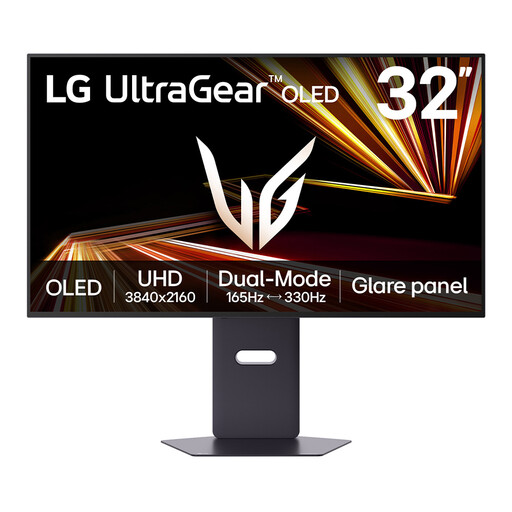 Image unavailable
LG UltraGear 32GX850A-B 32-inch 4K OLED Dual Mode monitor
The 4K OLED format may suit a desk with room for a larger DAW view. The product information warns about prolonged static images and OLED image retention, a consideration if your DAW interface stays on screen for long sessions; also check the desk fit and window reflections.
View on Joybuy
 Image unavailable
ASUS ProArt PA278CFRV QHD IPS 100 Hz monitor
This QHD model is an option when a compact desk matters more than choosing a 4K display. Check that its resolution gives your DAW enough usable space, and confirm the USB-C functions for the unit you intend to use.
View on Joybuy
 Image unavailable
Lenovo L32p-30 31.5-inch 4K UHD IPS USB-C monitor
The 31.5-inch 4K format is worth considering when you want a larger DAW view and have space for it. Before choosing it for a bright-window desk, check the screen coating; confirm USB-C compatibility and charging needs separately.
View on Joybuy
Common questions
Will a brighter monitor solve a bright-window setup?
Not on its own. The Health and Safety Executive advises arranging the screen to avoid windows or bright lights that cause glare, and adjusting curtains or blinds to control intrusive light. Check the screen surface and stand adjustment after considering where the desk can go.
Do I need a colour-calibrated monitor to master audio?
Audio accuracy alone does not call for a colour-calibrated display. Calibration claims and defined colour modes become relevant if you also make colour-referenced video or artwork; check the exact model and the visual output you need to prepare.
What should I confirm about USB-C before buying?
Confirm that your computer can send video through the intended port, that you have a suitable cable and that any monitor charging function meets your laptop's needs. A USB-C connector alone does not establish which of those functions will work together.
Do workplace display-screen rules apply to my recording setup?
For work use in the UK, the Health and Safety Executive says the Display Screen Equipment Regulations apply to workers who use display-screen equipment daily for continuous periods of an hour or more. In that situation, the employer must assess the workstation; occasional or shorter use alone does not meet the stated usage threshold.


