UI and menu designers
You arrange menu layouts, icons, typography and colour states. A QHD workspace and a defined sRGB-oriented viewing mode are relevant when reviewing fine detail and visual consistency.


For game-menu design at a shared desk, start with enough resolution for layouts and small text, a stated sRGB mode or coverage for the intended colour workflow, and a stand each user can adjust. USB-C charging or device switching becomes more useful when colleagues bring different laptops; a higher refresh rate matters more if animated menus are reviewed regularly. Check those features on the exact model and with the devices that will use it.
You arrange menu layouts, icons, typography and colour states. A QHD workspace and a defined sRGB-oriented viewing mode are relevant when reviewing fine detail and visual consistency.
You share a workstation or change laptops during the working week. Connections that suit those devices and a screen position each person can reset matter alongside image quality.
You inspect animated transitions, pointer movement or in-engine menu states as well as static designs. Refresh rate is worth checking alongside colour settings, workspace and desk fit.
Set the monitor up for the menu assets you create first, then check how colleagues will connect and adjust it; let the amount of motion-preview work determine how much refresh rate matters.
| Concern | What to check | Who this matters to |
|---|---|---|
| Colour and UI detail | Check native resolution, the intended sRGB mode or coverage, and any supplied calibration information against your delivery workflow. | If I work on small menu text, icons and colour states, I need room to inspect the layout and a defined colour target for review. Around 46% of consumers put colour and UI detail first. |
| Shared-desk setup | Check stand adjustment and each laptop’s USB-C video support, charging requirement and cable compatibility. | When colleagues take turns at my desk, I want to reconnect a laptop and reset the screen position without inheriting someone else’s setup. Roughly 36% of consumers prioritise the shared-desk workflow. |
| Motion preview | Check refresh rate at the resolution and connection you intend to use, as well as the computer’s output capability. | If I regularly review animated navigation and cursor movement, I need the screen to keep up with that preview work. About 18% of consumers make motion preview their primary concern. |
A refresh-rate figure tells you little about the monitor’s colour mode, resolution or stand. Those characteristics still matter when the main job is arranging and reviewing menu assets.
Start with the resolution and colour target your UI workflow needs, then decide what refresh rate suits your animation previews.
Video output and charging depend on the laptop, cable and monitor. A stated power-delivery limit does not mean it meets every laptop’s charging requirement.
For each laptop that will use the desk, check USB-C display-output support and compare its charging requirement with the monitor’s rated output.
Screen position is only part of a shared workstation. The UK Health and Safety Executive says employers must assess workstations for workers who use display screen equipment daily for continuous periods of an hour or more, including where they hot-desk.
Reset the screen for each user and consider the chair, desk, input devices and lighting as part of the applicable workstation assessment.
Listings for similarly named monitors can differ in connections, included cables and configuration, while availability can change.
Check the complete model number and the current listing’s connections, included items, stand configuration and warranty terms before ordering.
These examples illustrate different monitor configurations for menu work and shared desks; the specifications belong to the named models, not every display from each brand.
The PD2705Q is a 27-inch QHD option for an sRGB-oriented design workstation that also needs laptop connections.
The P2425DE is a compact QHD hub-monitor example for a desk used by different laptop owners.
The PA278QV is a 27-inch QHD option where menu work must connect to equipment using a range of display inputs.
These monitors offer different starting points for game-menu work, from QHD creator displays to a 4K Mac-focused model and a wider screen for arranging tools. Match the exact model’s colour settings, connections and desk fit to the people and devices that will use it.
 No image available
A QHD creator-display option to consider when arranging menu layouts and reviewing UI detail. Check its colour settings and the connections needed by laptops at the shared desk.
 No image available
A Mac-focused option for reviewing detailed menu layouts. The title specifies a 27-inch 4K UHD display, USB-C and a height-adjustable stand; confirm that its connections and features suit every device expected at the desk.
 No image available
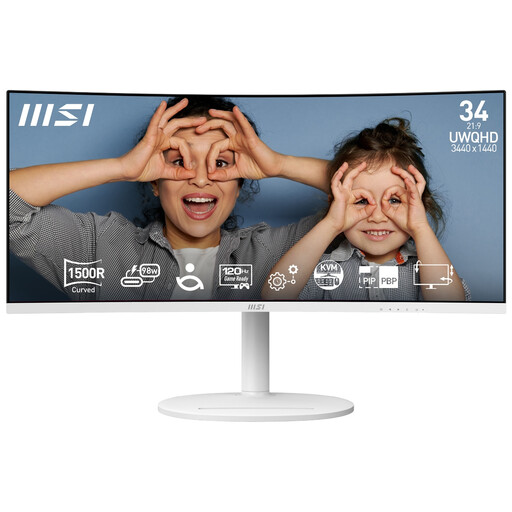
Consider the ultrawide format if side-by-side tools and references matter and the shared desk has room for it. The title specifies 3440 × 1440 resolution and 120 Hz; check the colour mode required for your menu assets and the viewing position for each user.
 No image available
A QHD option when menu design also involves regular motion previews. Confirm the exact unit’s colour specification and USB-C connections before relying on either for a shared-laptop workflow.
 No image available
A QHD creator-display option for a shared desk where screen size and connections need checking carefully. Confirm the colour mode for your menu workflow and the refresh rate needed for animation previews.
Yes, hot-desking can be covered. The UK Health and Safety Executive says employers must assess workstations for workers who use display screen equipment daily for continuous periods of an hour or more, and identifies hot-desking as a covered working arrangement.
Reset the screen position for that person and check the wider workstation, not just the monitor. The Health and Safety Executive advises positioning the top of the screen around eye level, keeping the screen about an arm’s length away and placing the computer and screen directly in front of the user.
No. A stated coverage figure helps identify a monitor for an sRGB-oriented workflow, but it does not establish how the operating system, game engine, export settings or players’ displays handle colour. Check the intended monitor mode and review representative assets in the delivery workflow.
Not necessarily: each laptop needs compatible USB-C video output, and its charging requirement must fit the monitor’s power-delivery rating. For the specific examples discussed here, Dell UK lists up to 90 W for the P2425DE and BenQ UK lists up to 65 W for the PD2705Q; check the cable and each laptop too.
Not necessarily. When layout and colour review are the main tasks, choose around the required workspace and colour workflow; if animated navigation is a regular part of the job, check a higher refresh rate at your intended resolution and connection.