What should you consider before buying?
Decide whether your main need is screen and control positioning, a reliable laptop connection or a specific gap in your meeting setup; then check any employer equipment process before paying personally.
| Concern |
What to check when buying |
Who this matters to |
| Screen and control positioning |
Check the screen position, viewing distance, desk space and stand adjustment; plan where the keyboard and mouse will sit too. |
If I work at a laptop for long stretches, I want to position the screen without leaving the controls awkwardly attached; around 28% of consumers put screen-and-control positioning first. |
| Laptop connection |
Check the exact laptop port, supported display count, monitor input, charging needs and any employer software restrictions. Plugable Technologies notes that native USB-C video requires Alt Mode support from both host and connected device. |
When I reconnect a work laptop, I want a connection route it can actually use and my employer permits; around 28% of consumers prioritise a dependable laptop connection. |
| Usable screen workspace |
Compare native resolution, preferred text scaling, desk depth, screen position and the laptop’s supported output. |
If I need more room for documents or applications than the laptop screen provides, I want a display that suits my desk and preferred scaling; around 22% of consumers prioritise usable screen workspace. |
| Meeting equipment |
Check what your existing camera, audio and room lighting can do, as well as the connection and any software needed for the features you want. |
When my current call setup has a specific shortcoming, I want an accessory that addresses it rather than replacing equipment that already works; around 11% of consumers prioritise meeting equipment. |
| Who provides assessed equipment |
Ask whether DSE rules apply to your circumstances, what the assessment says about home and office use, and how your employer provides equipment. |
Before I spend personally, I want to know whether an assessment identifies equipment my employer needs to provide; around 11% of consumers prioritise who pays for assessed equipment. |
Joybuy product choices for a laptop desk setup
These Joybuy options cover laptop positioning, an external display, separate input devices, USB-C docking and video calls. Choose only the device that addresses a gap in your current setup.
 No image available
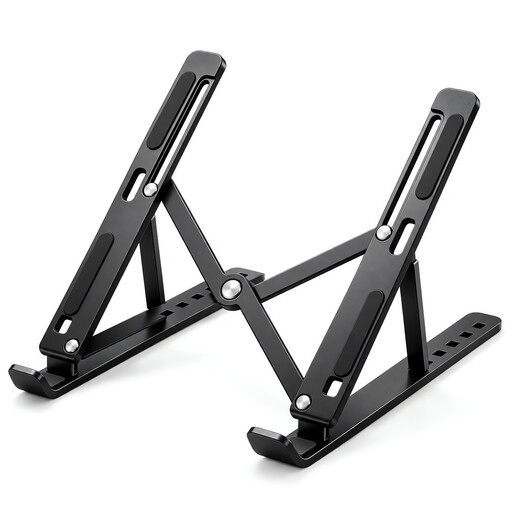
Foldable Adjustable Laptop Stand
Consider it if you want to raise a laptop screen at a desk; for prolonged laptop use, plan separate keyboard and mouse positions too.
The product title specifies seven angle levels from 15° to 45° and a fit for 10–17-inch laptops.
Joybuy
 No image available
BenQ MA270UP 27-inch 4K USB-C Monitor
Consider a separate display if you need a screen that can be positioned independently; check connection and feature compatibility with your exact laptop.
The product title specifies a 27-inch 4K display and a height-adjustable stand.
Joybuy
 No image available
HP 680 CFT Dual-Mode Keyboard and Mouse Combo
Consider a separate keyboard and mouse if you need to position laptop controls independently from the screen.
The product title identifies a dual-mode keyboard-and-mouse combination; check which connection options suit your work laptop.
Joybuy
 No image available
Targus USB-C Universal Dual HDMI 4K Docking Station, 100W Power Delivery Pass-Through
Consider a dock if your laptop setup needs a repeatable connection for multiple peripherals; confirm your laptop supports the required video path first.
The product title specifies dual HDMI 4K and 100W Power Delivery pass-through. USB-C video through Alt Mode requires host support.
Joybuy
 No image available
Targus 2K Webcam with Autofocus
Consider a separate webcam only if it addresses a shortcoming in your existing video-call setup.
The product title specifies 2K resolution and autofocus; check that its connection and placement suit your workstation.
Joybuy
Frequently asked questions
Does HSE guidance prescribe a monitor size or a particular home setup?
No universal monitor size follows from the HSE guidance for Great Britain. Where DSE rules apply, an employer assesses the whole workstation, work conditions and individual requirements; HSE says a home worker may not need additional office equipment if their setup is suitable.
Will any USB-C hub connect my work laptop to a monitor?
No. For native video over USB-C Alt Mode, check that the exact laptop port and connected device support it, then confirm the display and charging arrangement. A managed laptop may also need employer IT approval for software used by a DisplayLink dock.
How should I set up a raised laptop for prolonged screen work?
HSE advises using a separate keyboard and mouse when elevating a laptop screen, or using a separate display. Assess the screen, controls and available desk space together.
Must I personally pay for equipment identified by my employer’s DSE assessment?
For Great Britain, HSE says that if an applicable assessment indicates the employer needs to provide DSE equipment, the worker cannot be charged for it. Ask how your employer supplies the item or handles purchases; this does not mean every personally selected monitor or accessory will be provided.
When should I add a separate webcam or other meeting accessory?
Consider one when your existing camera, audio or room lighting falls short of your needs for calls. Check its connection, placement and any software-dependent features before choosing an accessory.


