Desk-based console players
Check whether the monitor’s HDMI input accepts the resolution, refresh rate and variable refresh rate (VRR) mode you want from your PS5 or Xbox. Allow space for its stand at a comfortable viewing distance.


Start with the resolution, frame rate and connection your PC or console can use, then check whether the screen and stand fit your desk. A gaming monitor makes sense when your device and games can use its motion features; a compatible general-purpose monitor may suit mixed use when high refresh rates matter less. For console play, check the desired mode on the monitor’s HDMI input rather than relying on its headline refresh rate.
Check whether the monitor’s HDMI input accepts the resolution, refresh rate and variable refresh rate (VRR) mode you want from your PS5 or Xbox. Allow space for its stand at a comfortable viewing distance.
Compare refresh rates with the frame rates your PC and games can produce, while weighing screen size and resolution against the space available on your desk.
Check the inputs, picture quality and stand adjustments you will use for work as well as gaming. A gaming label alone does not settle those choices.
Check the device-to-screen connection first, then compare the picture and motion features you can use from your seat.
| Priority | What to check | Your needs |
|---|---|---|
| Device compatibility | Match the intended resolution and refresh rate to the PC or console, game and exact monitor input. For console play, check 120 Hz and VRR support for the desired HDMI mode. | I want the display setting my games and device can actually use, rather than choosing by the largest advertised Hz figure. |
| Desk fit | Measure usable desk width and depth, including room for the stand. Check viewing distance and the model’s height and tilt adjustments. | The screen needs to fit alongside my other equipment without making me twist or bend my neck to see it. |
| Picture and motion | Compare resolution and screen size at your viewing distance. Weigh refresh rate against the frames your PC can produce, and assess picture quality for other tasks. | If I play fast-moving games, frequent screen updates matter when my PC can supply the frames; for mixed use, I also care about the everyday picture. |
| Connection and upkeep | Check the available ports and suitable cable across the whole connection path. If considering OLED, read that model’s instructions for prolonged static images and panel care. | I would rather keep a compatible existing screen if the connection is the obstacle. If I choose OLED, I need to be comfortable following its care guidance. |
A monitor’s refresh rate is not the frame rate produced by a PC or game. Console output and game support also determine which modes are usable.
Check the resolution, refresh rate and input you intend to use against your device and games.
Xbox Support specifies a Series X, a compatible display and an Ultra High Speed HDMI cable supporting HDMI 2.1 for its 4K-at-120-Hz setup. A cable cannot add a mode that either endpoint lacks.
Check the device, display input and cable together. If you need an Ultra High Speed HDMI cable, use its certification information to identify one.
The diagonal measurement does not tell you whether the stand fits your desk or places the screen comfortably. The Chartered Institute of Ergonomics and Human Factors advises positioning screens without twisting or bending your neck.
Measure desk width and depth, then check the exact stand dimensions and adjustments from your usual seat.
If the supplied stand cannot provide the position you need, a separate mounting solution may be necessary.
A Joybuy UK LG listing names 27GR93U in its title but 32GR93U in its technical details. Those model numbers and screen-size descriptions do not identify the same variant.
Resolve a listing’s conflicting model and specification details with the seller before choosing it for a particular desk or device.
These references concern particular models or ranges, not every monitor carrying each brand name.
Two Alienware models appear in PCMag UK’s gaming-monitor selections for different resolutions.
The Q27G4ZD appears in PCMag UK’s everyday 1440p gaming category.
PCMag UK includes the TUF Gaming VG27AQL3A in its budget 1440p gaming category.
Samsung UK’s gaming-monitor guidance discusses refresh rate, response time, adaptive sync, size and resolution.
LG UK describes an UltraGear range with different sizes, aspect ratios and screen shapes.
These gaming monitors are options for a desk-based PC or console setup. Compare each screen’s stated features with your device’s usable output and the space available; a compatible general-purpose monitor remains another route when gaming motion features matter less.
 No image available
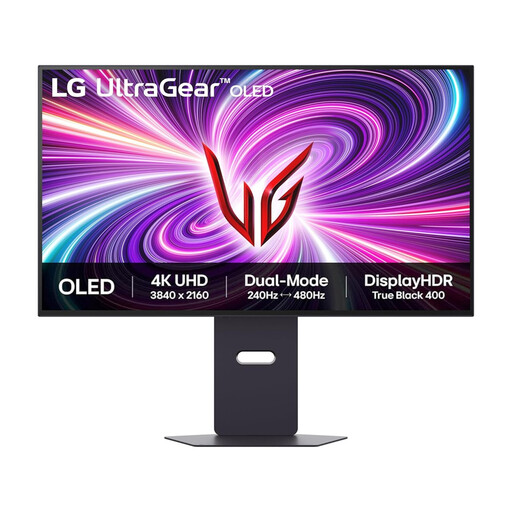
Consider its dual-mode options if your PC and games can use them: the product title states 4K at 240 Hz or FHD at 480 Hz. It also lists HDMI 2.1, DisplayPort, 7 W stereo speakers and a 0.03 ms response-time figure. Check the desired mode on your chosen input, allow room for the 32-inch screen and stand, and follow LG’s OLED panel-care guidance.
 No image available
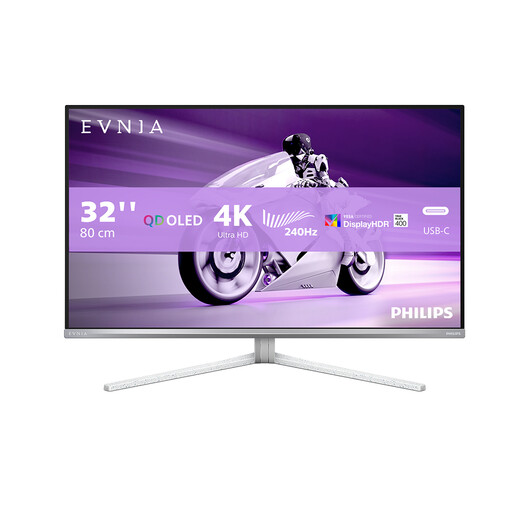
This is a 32-inch UHD OLED option for a desk with room for a larger screen. Its title states 240 Hz, 0.03 ms, HDR400, FreeSync Premium Pro and G-Sync compatibility; check the resolution and refresh combination your device can use. Follow the model’s instructions about prolonged static images.
 No image available
The stated 27-inch QHD screen and 240 Hz refresh rate are worth comparing with your desk space and PC’s achievable game frame rates. The title also lists a 0.03 ms response-time figure. For console use, confirm the desired resolution and refresh rate on the exact input; follow the model’s OLED care instructions.
 No image available
Check whether its curved 32-inch screen fits your viewing position. The title states 3840 × 2160 resolution, 165 Hz, a 0.03 ms GTG figure, Type-C 65 W and a USB hub. Confirm the modes and connections your device can use, and follow the monitor’s panel-care instructions.
 No image available
This 27-inch option lists dual-mode 240 Hz/480 Hz operation, DisplayPort 2.1 and HDMI 2.1. Check the resolution associated with each mode and whether your PC and games can supply enough frames to use it. The title also states a 1 ms GtG figure and DisplayHDR 600.
Open Settings > Screen and Video > Video Output on the PS5. PlayStation says Test 1440p Output checks available 60 Hz, 120 Hz and VRR modes; using 120 Hz also depends on the display and game supporting that frame rate.
Xbox Support specifies a Series X, an Ultra High Speed HDMI cable supporting HDMI 2.1 and a compatible display for its 4K-at-120-Hz setup. Check the display’s relevant input as well as the cable; HDMI Licensing Administrator describes the certification label used to identify certified cables.
No. Refresh rate describes how often the monitor can update, while the PC and game determine the frames produced. A 240 Hz monitor will not make full use of that rate if the PC produces fewer frames.
Measure the usable desk width and depth, including the stand, and check its height and tilt adjustments from your seat. The Chartered Institute of Ergonomics and Human Factors advises placing the screen at a comfortable viewing distance without twisting or bending your neck.
Follow the exact model’s instructions for static images and any image-care controls. LG says leaving the same image on its OLED monitors for a long time may cause faint marks and describes an Image Cleaning setting; it does not establish that every mark can be removed.