Who each setup suits

First-time learners short on sockets

If your desk has few available sockets, an all-in-one lets you learn 3D modelling without planning power for a separate monitor. You still need to check the chosen computer’s hardware against your intended software and projects.

Learners planning GPU-rendered projects

If you expect to use Cycles GPU rendering or work on more complex scenes, check the exact graphics card, its memory and its supported rendering backend before choosing a desktop for its compact size.

Monitor owners with limited desk space

If you already have a compatible monitor, a compact desktop can keep the computer enclosure small. The monitor still needs a suitable connection and its own power arrangement.

What matters when choosing

All-in-one desktop

Choose it when: An integrated screen matters most and you are mainly learning modelling, materials and modest rendering.

Allow for: Graphics and memory differ by configuration, so check the exact model before committing to more demanding projects.

Compact desktop

Choose it when: You already have a compatible monitor and want the computer itself to take up little desk space.

Allow for: A separate display, its connection and its power supply; a small computer is not an all-in-one.

Tower with a discrete GPU

Choose it when: A supported GPU for Cycles rendering and room for more demanding projects take priority over a compact setup.

Allow for: Space and power connections for both the tower and a separate display.

Concern What to check Who this matters to
Safe, uncluttered power setup Count the devices that need power. If using an extension lead, check its marked current rating against the connected load; do not daisy-chain leads. If sockets are scarce, I want a workable setup without crowding one connection or adding unnecessary separate devices. Around 33% of consumers put this power arrangement first.
Modelling and rendering hardware For Blender on Windows, check the CPU, RAM and GPU against your intended work. Blender Foundation recommends 8 CPU cores, 32GB RAM and 8GB VRAM; confirm backend and driver support for GPU rendering. As my projects grow, I want the desktop to handle more demanding scenes and my chosen rendering workflow. For around 42% of consumers, hardware suitability is the primary concern.
Small computer with an existing monitor Match the monitor input to the desktop’s display output, and account for the cable and the monitor’s power connection. If I already own a suitable screen, I would rather save desk space than buy a computer with another display built in. This is the leading need for around 25% of consumers.

Mistakes to avoid

  • Assuming a compact desktop is a one-plug setup

    A Mac mini, for example, has HDMI and Thunderbolt display connections but no integrated screen. Its small enclosure does not remove the need to power a monitor.

    If reducing separate desk devices is essential, compare all-in-one configurations first. Otherwise, confirm your monitor connection and socket plan before choosing a mini desktop.

    You may also need a compatible display cable.

  • Treating Blender’s minimum requirements as a long-term target

    Blender Foundation lists 8GB RAM and 2GB VRAM as Windows minimums, compared with 32GB RAM and 8GB VRAM in its recommended specification. The minimum alone is a poor basis for choosing hardware for progressively heavier projects.

    If rendering or larger scenes are part of your plans, check the exact RAM, GPU memory and supported rendering backend rather than relying on the minimum figures.

  • Daisy-chaining extension leads to reach the desk

    Electrical Safety First warns that overloading sockets or connecting extension leads to one another can create an overheating and fire risk.

    Check the lead’s marked rating and the load of the connected equipment. If the workspace regularly depends on extension leads, consider asking a registered electrician about additional sockets.

  • Reading a tower’s PSU rating as its normal power use

    The wattage on a power supply unit describes a component rating, not the desktop’s constant electricity draw. Dell’s Alienware Aurora example lists a 1000W PSU, but that figure alone cannot determine a safe shared-socket arrangement.

    Use the documentation for the exact computer and peripherals when planning the connected load, and compare it with the extension lead’s marked rating.

Brands to consider for these setups

Apple

Apple offers both the compact Mac mini and the iMac all-in-one for different desk arrangements.

  • Apple lists HDMI and Thunderbolt display connections for Mac mini and identifies Blender modelling as a use case. Its iMac specifications include an M4 chip and a 24-inch 4.5K display.
  • Mac mini needs an external screen. For an iMac, check the memory and storage in the particular configuration you are considering.

HP

HP offers conventional desktops and all-in-one models, including the OmniStudio X range.

  • HP lists all-in-one configurations with up to 32GB LPDDR5X memory and Intel Arc graphics, providing specific hardware to compare with your modelling plans.
  • Those are configuration-dependent specifications. Check the exact model rather than assuming every HP all-in-one has the same graphics or memory.

Dell Alienware

Dell’s Alienware Aurora illustrates the Windows tower route for learners considering a dedicated GPU.

  • Dell lists an Aurora configuration with RTX 5080 16GB graphics and 64GB DDR5 memory; those figures describe that configuration, not a requirement for starting 3D modelling.
  • A tower still calls for a separate display and a power plan for the complete workspace.

Joybuy tower options

This tower option is for learners considering a separate-monitor setup rather than an all-in-one or compact desktop. Check the complete desk and power arrangement alongside its hardware.
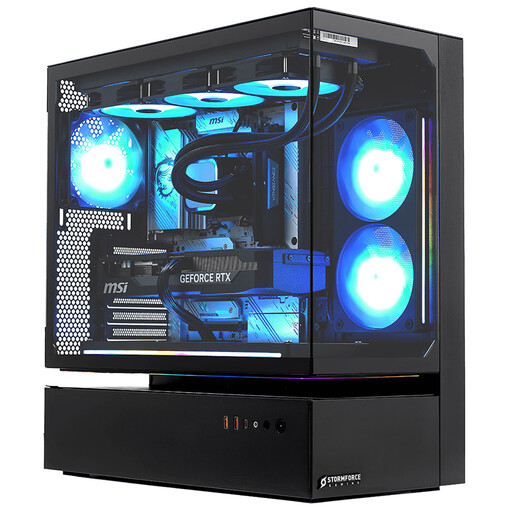
Stormforce Cyclone AMD Ryzen 7 desktop with 32GB RAM, 2TB SSD and RTX5080

Stormforce Cyclone AMD Ryzen 7, 32GB RAM, 2TB SSD, RTX5080

For learners able to accommodate a tower and separate monitor, the listed 32GB RAM matches Blender Foundation’s recommended Windows memory figure. Confirm Cycles compatibility for the exact GPU and driver before relying on GPU rendering, and plan power for the monitor as well as the computer.

View on Joybuy

Common questions

What desktop specification should I look for when learning Blender?

For Blender on Windows, the Blender Foundation lists a 4-core CPU, 8GB RAM and 2GB VRAM as minimum figures, while its recommended figures are 8 CPU cores, 32GB RAM and 8GB VRAM. If you expect larger scenes or regular rendering, compare prospective configurations with the recommended figures as well as checking GPU compatibility.

Can I power a desktop and monitor from an extension lead?

You can plan a shared connection only if the connected equipment stays within the extension lead’s marked current rating. Electrical Safety First advises against plugging one extension lead into another, so count the complete desk setup rather than just the computer.

Do I need a discrete GPU to start 3D modelling?

A discrete GPU is not automatically necessary for basic modelling lessons, but it deserves closer attention if you plan to use Cycles GPU rendering or work with heavier scenes. Blender Foundation says GPU rendering can speed up rendering while GPU memory can limit complex scenes; check the exact card and supported backend before buying for that workflow.

What should I do with an old computer or monitor?

Recycle an old computer or monitor rather than putting it in the general waste bin. Recycle Now identifies both as items for recycling; check the available local collection or recycling options when replacing your setup.