For routine review of experiment results, start with a desktop that runs your required software and a separate monitor you can position away from window glare. A business tower offers a route when connections or future expansion matter; choose workstation hardware when substantial analysis, simulation or visualisation runs locally, rather than for viewing results alone.
Who this setup suits
Bright-workspace result reviewers
Researchers and laboratory staff reading charts, tables, reports or instrument outputs beside daylight. Their immediate concern is a screen they can position to limit glare, not necessarily more computing power. The Health and Safety Executive advises arranging screens to avoid glare and bright reflections.
Multi-display analysis users
People comparing results with notebooks, reference material or laboratory systems at one desk. They need display connections that match their intended monitors and enough usable screen space for the way they work.
Local compute and visualisation users
People who prepare substantial datasets or run simulation, technical visualisation or other demanding applications on the desktop itself. Their software and workload determine whether a configurable workstation is warranted.
What matters when choosing
Compact desktop and separate monitor
Consider it when: you mainly review plots, tables and browser-based results, your required software runs on the system, and desk space matters.
Trade-off: the monitor and its connections need separate attention; compact size does not resolve window glare.
Business tower or small-form-factor desktop
Consider it when: your software needs a particular business operating environment or you expect to add peripherals, storage or another display.
Trade-off: expansion and display connections depend on the exact configuration; a smaller chassis may restrict later changes.
Professional workstation and separate monitor
Consider it when: reviewing results is coupled with substantial local data preparation, simulation or technical visualisation.
Trade-off: specify its processor, memory and graphics around the actual application rather than choosing workstation capacity for simple viewing.
| Concern |
What to check |
Who this matters to |
| Glare and legibility |
Check monitor coating and adjustment, then whether the screen can sit away from directly facing the window. Consider blinds or curtains if daylight reaches it. |
I need to read plots beside daylight without reflections obscuring them. Around 42% of consumers put clear, glare-controlled viewing first. |
| Displays and connections |
Match the exact desktop’s published display support and physical outputs to each intended monitor’s inputs and resolution. |
When comparing results with a notebook or laboratory system, I need the planned screens connected at once; for around 33% of consumers, that workflow is the primary concern. |
| Local computing demands |
Check the application’s operating-system, memory and graphics requirements against the intended dataset and desktop configuration. |
If I run simulation or prepare substantial datasets locally, viewing space alone will not settle the hardware choice. That computing need comes first for around 25% of consumers. |
Buying pitfalls
-
Choosing the computer before planning the screen
A powerful desktop cannot fix reflections from a poorly positioned monitor. The Health and Safety Executive advises arranging the desk and screen to avoid glare or bright reflections.
Plan the monitor, its compatible connection and the desk position alongside the desktop. Check whether adjustment or control of incoming light will be needed.
A suitable cable, monitor arm or window covering may be needed to make the chosen layout workable.
-
Assuming any desktop will support the planned monitors
The number of displays and supported connections can differ between configurations, even within a product family.
Match the exact desktop’s published display limits and ports to the monitors’ resolution, inputs and intended connection arrangement before buying.
A different cable, adapter or dock may be needed if the planned connections do not match.
-
Choosing workstation hardware for result viewing alone
HP and Dell position their workstation ranges for demanding processing and graphics workloads; those capabilities do not establish a need for them when the task is simply opening results.
List the heaviest application you will run locally, its software requirements and your typical dataset before deciding on workstation components.
-
Handing over an old desktop without planning data handling
Research, personal or institutional information may remain on a computer when it leaves your desk. An electrical-recycling route does not itself address that information.
Follow your organisation’s data-retention and secure-erasure policy before using an available take-back or recycling route.
Brands to consider
Apple
Mac mini is a compact option if the required research, instrument and institutional software runs on macOS and you want to choose an external monitor separately.
- Apple lists external-display support through Thunderbolt and HDMI for Mac mini; check the limits for the selected chip and connections.
- Confirm application, driver and institutional IT compatibility before choosing macOS.
Dell
Dell offers business desktops and configurable professional desktop ranges relevant to different levels of local processing.
- Its desktop and monitor ranges provide configurations to assess for peripheral connections and a separate display.
- Check the selected chassis and configuration for its actual ports, graphics outputs and expansion options.
HP
HP Z workstations are relevant when result review accompanies demanding local data processing, simulation or visualisation.
- HP presents Z models with configurable hardware for technical workloads.
- Match a specific configuration to the application; workstation-range capabilities are not a requirement for basic viewing.
Lenovo
ThinkStation is a workstation route to consider for complex local computing workflows.
- Lenovo positions ThinkStation families for demanding professional work.
- Confirm the installed configuration, software support and monitor outputs of the particular model.
LG
LG is relevant to the separate-monitor decision when detailed result viewing beside daylight is the main concern.
- LG lists 27-inch 4K IPS UltraFine variants with height, tilt and pivot adjustment.
- Check the particular variant and its connections; monitor specifications alone do not remove reflections from a bright window.
Joybuy desktop choices
These desktops cover different computing needs, from a compact mini PC for everyday tasks to systems aimed at demanding local graphics or AI work. For any of them, choose a compatible monitor and plan its position beside the window separately.
 No image available
CyberPowerPC JOYB1013 White — Ryzen 7 9800X3D, RTX 5080 16GB, 32GB DDR5, 2TB NVMe SSD
Consider this Windows 11 Home tower if your work calls for its stated graphics configuration; check that your experiment and instrument software runs on it.
Its title specifies an AMD Ryzen 7 9800X3D processor, NVIDIA GeForce RTX 5080 16GB graphics, 32GB DDR5 memory and a 2TB NVMe SSD.
Plan a compatible monitor and check the tower’s dimensions against your desk space.
View on Joybuy
 No image available
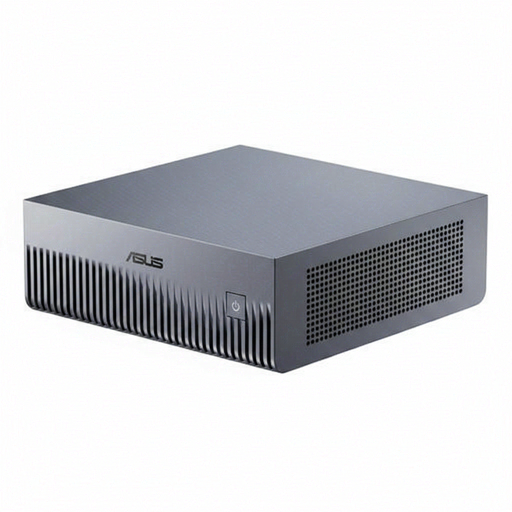
ASUS Ascent GX10 — NVIDIA GB10 Grace Blackwell, 128GB unified memory, 1TB NVMe SSD
Consider this compact system for local AI or data-science work only if your required applications and institutional setup are compatible with NVIDIA DGX OS.
Its title specifies 128GB unified memory and a 1TB NVMe SSD. Check whether its integrated memory meets your longer-term needs.
Choose a compatible external monitor and confirm its connection and power requirements before arranging the desk.
View on Joybuy
 No image available
FIREBAT R3 Mini PC — Ryzen 5 7430U, 16GB LPDDR4, 512GB SSD
This mini PC is a compact route to consider for everyday result review if its operating system and your required software are compatible.
Its title specifies an AMD Ryzen 5 7430U processor, 16GB LPDDR4 memory and a 512GB SSD. It also claims 4K triple-screen support; confirm the exact outputs and connection arrangement for your monitors.
Check the intended monitor’s coating and adjustment options when planning the bright-window layout.
View on Joybuy
Common questions
Will a more powerful desktop solve glare from the window?
No: desktop processing power does not remove reflections from a screen. The Health and Safety Executive advises positioning the screen to avoid glare and bright reflections; control incoming light where needed, then choose computing hardware for your software workload.
Is a 4K monitor necessary for reviewing experiment results?
Not necessarily. A 4K monitor offers more native pixel detail for plots and tables, but check whether the desktop supports the intended resolution through a compatible connection and whether the screen size and interface scaling work at your desk.
When should I consider a workstation instead of a simpler desktop?
Consider a workstation when substantial data preparation, simulation, technical visualisation or another demanding application runs locally. For routine review in office or browser software, decide from the actual application and dataset requirements rather than the workstation label.
What should I check before handing over an old desktop?
Deal with the data on it before arranging disposal or take-back. Follow your organisation’s retention and secure-erasure policy, then check which electrical-recycling or take-back options are available locally.


