Choose a desktop that runs your existing forecasting software and fits your monitor arrangement before prioritising gaming graphics. A compact Windows PC can keep a standing desk clear, a small-form-factor Windows desktop offers configuration and expansion options, and a Mac mini is worth considering if your workbook, add-ins and data connections work on macOS. Check the exact memory, storage, display connections and space needed to position the screen comfortably.
Who this setup suits
Spreadsheet-led cash-flow planners
If you update forecasts from spreadsheets, accounting exports or connected data, start with the files and software you already use. Microsoft documents differences between Excel data features on Windows and Mac, so the operating system matters when choosing the computer.
Standing-desk space optimisers
If desk space is tight, a separate compact computer can leave more room to position the display, keyboard and documents. The Health and Safety Executive’s screen and keyboard placement guidance is useful when planning where each item will sit at standing height.
Long-term home-office buyers
If you expect to add storage, displays or peripherals, compare the exact configuration rather than choosing by case size alone. Dell’s small-form-factor range illustrates why available expansion options need checking at model and configuration level.
What to check before choosing
Windows mini desktop
Consider it when: desk space is limited and your established forecasting software needs Windows.
Trade-off: the compact case may leave fewer internal expansion options, so check the supplied memory, storage and monitor connections before buying.
Windows small-form-factor desktop
Consider it when: you want a fixed Windows workstation and value configurable storage, memory or expansion options.
Trade-off: it needs more room than a mini desktop; Dell’s documented expansion options are configuration-specific, not a promise for every model.
Mac mini with a separate monitor
Consider it when: you prefer macOS and have confirmed that your forecasting files, accounting tools and data connections work on it.
Trade-off: Microsoft documents Power Query functions in Excel for Mac but the full Power Query and Power Pivot feature set in Microsoft 365 Apps for enterprise on Windows. Check any advanced workbook before switching.
| Concern |
Buying checks |
Who it matters to |
| Software and data workflow |
Confirm that your workbook, add-ins and accounting connections work with the operating system and Office edition you intend to use. |
If my forecast relies on an existing workbook and accounting exports, I need its add-ins and refresh connections to keep working. Around 44% of consumers put workflow compatibility first. |
| Screen placement and desk space |
Check the monitor connections and cable travel. The Health and Safety Executive advises placing the top of the screen at eye level, about an arm’s length away, with the keyboard just below elbow height. |
With the desk raised, I want room for the screen, keyboard and documents without crowding the work surface. Roughly 33% of consumers prioritise standing-desk fit. |
| Storage and expansion |
Compare the installed RAM and SSD with your files and applications; check the exact model’s upgrade options and ports if you plan to add peripherals. |
I expect to keep files locally and add devices over time, so I want a computer that can accommodate those plans. Approximately 23% of consumers put future capacity first. |
Buying pitfalls
-
Choosing an operating system before checking the forecast
Moving between Windows and macOS can affect a workbook’s macros, add-ins and data connections. Microsoft documents different Excel data-feature availability across the two platforms.
List the features, accounting exports and refresh processes your forecast uses, then confirm each against the intended operating system and Office edition.
-
Assuming a small computer will fit the whole desk setup
A compact case saves surface space only if its display connections suit your monitor and its cables can move safely as the desk changes height.
Check the ports on the exact computer and monitor, then plan cable slack through the desk’s full height range.
The chosen arrangement may also require compatible cables, adapters or monitor-arm hardware.
-
Treating Windows 11 minimum requirements as a forecasting target
Microsoft’s published minimum requirements establish a baseline for Windows 11, not the memory or storage your particular files and applications will need.
Judge RAM, SSD capacity and display support against the forecast, browser windows and accounting tools you actually plan to run.
-
Choosing an all-in-one without checking screen adjustment
An integrated display ties the screen to the computer’s position. That can make standing-height placement harder if the supplied stand does not provide the adjustment you need.
Check the screen’s height adjustment before purchase; a separate monitor and desktop allow you to position them independently.
If the integrated screen cannot reach the intended position, a suitable stand or separate display may be needed.
Relevant brands to consider
Dell
Business-oriented Windows desktops, including compact and small-form-factor options for a fixed workstation.
- Dell documents configurable memory, storage and expansion options in its small-form-factor desktop range.
- A product-family name does not establish the ports, installed components or upgrade options of a particular configuration.
Lenovo
ThinkCentre Tiny models for a separate-computer-and-monitor arrangement where desk space is constrained.
- Lenovo describes flexible placement for a ThinkCentre Tiny model, including positions away from the main work surface.
- Check display support and ports on the model you choose rather than applying one Tiny model’s specifications to the whole range.
HP
Mini and business desktops for buyers considering a compact Windows workstation.
- HP’s UK product pages show mini desktop configurations with Windows 11 Pro, 24GB RAM and SSD storage.
- The operating system, memory, storage and warranty terms need checking by product number.
Apple
Mac mini desktops for a compact macOS setup with an external display.
- Apple documents Thunderbolt and HDMI connectivity and external-display support that depends on the Mac mini chip configuration.
- Confirm that your accounting software, workbook features, add-ins and data connections work on macOS before choosing one.
Compact desktop options on Joybuy
These compact desktops can sit separately from a monitor on a standing-desk setup. The list includes macOS models, a Windows mini desktop and other mini PCs whose operating system or exact configuration needs checking; it does not represent the small-form-factor Windows route discussed above.
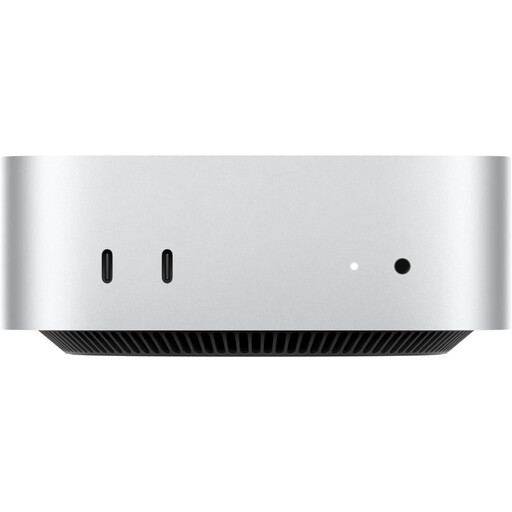 Image unavailable
Apple Mac mini (2026), M5 Pro, 24GB RAM, 512GB SSD
Consider this compact Mac mini if your forecasting workflow works on macOS and you want to position the monitor separately from the computer.
The listed variant has an M5 Pro chip with a 15-core CPU and 16-core GPU, 24GB RAM and a 512GB SSD. Confirm your workbook, add-ins and data connections before buying, and plan for a separate display, keyboard and mouse.
View on Joybuy
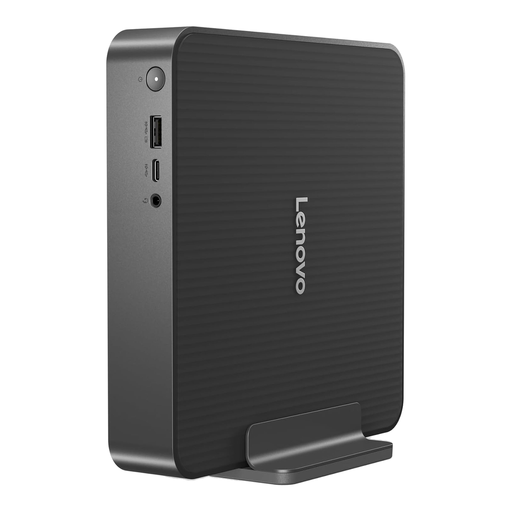 Image unavailable
Lenovo IdeaCentre Mini PC 01IRH10R, 91B2000XUK
This mini desktop is a choice for a space-conscious, separate-monitor setup if it supports your Windows forecasting applications.
Its listed variant has an Intel Core 5 processor, 16GB RAM and a 512GB SSD. Confirm your Office edition, monitor connection and any memory or storage upgrades you expect to need.
View on Joybuy
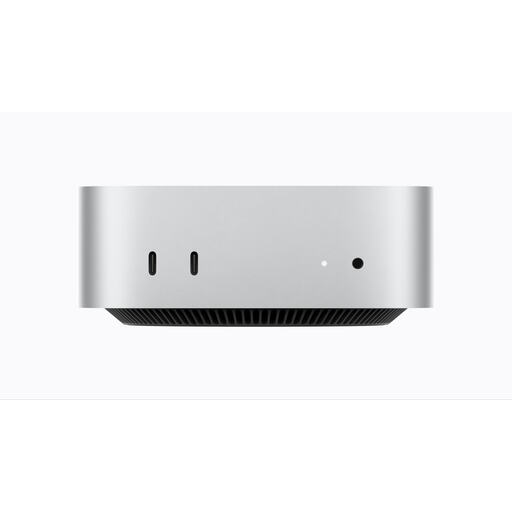 Image unavailable
Apple Mac mini (2026), M6, 16GB memory, 256GB SSD
This compact Mac mini suits a separate-screen arrangement when your forecasting software and data workflow work on macOS.
The listed M6 variant has a 12-core CPU, 12-core GPU, 16GB memory and a 256GB SSD. Check whether that storage capacity suits your local files, as well as the connections and separate peripherals your setup requires.
View on Joybuy
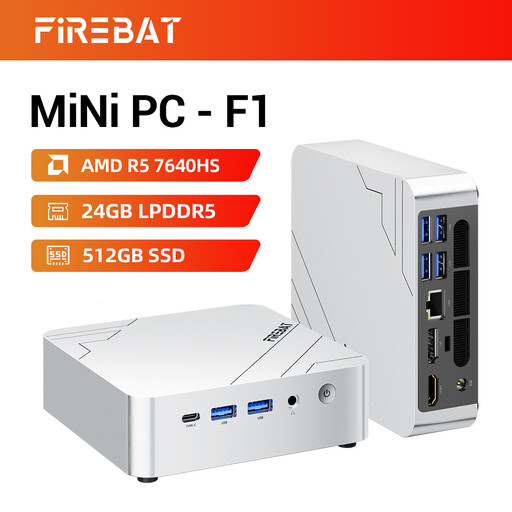 Image unavailable
FIREBAT F1 Mini PC, Ryzen 5 7640HS, 24GB RAM, 512GB SSD
Consider the FIREBAT F1 for a compact, separate-monitor workstation only after confirming that its operating system runs your forecasting tools.
The product name specifies an AMD Ryzen 5 7640HS, 24GB LPDDR5 RAM, a 512GB PCIe 4.0 SSD, USB 4.0 and HDMI 2.1. Check the connections required by your actual monitor arrangement rather than relying on the listed triple-screen claim alone.
View on Joybuy
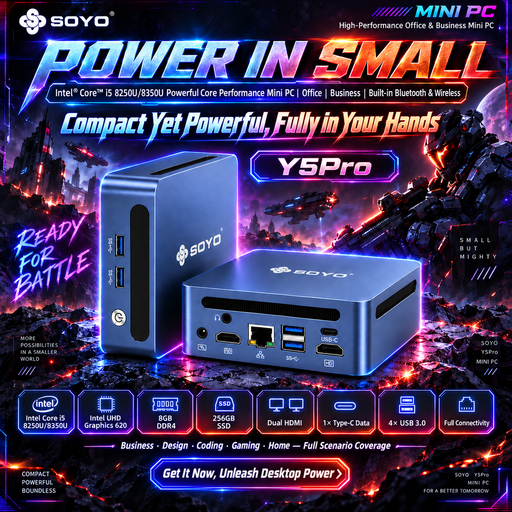 Image unavailable
SOYO Y5Pro Mini PC, Core i5 8250U/8350U, 8GB RAM, 256GB SSD
This compact Windows mini PC is worth assessing if a separate monitor helps you keep desk space clear and its capacity suits your forecast.
The product name lists Windows 11, 8GB DDR4 RAM and a 256GB SATA SSD. It gives two possible Intel Core i5 processors, 8250U or 8350U, so confirm which variant is supplied; also check your software requirements and monitor connections.
View on Joybuy
Frequently asked questions
Do I need a gaming desktop for monthly cash-flow forecasts?
Gaming hardware need not be your starting point for this workflow. Check that the computer runs your spreadsheet and accounting tools, has suitable memory and storage for your files, and connects to your intended monitor; prioritise gaming graphics only if you have another use that calls for them.
Should I choose Windows or macOS for forecasting in Excel?
Choose the operating system that supports the workbook and connected tools you use. Microsoft documents the full Power Query and Power Pivot feature set in Microsoft 365 Apps for enterprise on Windows; Excel for Mac includes Power Query functions for importing and refreshing data, so check your exact model, add-ins and connections before changing platforms.
Where should my monitor and keyboard go when the desk is raised?
Position them for your standing posture, regardless of which desktop you buy. The Health and Safety Executive advises placing the top of the screen level with your eyes and about an arm’s length away, with the keyboard just below elbow height; check that cables still have slack when you move the desk.
Does a personal home forecasting setup need an employer workstation assessment?
The Health and Safety Executive’s employer assessment guidance concerns workers who use display screen equipment daily as part of normal work, continuously for an hour or more. It does not establish the same employer duty for a purely personal, non-work setup, though its screen-placement guidance remains useful when arranging your desk.


