Choose the desktop around your most demanding regular design task and the monitors you plan to use, then make sure the screen, keyboard and mouse can be positioned comfortably at the standing desk. Browser-based calendar layouts do not, by themselves, call for a professional tower; for Photoshop work, Adobe recommends 16 GB or more RAM and a fast internal SSD. Consider an expandable workstation only if your wider workload needs its specialist graphics or expansion options.
Who this setup suits
Calendar designers using Photoshop or layered assets
If your calendars use edited photography, layered artwork or high-resolution exports, check the requirements of your creative applications before choosing memory, storage and display connections. Adobe's Photoshop recommendations are more useful here than an operating system's minimum requirements.
Browser-first event planners
If you mainly arrange calendars in Canva or a similar browser-based tool, focus on a supported browser and operating system, a dependable connection and the displays you need. Workstation graphics are not a requirement of that workflow alone.
Standing-desk workers using external screens
If you work with one or more monitors, check both the desktop's display connections and where the screens and input devices will sit. The Health and Safety Executive's display screen equipment guidance addresses screen and input-device positioning; the computer's size alone does not settle the layout.
What to check before buying
Identify the software you use most heavily, plan the standing-desk layout, and only then decide whether a compact desktop, an all-in-one or an expandable tower fits the work.
| Concern | Buying check | Who this matters to |
|---|
| Creative-app performance |
Check the requirements of your Photoshop version, including RAM, available SSD space and graphics support for your chosen display resolution. Adobe recommends 16 GB or more RAM and a fast internal SSD. |
When I work with layered artwork and high-resolution exports, I want room for my regular creative applications. Around 31% of consumers put creative-app performance first. |
| Standing-desk layout |
Confirm the desktop's display count, resolution support and connections; check that the monitor, keyboard and mouse can be positioned for standing use. |
If I use several screens, I need them and my input devices to fit the desk without awkward positioning. Display and workstation fit comes first for around 31% of consumers. |
| Browser-led value |
Check support for your design service's browser and operating system, along with the connection, storage and monitor outputs you will use. |
For calendars assembled mainly online, I would rather meet that workflow's needs than choose specialist graphics I do not use. Around 23% of consumers prioritise this simpler setup. |
| Professional expansion |
Identify a workload that needs specialist graphics, serviceable storage or other tower expansion before choosing a workstation configuration. |
If calendar projects sit alongside 3D work, rendering or unusually large asset libraries, I may need expansion beyond ordinary layout work. That is the primary concern for around 15% of consumers. |
Buying pitfalls
-
Choosing only to an application's minimum specification
Adobe lists 8 GB RAM as a Photoshop minimum but recommends 16 GB or more, alongside a fast internal SSD. A minimum that permits installation is not the same as the recommended specification for your regular design work.
Check the requirements for your Photoshop version and planned display, then compare them with the exact desktop configuration rather than the model family.
-
Ordering the computer before planning the monitors
Display support and standing-desk positioning are separate decisions: suitable computer outputs do not ensure that the screen, keyboard and mouse will sit where you need them.
Write down each monitor's resolution and connection before ordering. The Health and Safety Executive advises placing the top of the screen around eye level and the screen about an arm's length away.
A layout that needs different positioning may also call for a suitable stand, arm or connection accessory.
-
Buying a professional tower for browser-only layouts
Canva's published requirements describe a lighter workflow than Adobe's Photoshop recommendations. Professional towers offer configurations for more demanding tasks, but calendar layout alone does not establish a need for them.
Choose tower features against a named task, such as specialist graphics, rendering or serviceable expansion, rather than the workstation label.
-
Leaving the old desktop until delivery day
Replacing a computer also means deciding what to do with the old device and any files stored on it.
Ask the retailer about its electrical-equipment take-back route, and back up and securely erase personal or work data before handing over the old computer.
Brands to consider for this setup
Apple
Mac mini is a compact route when your calendar-design applications and plug-ins run on macOS and you plan to use external displays.
- Apple lists Mac mini configurations with 16 GB unified memory and support for up to three external displays, depending on the chip and connections.
- Check the precise Mac mini configuration, your software compatibility and the planned monitor connections; a product-line specification does not establish support for every setup.
Dell
Precision towers are relevant when calendar design is part of a workload requiring professional graphics or workstation expansion.
- Dell's UK Precision 7960 listing describes professional graphics options and configurations with up to a 56-core Intel Xeon processor.
- Those options depend on the configuration and may be unnecessary for browser-based or ordinary 2D calendar work.
Lenovo
ThinkStation P7 is a workstation route for specialist graphics, storage access or upgrade requirements beyond routine calendar layout.
- Lenovo lists Xeon W processors, NVIDIA RTX PRO graphics options, front drive access and tool-less serviceability for the ThinkStation P7 line.
- Check which of those capabilities the exact configuration includes and whether your workload needs them.
ASUS
ProArt Station PD5 is a Windows creative-desktop line to consider when work extends into video or 3D tasks.
- ASUS lists PD5 configurations with RTX A4000 or GeForce RTX graphics options and memory configurations up to 128 GB.
- Check the exact generation, configuration, software support and current availability before treating the PD5 line as a purchase option.
Desktop choices on Joybuy
These desktops cover compact Mac and Windows setups and a Windows all-in-one with an included screen. Choose among them by your software, monitor arrangement and standing-desk layout; none should be treated as a substitute for checking the exact configuration.
 No image available
Apple Mac mini (2026) M6, 16 GB, 256 GB SSD, Silver
A compact desktop to consider if your calendar-design software runs on macOS and you want to position the monitor separately from the computer.
The named variant has a 12-core CPU, 12-core GPU, 16 GB memory and a 256 GB SSD. Check available storage, the display connections you need and whether your applications and plug-ins support macOS.
View on Joybuy
 No image available
SOYO M5 Mini PC, Ryzen 4300U, 16 GB, 512 GB SSD
This Windows 11 mini PC is an option for browser-led calendar layouts when a separate monitor suits the standing desk.
Its named configuration has a four-core Ryzen 4300U, 16 GB LPDDR4 memory and a 512 GB SSD. The title advertises three 4K 60 Hz displays through HDMI, USB-C and DisplayPort; confirm that your precise monitor combination and creative software will work with it.
View on Joybuy
 No image available
Apple Mac mini (2026) M5 Pro, 24 GB, 512 GB SSD, Silver
This compact Mac desktop is worth considering when your required design tools run on macOS and you want a separate, adjustable display setup.
The named variant has a 15-core CPU, 16-core GPU, 24 GB memory and a 512 GB SSD. Confirm application and plug-in compatibility, available storage and support for your planned number of monitors.
View on Joybuy
 No image available
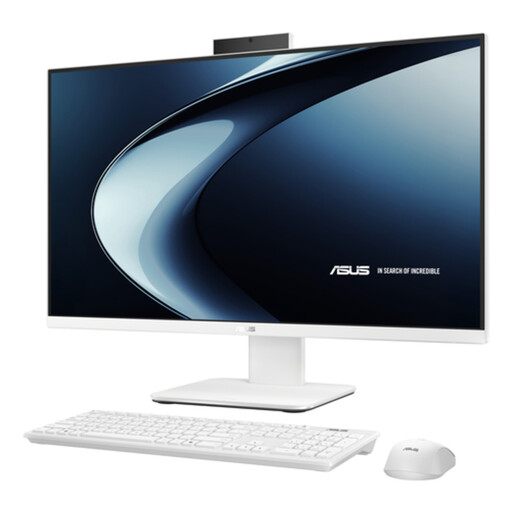
ASUS V400 AiO V470VAK-WPE032W, 27-inch Full HD, White
Consider this Windows all-in-one if an included screen fits your desk layout; check its screen positioning before choosing it for standing use.
The named configuration has an Intel Core i7-13620H, 16 GB DDR5 memory, a 512 GB SSD and Windows 11 Home. Confirm that the display can sit at a suitable height and that your creative software works with this configuration.
View on Joybuy
Frequently asked questions
Do I need a workstation tower to design an event calendar?
Not for browser-based layouts or ordinary 2D calendar work alone. Check your main application first: Adobe recommends 16 GB or more RAM and a fast internal SSD for Photoshop, while a professional tower makes more sense when you can identify an additional need such as specialist graphics, rendering or expansion.
What should I check before putting a desktop at a standing desk?
Check monitor support and the position of the complete workstation, not just where the computer will sit. Confirm the number and connections of your screens, then check whether the monitor, keyboard and mouse can be adjusted; the Health and Safety Executive advises a screen top around eye level and a screen distance of about an arm's length.
Does a UK employer need to assess a standing-desk workstation?
Yes, where an employee uses display screen equipment daily as part of normal work for continuous periods of an hour or more, the Health and Safety Executive says the employer must assess the workstation. A workplace change to the desk or monitor arrangement should therefore go through the employer's assessment process; this does not impose the same duty on a private buyer.
What should I do with the old desktop?
Arrange its disposal and protect the data on it before handing it over. GOV.UK says retailers selling household electrical equipment must provide a way for customers to dispose of old equipment; ask the retailer which route applies, and back up and securely erase any personal or work files.


