Choose a desktop around the work you actually do with your photos: a compact model can suit importing, organising and browsing if you have a suitable display, while a larger system is worth considering when your editing software or plans for additional drives call for it. Check your software’s memory and graphics requirements, allow space for the active catalogue, and keep a separate backup rather than relying on the computer’s internal drive alone.
Who is this for?
Family archive organisers
If you are bringing together photos from phones, cameras and older collections, importing, finding and backing up files may matter more than intensive editing. Adobe describes desktop photo organisation in Lightroom Classic, while the National Cyber Security Centre advises backing up valued photos and videos.
Regular photo editors
If you also edit RAW files or use Lightroom Classic features that rely on graphics acceleration, check the requirements for your application and display. Adobe specifies different graphics-memory needs for 4K displays and certain accelerated features.
Buyers with limited desk space
A compact desktop is worth considering when the computer must share a small desk with a monitor and archive drives. Check the complete setup, including the display connections and peripherals you will use.
What matters when choosing?
Start with the photo software and the way you will store your originals; then decide how much editing capability and desk space the computer needs. The percentages below describe how consumers might prioritise one primary need when choosing a desktop for a photo archive.
| Concern |
What to check |
Who this matters to |
| Cataloguing and editing |
Check your photo application’s memory and graphics requirements, particularly for a 4K display or accelerated editing features. Adobe recommends at least 16GB of RAM for Lightroom Classic. |
If I regularly build previews and edit photos, I want a computer that meets my application’s recommended requirements, not merely its operating-system minimum. Around 40% of consumers would put editing responsiveness first. |
| Archive storage and recovery |
Decide where originals and the active catalogue will live, and arrange a backup on separate storage. |
When my photo collection would be hard to replace, I want to know I can recover it if the computer or its drive fails. For around 30% of consumers, safeguarding the archive would be the primary concern. |
| Desk space and display |
Check the computer’s dimensions, monitor connections and ports for external drives and card readers. |
If my desk has little room beside the monitor and drives, fitting the whole setup matters more to me than having a larger case. Around 20% of consumers would prioritise the desktop’s footprint. |
| Software and setup continuity |
Confirm that your chosen operating system supports the photo software and peripherals you intend to keep using. |
If I already have a working photo and camera-import routine, I want the replacement desktop to fit it without changing essential tools. Keeping that setup would come first for around 10% of consumers. |
Buying pitfalls
-
Buying to the operating system’s minimum specification
Microsoft’s Windows 11 minimum of 4GB of memory and 64GB of storage establishes operating-system eligibility, not how well a particular photo application will run.
Check the requirements for the software you will use. Adobe recommends at least 16GB of RAM and a fast SSD for Lightroom Classic.
-
Using the internal SSD as the only copy
A spacious internal drive can hold working photos, but it does not provide a separate copy if the drive or computer is lost. The National Cyber Security Centre advises backing up valued data, including photos.
Plan separate backup storage with the desktop and decide how you will restore files if needed.
-
Comparing compact computers without the full setup
A small computer still needs a suitable display, input devices and connections for the drives and card readers in your workflow.
Check what the exact model includes, then confirm monitor connectors, available ports and the peripherals you need before choosing it.
-
Choosing extra graphics hardware without a use for it
Adobe specifies higher graphics-memory requirements for particular Lightroom Classic display and accelerated-feature uses; that does not make the same configuration necessary for every archive-organising task.
Match graphics and memory choices to the editing features, display and software version you expect to use.
Brands to consider
Apple
Mac mini offers a compact macOS route if you have, or intend to choose, a separate display and peripherals.
- Apple’s UK Mac mini specifications include configurations with 16GB of unified memory and SSD storage starting at 256GB; external-display support depends on the chip configuration.
- Choose the exact memory and storage configuration you need, and check your photo software and monitor connections before purchase.
Dell
Dell’s UK desktop range includes towers, compact models and all-in-ones for different Windows setups.
- The range lets you compare case formats against your desk space and plans for additional drives.
- Check ports, drive expansion and graphics on the exact model. Dell says its former XPS desktop line continues under Dell Tower Plus, so older XPS specifications should not be assumed to apply.
Lenovo
ThinkCentre Tiny and small-form-factor models offer compact Windows desktop options, while other configurations may suit different expansion needs.
- Lenovo describes its ThinkCentre M Series small-form-factor line as configurable and expandable.
- Drive bays, memory limits and ports depend on the exact model; confirm them if you plan to add archive storage.
HP
HP lists both slim consumer desktops and workstation configurations, which can be assessed against routine organisation or more demanding editing needs.
- One HP UK OmniDesk Slim configuration lists 16GB of RAM and a 1TB SSD; a listed Z2 SFF workstation configuration has 32GB of memory and an NVIDIA professional GPU.
- Those specifications belong to particular configurations, not every HP desktop. Check the model you are considering against your software and storage plan.
Desktop computers on Joybuy
These choices include compact macOS and Windows desktops alongside Windows PCs with dedicated graphics. Compare each configuration with your photo software, available desk space and backup plan.
 No image available
Apple Mac mini (2026), M5 Pro, 24GB, 512GB SSD
Consider this compact Mac if you want a fixed photo-organising setup and have suitable display and peripheral connections.
- The listed M5 Pro configuration has a 15-core CPU, 16-core GPU, 24GB of memory and a 512GB SSD.
- Check your photo software’s macOS compatibility, and arrange a separate copy of photos you cannot replace.
View on Joybuy
 No image available
CyberPowerPC JOYB1010, RTX 5070, 32GB DDR5, 1TB SSD
This Windows desktop is worth considering if regular editing calls for the listed memory and graphics configuration, rather than for sorting photos alone.
- The title specifies an Intel Core Ultra 7 265KF, an RTX 5070 with 12GB of graphics memory, a 1TB NVMe SSD and Windows 11 Home.
- Check your application’s requirements, space for the case and what display and peripherals the bundle includes.
View on Joybuy
 No image available
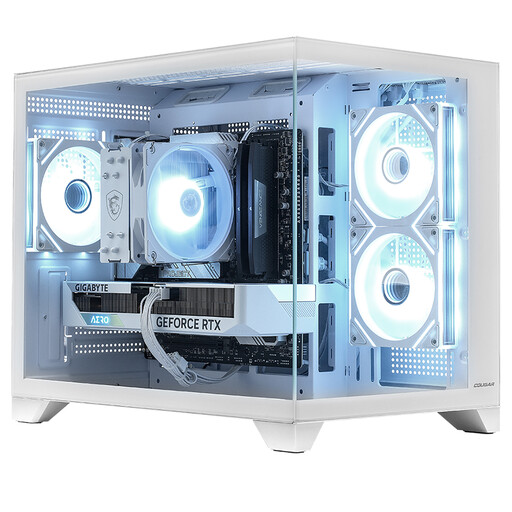
Stormforce White Ryzen 5, 16GB, 1TB SSD, RTX 5060 Ti
Consider this Windows desktop if you organise photos and also expect to use editing software that benefits from its listed graphics hardware.
- The title specifies a Ryzen 5 processor, 16GB of RAM, a 1TB SSD, an RTX 5060 Ti and Windows 11.
- Confirm the exact software compatibility and whether the monitor and other peripherals you need are included.
View on Joybuy
No image available
Apple Mac mini (2026), M6, 24GB, 512GB SSD
This compact Mac suits consideration when desk space matters and your preferred photo-organising software runs on macOS.
- The listed M6 configuration has a 12-core CPU, 12-core GPU, 24GB of memory and a 512GB SSD.
- Confirm your monitor and peripheral connections, and keep a separate backup of the archive.
View on Joybuy
 No image available
SOYO M5 Mini PC, Ryzen 4300U, 16GB LPDDR4, 512GB SSD
This compact Windows model is a choice to assess for photo organisation on a limited desk, provided it meets your software requirements.
- The title lists Windows 11, a 512GB SSD and triple-display support through HDMI 2.0, Type-C and DisplayPort 1.4 connections.
- Check whether 512GB meets your working-storage needs and arrange a separate archive backup.
View on Joybuy
Common questions
Do I need a dedicated graphics card to organise photos?
Not solely because you are importing, tagging and viewing photos: check the requirements of the application you will use. For Lightroom Classic, Adobe lists DirectX 12 support on Windows or Metal support on macOS, with higher graphics-memory requirements for 4K displays and certain accelerated features.
Can the desktop’s internal drive hold my whole photo archive?
It can hold photos if its capacity suits your needs, but it should not be their only copy. The National Cyber Security Centre advises backing up valued photos and videos, so plan separate storage and a way to recover the archive.
Can I keep a Lightroom Classic archive on an external drive?
Yes. Adobe says photos can be stored on an external hard disk and describes keeping the catalogue and photos together on an external drive when using the catalogue on more than one computer. Check the drive’s connection and format, and back up its contents separately.


