Piano-score-focused home notators
If you mainly create, revise, print or export piano scores, prioritise support for your notation app and a workable screen arrangement over gaming-oriented hardware.


For writing, editing and printing piano scores, start with a Windows 11 or macOS desktop that supports your chosen notation app, then plan the monitor and SSD storage around your workspace. A compact desktop can suit score-focused work; consider a tower or a configuration with more memory and storage if sound libraries, virtual instruments or later expansion are central to your plans. Check the exact software and peripheral requirements before choosing either route.
If you mainly create, revise, print or export piano scores, prioritise support for your notation app and a workable screen arrangement over gaming-oriented hardware.
If you also use sound libraries, virtual instruments or MIDI and audio devices, check their compatibility and storage and memory requirements alongside those of the notation app.
If you spend sustained periods reading and editing scores onscreen, choose the monitor position and input-device layout as part of the desktop setup.
Choose the notation app and operating system together before deciding between a compact computer and a tower. A compact Windows desktop saves desk space, while a tower is worth considering if you need room for future changes; a Mac mini is another compact route when your software and devices support macOS.
Consider it when: score entry and editing are your main tasks and desk space is limited.
Trade-off: check the exact model's ports and internal expansion before relying on it for later additions.
Consider it when: sound libraries, several peripherals or planned hardware changes make configuration flexibility important.
Trade-off: allow more physical space, and check the particular tower's expansion options rather than assuming they are standard.
Consider it when: your notation software, plug-ins and MIDI or audio devices support macOS and you want a compact desktop.
Trade-off: plan for a separate display and input devices, and confirm support for each part of your workflow.
| Concern | What to check | Who this matters to |
|---|---|---|
| Score writing and editing | Confirm that the installed operating system supports your exact notation-app version. For a Windows PC, check Windows 11 eligibility against Microsoft's requirements rather than relying on the seller's description alone. | If I mainly enter, revise and print piano scores, dependable access to my notation app comes before extra graphics hardware; around 30% of consumers put score editing first. |
| Sounds and MIDI | Check memory and SSD space against your planned sound packages, plus support for virtual instruments and MIDI or audio devices. Avid lists an additional 36GB for the optional Sibelius Sounds library and prefers an SSD. | If realistic playback is part of my work, I need room for the sounds and a way to connect the equipment I use; around 40% of consumers prioritise playback and library needs. |
| Screen and workspace | Check the display connection and plan where the monitor and keyboard will sit. The Health and Safety Executive advises placing the top of the screen around eye level, roughly an arm's length away. | When I edit a score for long stretches, I want to read it without arranging the screen awkwardly; roughly 20% of consumers place workspace comfort first. |
| Space and expansion | Check the chassis footprint, connections for your equipment and the exact model's expansion options. A tower's form factor alone does not establish what can be upgraded. | If desk room is tight or I expect to add hardware later, the computer's size and available options shape my choice; around 10% of consumers make that their primary concern. |
Microsoft says the Windows 10 editions covered by its end-of-support notice stopped receiving security updates after 14 October 2025. A familiar-looking processor name does not, by itself, establish Windows 11 eligibility.
Check whether Windows 11 is installed or whether the exact PC meets Microsoft's processor, memory, storage, Secure Boot capability and TPM 2.0 requirements.
Optional sound libraries change the storage and memory decision. Avid notes that systems below its Sibelius recommendations may load sounds slowly or run fewer sounds simultaneously.
List the sound libraries, virtual instruments and MIDI or audio devices you intend to use, then check their requirements and compatibility before settling on a configuration.
A notation desk may need display outputs and connections for a MIDI keyboard, audio interface, storage and input devices. A product-family name does not tell you which ports are on a particular configuration.
Compare the exact desktop's connections with the equipment you own and the display arrangement you want.
If the connections do not match, using an adapter or hub may add another item to the setup.
A desktop's specifications do not settle where you can place a score onscreen or position your keyboard. The Health and Safety Executive's display-screen guidance makes screen and input-device placement part of comfortable desk work.
Plan the monitor, keyboard and mouse alongside the computer, and check which items are included with the exact product.
Mac mini is a compact macOS option if your notation app, plug-ins and connected equipment support the macOS version you intend to use.
Dell Pro desktops are a Windows business-desktop route for shoppers considering a compact, separate computer.
ThinkCentre M Series offers tiny, small-form-factor and tower designs for different desk-space priorities.
HP Pro Tower is a Windows business-tower option for a desk setup with a separate display.
These Windows-labelled and compact or tower desktops offer different starting points for a piano-score workspace. Match the installed operating system, your notation app, any sound libraries and connected equipment before choosing by size or storage alone.
 No image available
Consider this compact Windows 11-labelled option when desk space matters and you want a separate screen for notation. Its title specifies 16GB LPDDR4 memory, a 512GB SSD and HDMI, Type-C and DisplayPort video outputs. Check support for your notation app and MIDI or audio devices, and confirm what display and input equipment is supplied.
 No image available
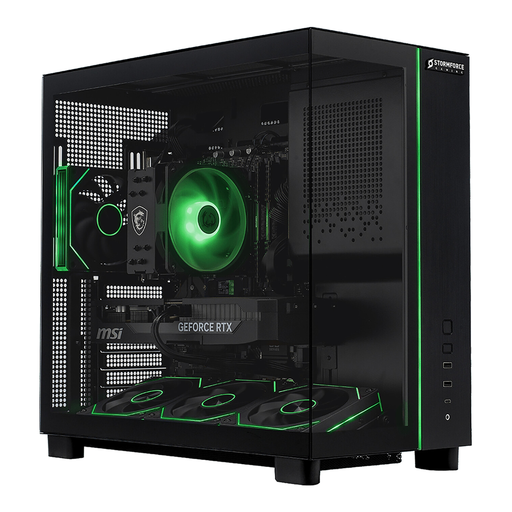
This tower may suit a setup in which memory and storage for additional music software matter more than a small footprint. The title lists 32GB RAM, a 2TB SSD and Windows 11. Confirm your software and device compatibility, allow space for the tower and check the exact graphics configuration if it affects your choice: the title and description use different RTX 5070 variants.
 No image available
Consider this tower if your planned notation setup calls for the stated memory and storage capacity and you have room for a larger computer. The title lists 32GB RAM, a 2TB SSD and Windows 11. Check compatibility with your notation software and connected devices; the product information says a monitor, keyboard and mouse are not included.
 No image available
This mini PC is an option to examine if you want a compact notation desk and several display connections. The title lists 16GB RAM, a 512GB SSD, dual M.2 slots and triple-display support. Confirm its installed operating system, notation-app and device compatibility, and which workspace accessories are supplied.
 No image available
This Windows 11 Home tower is worth considering for score-focused work if its memory meets the requirements of your chosen software and sounds. The title lists 8GB RAM and a 1TB SSD; check memory needs particularly carefully if you plan to use larger libraries. Confirm the exact processor designation, which differs between the title and description, along with software compatibility and the equipment included.
A gaming desktop is not a stated requirement for straightforward score notation in Avid's cited Sibelius guidance. Start with an operating system your app supports, then check SSD space, memory and the requirements of any sounds you intend to use.
For a new Windows notation setup, choose a Windows 11-capable computer unless you have checked a suitable support plan for your particular system. Microsoft says the Windows 10 editions covered by its notice stopped receiving security updates after 14 October 2025; confirm the exact PC meets Windows 11's hardware requirements.
Allow for the particular software and sound packages you plan to install, not just your score files. Avid lists 1GB for current Sibelius Ultimate software and an additional 36GB for the optional Sibelius Sounds library, for which it prefers SSD storage; check other libraries separately.
Plan a monitor and input devices that you can position comfortably, as well as the computer itself. The Health and Safety Executive advises putting the screen in front of you, with its top around eye level and the screen roughly an arm's length away.