Choose resolution, refresh rate and screen shape to suit your games, graphics output and available desk space, rather than assuming the highest advertised figure is automatically the right choice. Check the exact monitor’s supported mode on the input you plan to use, then weigh motion evidence, HDR performance and adjustment options against your priorities.
Who is choosing a desktop gaming monitor?
Fast-game players
If motion and responsiveness matter most in fast games, check the frame rates your PC can produce, the refresh mode for the input you will use, and evidence beyond a response-time figure. Dell, LG and AOC publish model-specific refresh and input details.
Picture-focused players
If you prioritise detail, contrast or HDR in visually rich games, compare the exact model’s resolution, panel and HDR evidence with what your PC can drive. VESA’s DisplayHDR programme sets out distinct certification tiers.
Desk-setup planners
If the screen must fit a particular desk and work with other devices, check its dimensions, stand adjustment, inputs and any cable or adapter requirements. Samsung and Philips list model-specific screen formats, while VESA explains DisplayPort adapter options.
What should you prioritise?
Start by checking that your PC, monitor and connection can deliver the display mode you want; then weigh motion, picture priorities, desk fit and ownership terms.
| Concern |
What to check when buying |
Who this matters to |
| Motion clarity and refresh rate |
Check your PC’s frame rates in your games, the refresh modes for the intended input, variable-refresh support and applicable motion testing or certification. |
If I play fast games, I want motion to look clear at frame rates my PC can sustain; around 33% of consumers put motion clarity and useful refresh rate first. |
| Resolution, contrast and HDR |
Compare native resolution and panel type, and look for an applicable DisplayHDR certification for the exact model rather than relying on HDR-signal support alone. |
When visual detail, contrast or HDR matters more to my games than peak motion speed, those picture qualities shape my choice; roughly 25% of consumers prioritise them. |
| PC outputs and input compatibility |
Match the PC output, monitor input and cable or adapter to the resolution, refresh rate and variable-refresh features you want. |
If I am keeping my existing PC or connecting several devices, I need the monitor to work with their outputs; about 17% of consumers put connections first. |
| Desk fit and screen shape |
Check the exact dimensions with the stand, adjustment options, viewing position and whether your games suit the screen’s aspect ratio. |
When desk space and screen position are fixed, I need the monitor’s size and shape to fit the setup; around 17% of consumers prioritise desk fit. |
| Ownership terms and ongoing use |
Review the exact model’s warranty and care guidance, plus the seller’s terms and any applicable statutory rights. |
If I am choosing for long-term use, after-sales terms and suitability for my regular viewing habits matter; roughly 8% of consumers prioritise ownership terms. |
Gaming monitor buying pitfalls
-
Assuming one refresh rate works on every input
A monitor can support different maximum modes on different ports. Dell specifies QHD up to 144 Hz over HDMI and 180 Hz over DisplayPort for the AW2725DM.
Before buying, match your PC’s output, the monitor’s intended input and the cable to the resolution and refresh rate you want.
You may need a different cable or an adapter, and an unsupported connection can leave a monitor mode unused.
-
Treating a 1 ms figure or HDR10 label as a complete picture-quality test
Response-time figures can refer to different measures and settings. Samsung qualifies its G55C’s MPRT figure by its stated test conditions and a particular setting; VESA DisplayHDR tiers have distinct performance requirements.
Check the measure and conditions behind a motion figure, and look for applicable certification or model-specific evaluations when HDR matters.
-
Choosing a curved or ultrawide screen by diagonal size alone
Philips lists both a curved 27-inch QHD model and a substantially wider curved 32:9 model, which call for different desk arrangements.
Check the exact model’s full dimensions, aspect ratio, stand footprint and adjustment against your desk and seating position.
-
Assuming a manufacturer’s warranty replaces your statutory rights
A manufacturer’s voluntary warranty and your rights with the seller are separate considerations. GOV.UK explains statutory rights for qualifying purchases in the UK.
Read the exact warranty and the seller’s terms, and check which statutory rights apply to your purchase.
Gaming monitor brands to compare
Dell Alienware
The AW2725DM is a flat 27-inch QHD Fast IPS example for comparing input-specific refresh modes.
- Dell specifies up to 2560 × 1440 at 180 Hz through DisplayPort 1.4 and 144 Hz through its HDMI ports on this model.
- Those limits apply to the AW2725DM; check the exact model and input rather than applying them to every Alienware monitor.
LG UltraGear
The 27GS75QN-B is a 27-inch QHD IPS example with a standard refresh mode and a separate overclock mode.
- LG specifies 180 Hz normally and up to 200 Hz when overclocked for this model.
- LG specifies a DisplayPort 1.4-capable graphics card and cable for the 200 Hz overclock mode.
Samsung Odyssey
The 32-inch Odyssey G55C is a curved QHD option for a desk that can accommodate its size.
- Samsung specifies a 1000R curve and 165 Hz refresh rate for the G55C.
- Samsung’s quoted 1 ms MPRT is subject to its stated internal test conditions and a particular setting; it is not a general independent response-time measure.
AOC AGON
The Q27G4XF is a 27-inch QHD Fast IPS example with a height-adjustable base.
- AOC specifies a 180 Hz refresh rate for this model.
- AOC lists separate 1 ms GtG and 0.5 ms MPRT figures; neither figure alone describes behaviour across all transitions or settings.
Philips Evnia
The cited UK models range from the curved 27-inch QHD 27M2C5501/00 to the curved 49-inch 32:9 QD-OLED 49M2C8900/01.
- The two models offer different screen sizes and formats to compare against available desk space and viewing needs.
- Check the complete model suffix: similarly named regional variants appear in Philips materials, and manufacturer descriptions of immersion are not independent comparisons.
Joybuy gaming monitor choices
These Joybuy listings cover desktop gaming monitors from 27-inch QHD high-refresh options to a 49-inch curved ultrawide and a 34-inch flat screen. Compare each model’s stated resolution, refresh rate, connections and physical fit with your PC and desk.
 No image available
Acer X Predator X49X Curved Ultrawide Gaming Monitor
Consider it if you want a very wide single-screen view and have enough space for its size and stand.
49-inch, curved 32:9 QD-OLED screen; 5120 × 1440 resolution; 240 Hz refresh rate; 1800R curve.
The product description says the screen is wide and heavy and advises two-person handling and a sturdy desk sized to support the monitor and stand.
Joybuy
 No image available
Acer X Predator X27U W3 Widescreen Gaming Monitor
Consider it if you want a QHD screen with a high stated refresh rate for desktop gaming.
26.5-inch QHD screen; 2560 × 1440 resolution; QD-OLED panel; 240 Hz refresh rate.
The product description also lists HDR10 support, 99% DCI-P3 coverage, an ErgoStand and VESA mounting support.
Joybuy
 No image available
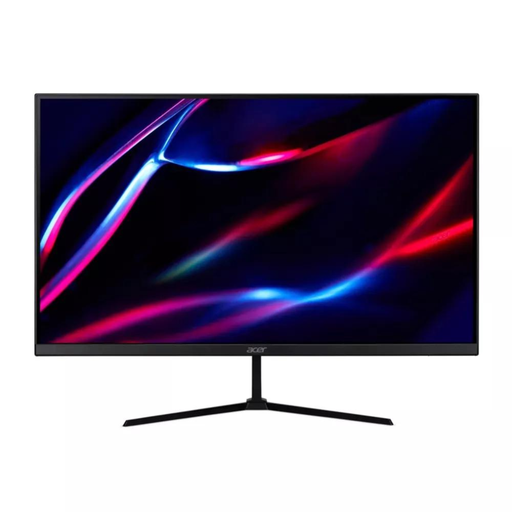
27-inch QHD IPS Gaming Monitor, 180 Hz
Consider it if you want a 27-inch QHD IPS screen with a stated 180 Hz refresh rate.
2560 × 1440 resolution; 180 Hz refresh rate; 1 ms/0.5 ms (GtG, Min.); 350 nits; 2 × HDMI and DisplayPort.
The product name lists one HDMI cable and one DisplayPort cable among the included items.
Joybuy
 No image available
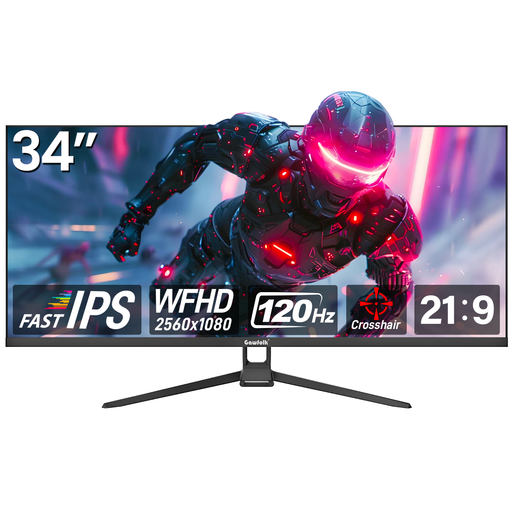
Gawfolk 34-inch Flat Gaming Monitor
Consider it if you want a wider flat-screen layout and its dimensions suit your desk and games.
34-inch flat screen; 2560 × 1080 resolution; 120 Hz refresh rate.
Joybuy
 No image available
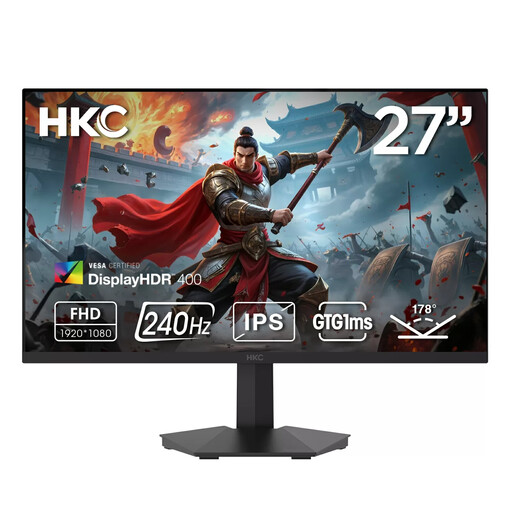
HKC G27H3D 27-inch Full HD Fast IPS Gaming Monitor
Consider it if you want a 27-inch Full HD Fast IPS monitor with a stated 180 Hz refresh rate.
1920 × 1080 resolution; 180 Hz refresh rate.
The product description lists HDMI and DisplayPort inputs, FreeSync support and VESA mounting support.
Joybuy
Gaming monitor FAQs
Will a monitor reach its advertised refresh rate through any PC connector?
Not necessarily. Check the exact monitor’s supported mode for the graphics output and input you plan to use. Dell specifies QHD up to 144 Hz over HDMI and 180 Hz over DisplayPort for its AW2725DM; the cable or adapter must also support the intended mode.
Does an HDR10 label prove strong HDR gaming performance?
No. Compare evidence for the exact display, including any applicable VESA DisplayHDR certification tier, because the tiers have different performance requirements. HDR-signal support alone does not establish the display’s HDR performance.
How do I check the refresh rate after installation?
In Windows, open Advanced display settings and select a refresh rate supported by your display. Microsoft notes that available rates depend on the display, and some listed rates require a resolution change.
Does an OLED monitor automatically include burn-in warranty coverage?
Do not assume that it does; check the written terms for the exact model. Sony’s published warranty extension names specific INZONE models and states burn-in coverage for OLED models, so that notice should not be applied to other monitors.
What UK rights apply if I change my mind about a monitor bought online?
For a qualifying distance purchase, GOV.UK guidance says you can tell the seller you wish to cancel within 14 days of receiving the goods, then have another 14 days to return them. This statutory right is separate from remedies for faulty goods and from a manufacturer’s voluntary warranty.


