Teachers working beside strong daylight
If you spend sustained periods planning at a desk near a bright window, screen positioning and reflected light matter alongside the computer itself.


Choose the screen setup before paying for more processor power: a desktop with a separate monitor lets you position and replace the display independently when window light is difficult, while an all-in-one keeps the desk simpler if its built-in screen works in the room. Before choosing Windows or macOS, confirm the school’s applications and support arrangements, and assess the whole workstation rather than the computer alone.
If you spend sustained periods planning at a desk near a bright window, screen positioning and reflected light matter alongside the computer itself.
You need a computer that fits the school’s applications, device management and support arrangements, with the option to choose a separate monitor for the room.
You would rather have fewer separate components for documents, presentations and calls, provided the integrated display and operating system suit the room and school systems.
For lesson planning beside a bright window, choose between an independently positioned monitor and a built-in screen, then check that the operating system fits the school’s requirements.
Consider it when: Changing the screen’s position or replacing the monitor independently matters at your desk.
Trade-off: The monitor needs its own selection and takes additional desk and cable space.
Consider it when: You want a compact Windows workspace and its built-in screen works in the intended daylight.
Trade-off: You cannot choose or replace the integrated display independently in the same way as a separate monitor.
Consider it when: The school supports macOS and you want an integrated desktop with the iMac’s specified 24-inch 4.5K display.
Trade-off: Its published brightness figure cannot tell you whether reflections will be comfortable at your window-side desk.
| Concern | What to check | Who this matters to |
|---|---|---|
| Daylight glare and screen adjustment | Check brightness and contrast controls, screen positioning and reflections at the intended desk. | If daylight reflects off lesson materials on screen, I need to change the display angle or the room layout without losing a comfortable reading position. Around 33% of consumers put glare control first. |
| Space for teaching resources | Compare the exact screen size, resolution and stand adjustment; check a separate monitor’s connection to the PC. | When arranging documents, timelines and browser resources, I want enough usable screen space and the freedom to change displays later. Roughly 27% of consumers make workspace flexibility their primary concern. |
| School compatibility | Confirm required applications, accounts, peripherals, device management and IT support before choosing an operating system. | If the school manages my computer, the tools and support it requires must work on the system I choose. School compatibility comes first for around 27% of consumers. |
| An integrated desk setup | Check the all-in-one’s exact display and stand, plus its memory and storage configuration. | With limited desk space, I would rather avoid a separate computer and monitor if the built-in display suits the room. About 13% of consumers prioritise an integrated setup. |
A processor specification will not resolve an awkward screen position or reflections from the window. The Health and Safety Executive’s workstation guidance considers the complete setup, not just the computer.
Decide how much screen adjustment you need before comparing PCs. If considering an all-in-one, view its display in comparable daylight where possible.
An unsuitable built-in screen position may call for a different stand, monitor arm or separate display.
Apple specifies 500 nits for the cited iMac display, while Lenovo specifies 250 nits for the cited ThinkCentre Neo 30a configuration. Neither figure measures reflections from your particular window.
Compare brightness only for the exact configurations, then check the screen angle, window position and available light control at the desk.
Microsoft’s Windows 11 minimum hardware requirements concern eligibility, not how a particular desktop will handle the school’s applications and teaching resources.
Confirm the software and files you will use before deciding on memory and storage.
The Department for Education advises schools to assess staff needs and technical support when selecting devices. A suitable screen alone does not establish that a computer fits school accounts or management tools.
Ask the school’s digital lead or IT team to confirm application, peripheral, account and device-management compatibility before ordering.
An integrated macOS route if the school supports macOS and a 24-inch display suits the desk.
Windows desktop and all-in-one options, including a separate-monitor route.
A small-form-factor Windows desktop route for a separately chosen monitor.
A Windows all-in-one route if an integrated 27-inch screen suits the available space.
These Windows desktops cover two ways to set up a lesson-planning desk: an all-in-one with a built-in screen, or a tower for which you choose the monitor separately. Check the chosen display in the intended daylight and confirm school compatibility before buying.
 No image available
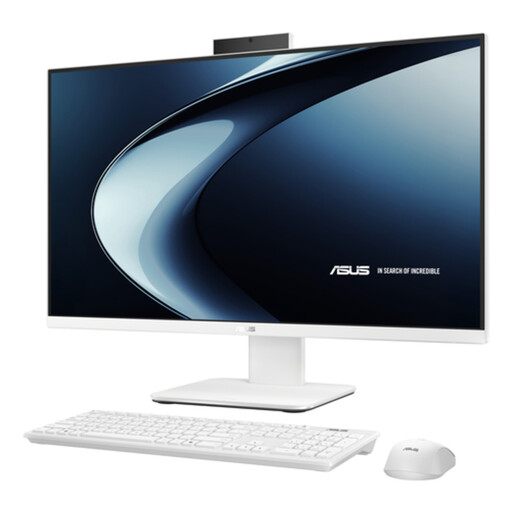
Consider this Windows all-in-one if you want the computer and display in one unit for lesson planning.
The title specifies a 27-inch Full HD display, Intel Core i7-13620H, 16GB DDR5 RAM, 512GB SSD and Windows 11 Home.
Check brightness controls, stand adjustment and the screen’s appearance in your usual daylight. Confirm that Windows 11 Home fits the school’s applications and management arrangements.
 No image available
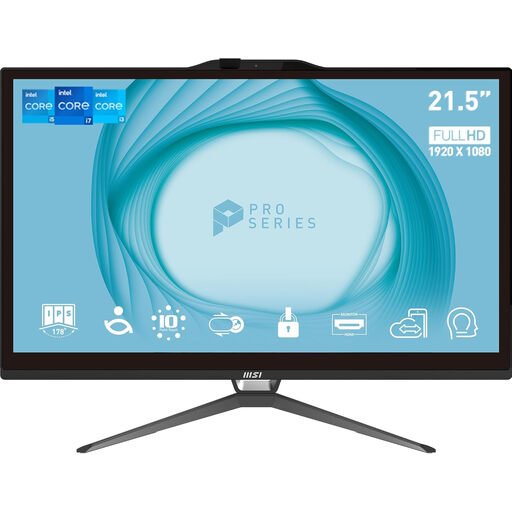
This Windows all-in-one is worth considering where a smaller integrated screen fits the planning desk.
The title specifies an Intel Pentium Gold G7400, 4GB RAM, 128GB SSD and Windows 11 Pro.
Check that the memory and storage meet the required applications and files. Assess the screen’s controls and position in the room, and confirm school IT compatibility.
 No image available
Consider this tower if choosing and positioning the monitor separately is more important than having an integrated desk setup.
The title specifies 32GB DDR5 RAM, a 2TB NVMe SSD and Windows 11 Home.
The monitor, keyboard and mouse are not included. Choose a compatible display with suitable controls and positioning, and check the school’s software and support requirements.
Not on its own: screen position and lighting also affect reflections at a lesson-planning desk. Check brightness and contrast controls, then view the exact screen in normal daylight at the intended position.
Choose a separate monitor when you need to position the screen independently or want the option to change it without replacing the PC. An all-in-one can keep the desk simpler, provided its built-in screen works in the room and its operating system fits school requirements.
The Health and Safety Executive says employers must carry out a workstation assessment when workers use display screen equipment daily as part of normal work, continuously for an hour or more. The assessment covers the whole workstation and the work being done; the purchase of a home desktop alone does not establish whether that duty applies.
Ask which applications, accounts, peripherals and device-management tools the computer must support, and who will provide technical help. The Department for Education advises schools to assess staff device needs and support requirements before selecting equipment.
Check the written warranty and repair route for the selected computer and, if bought separately, the monitor. Also establish whether school IT will support the chosen operating system and peripherals; a manufacturer’s product warranty and school IT support are different arrangements.