What matters when choosing?
Start with the laptop's screen, applications and carrying needs, then check the exact ports and display limits against the desk setup you intend to keep.
| Concern |
What to check |
Who this matters to |
| Home monitor and peripherals |
Confirm video output on the exact laptop port and a compatible monitor connection; check that the hub or dock leaves connections for your keyboard and mouse. |
I want to sit down at home and connect my monitor and input devices without rebuilding the setup each time. Around 36% of consumers put dependable desk connections first. |
| Displays and dock charging |
Check the laptop's supported display count, resolution and refresh rate alongside dock power delivery and the laptop's charging requirements. |
If I use multiple displays or expect one cable to charge the laptop, I need the whole connection to support that arrangement. Around 29% of consumers prioritise display capacity and charging. |
| Use away from the desk |
Compare the exact configuration's size, carried weight, battery information and charger arrangement; decide which accessories must travel. |
When I work away from home, the laptop needs to be practical without the permanent desk equipment. Around 21% of consumers put self-contained portability first. |
| Complete setup and refurbished condition |
List the accessories needed at home. For a refurbished laptop, check its exact model, grading definition, battery policy, included charger and warranty terms. |
If I choose a refurbished laptop, I need to know its condition and what arrives with it before planning the desk connection. Around 14% of consumers make setup completeness and device condition their primary concern. |
Laptops for home and away
These portable laptops are choices for using one computer away from home and at a desk. Before replacing a desktop, match each shortlisted model to your applications, monitor and required connections.
 No image available
ASUS Vivobook 14 X1407QA-LY003W Copilot+ PC, Quiet Blue
Consider this 14-inch laptop if a smaller screen suits your work away from the desk; check its exact external-display limits against your home monitor arrangement.
Snapdragon X, 16GB RAM and 512GB SSD.
Confirm that your required applications work with this configuration before replacing your desktop.
View on Joybuy
 No image available
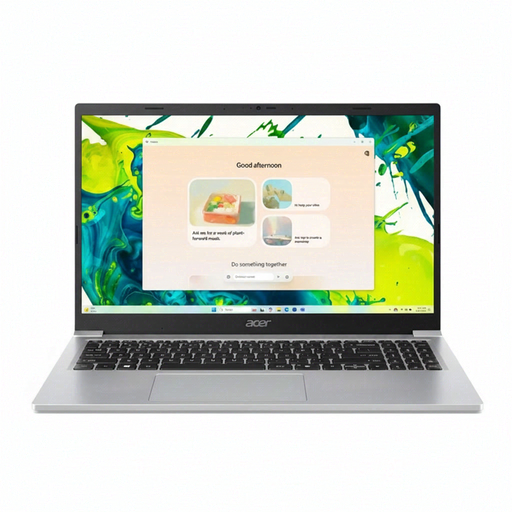
Acer Aspire Lite AL15-36P-C29Z, Silver
Consider its 15.6-inch screen if you expect to work on the laptop itself away from home as well as connect it at a desk.
Full HD display, Intel N150, 8GB DDR4 RAM, 128GB SSD and Windows 11 Home.
Check that 128GB accommodates your files and applications, and confirm the supported output mode for your home monitor.
View on Joybuy
 No image available
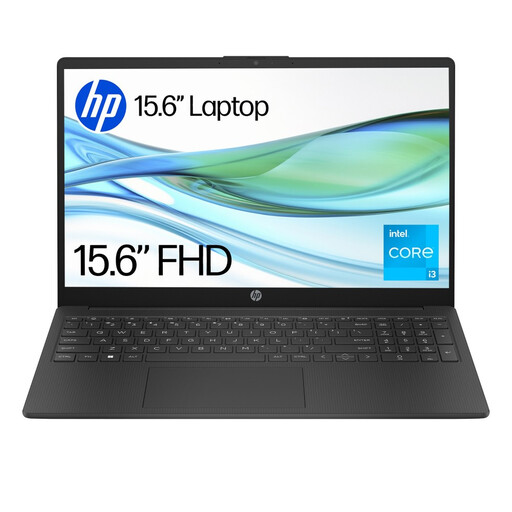
HP 15-fd0060na
Assess this 15.6-inch laptop against the applications you need both at home and away, particularly if you keep several programs open.
Full HD display, Core i3-N305, 4GB RAM, 128GB UFS and Windows 11 Home in S Mode.
Windows 11 Home in S Mode restricts app installation to Microsoft Store apps unless you switch out of S Mode; the stated switch is irreversible. Check the HDMI output mode against your monitor.
View on Joybuy
 No image available
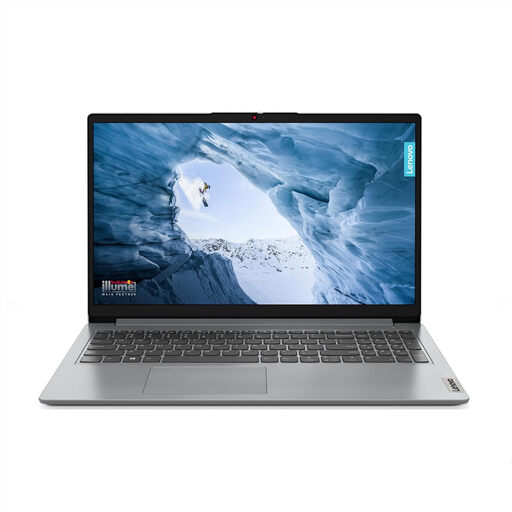
Lenovo IdeaPad 1 15-inch, Cloud Grey
Consider this laptop for work away from a fixed desk, but establish how the exact configuration will connect to your home monitor before relying on it as a desktop replacement.
Full HD display, AMD Ryzen 3 7320U, 8GB RAM, 128GB SSD and Windows 11 Home in S Mode.
Check the video-output capability of its USB-C port and whether your required applications work in S Mode.
View on Joybuy
Common questions
Can any USB-C laptop run my monitor and charge through one cable?
No: a USB-C connector alone does not establish video output or charging input. Check the exact laptop port, monitor or dock, cable and required power; HP notes that hub bandwidth can affect video output, and Microsoft says connection method can limit the display mode.
How can I tell whether a laptop supports two external monitors?
Check the manufacturer's display limits for the exact model and configuration, including resolution, refresh rate and any closed-lid requirement. Apple says these limits vary by Mac model and display arrangement; Microsoft publishes separate information for Surface Laptop generations.
Should I choose a small hub or a powered dock for my home desk?
A small hub is worth considering for one monitor and a few peripherals, particularly if you want an accessory you can carry. A powered dock suits a more permanent connection involving charging, Ethernet or additional displays, provided the laptop supports the required modes and power input.
What if an online laptop purchase does not suit my setup?
For an eligible distance purchase from a UK trader, GOV.UK guidance says you can notify the trader that you want to cancel within 14 days of receiving the item and then have a further 14 days to return it. That change-of-mind process is distinct from remedies for goods that are faulty or not as described; check the applicable conditions and keep the product description and order details.


