Choose how you will access the fixture before choosing a desktop. An authorised replay may remove the need for capture hardware; for an HDMI source you are permitted to record, a USB capture card suits a setup you need to clear away, while an internal PCIe card needs a confirmed free, compatible slot. If you expect to record regularly in OBS and keep or edit files, compare hardware-encoder support, memory and storage alongside the space the tower will occupy.
Who this setup suits
Students connecting an HDMI source
If your permitted sports source connects by HDMI, decide whether an external USB capture card or an internal PCIe card fits your desktop and room setup. Elgato describes different connection requirements for its USB and PCIe cards.
Students keeping a fixture archive
If you record repeatedly or edit clips later, consider encoding support, memory and storage capacity together. OBS Project explains that hardware encoding moves encoding work away from the CPU.
Students working with limited room space
If the tower, display, source device and cables must share a small area, check their combined footprint and whether the capture setup can be moved or put away.
What to check before buying
Start with an authorised way to watch or record the fixture. If that involves an HDMI capture card, choose its connection method before comparing desktop configurations.
External USB capture card
Choose when: You need to rearrange the desk setup and have a suitable USB connection for the chosen card.
Check: Supported capture formats depend on the port as well as the card; Elgato notes that slower USB connections can limit available formats.
Internal PCIe capture card
Choose when: You want a fixed recording station and the exact desktop has a free slot compatible with your card.
Check: The card takes up internal expansion space and requires access inside the tower. Elgato specifies a PCIe x4 slot, Gen 2 or newer, for its 4K Pro.
| Concern |
What to check |
Who this matters to |
| Source and capture connection |
Identify the source and intended recording format; match the card to the desktop’s actual USB speed or a free, compatible PCIe slot. Check whether the source uses copy protection. |
If I am connecting an HDMI sports source, I need to know that my chosen capture route can receive it before committing desk space to a tower. Around 31% of consumers put source and connection compatibility first. |
| Recording alongside other tasks |
Check encoder support, the exact graphics card and memory configuration against your recording software and capture card’s requirements. |
When recording runs alongside playback or other applications, I want the desktop configuration to meet that combined workload. For around 25% of consumers, concurrent recording is the primary concern. |
| Space for recordings |
Compare installed SSD capacity and expansion options with your chosen format and how long you intend to keep files. |
If I plan to keep fixtures or edit them later, I need room for the files as well as my everyday applications. File capacity comes first for roughly 25% of consumers. |
| Student-room setup |
Measure the space for the tower and display, and account for cable routing, ventilation and any capture hardware. |
With limited room around my desk, I need a setup I can fit and manage without blocking access to its connections. Around 19% of consumers prioritise the physical setup. |
Mistakes to avoid
-
Choosing the tower before the sports source
A powerful processor or graphics card cannot make up for a missing capture connection or a source the card cannot receive.
Note the source device, capture-card model, intended format and display connection, then check the exact desktop’s ports or available internal slots.
An HDMI passthrough arrangement may also need another cable and a suitable display connection.
-
Assuming every live source can be captured
Elgato says HDCP copy protection blocks a capture card from receiving video. Capture hardware also does not grant permission to record or reuse a fixture.
Check the provider’s permitted replay or download options and the conditions applying to your intended recording before buying capture hardware.
-
Judging storage by its advertised capacity alone
Recording format and retention habits affect the space needed, while the operating system and other files use part of the drive.
Decide whether recordings are temporary or will form an archive, then compare usable space and expansion options for that plan.
Keeping a longer archive may call for additional storage or a backup arrangement.
-
Assuming a family TV Licence covers a student room
TV Licensing says students in halls need licence coverage for their room. Whether shared accommodation is covered together depends on the tenancy arrangement.
Check the rules for your accommodation before watching or recording live television there, rather than assuming coverage from another address.
Desktop lines to consider
Acer
The Nitro 50 tower line is worth examining if you want dedicated graphics and the option to investigate internal expansion. Acer Store UK lists an N50-656 configuration with an Intel Core i5-14400F, RTX 4060 8 GB, 16 GB DDR5 and a 512 GB SSD.
- Acer lists USB Type-A and Type-C connections and PCIe slots for that configuration, giving you specific connections to check against a capture card.
- The listed 512 GB SSD and single 16 GB memory module call for a closer look if you plan to keep recordings or need a particular memory configuration.
Lenovo
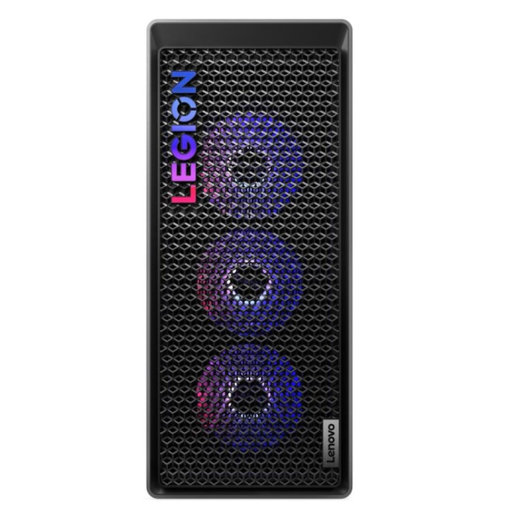
The Legion Tower 5i Gen 10 line offers tower configurations to compare for regular recording and local file storage. Lenovo UK lists a configuration with an Intel Core Ultra 7 255HX, RTX 5060 8 GB, 16 GB DDR5-5600 and a 1 TB PCIe Gen4 SSD.
- Lenovo describes expandable memory and storage and tool-less side-panel access for the line.
- Confirm the ports, free slots and storage bays of the exact configuration before planning an upgrade or internal capture installation.
ASUS ROG
The ROG G700 is a larger-scale configuration to consider if recording sits alongside demanding gaming or editing plans. ASUS ROG UK describes options up to an Intel Core Ultra 9, RTX 5090 and 64 GB DDR5; these are configuration limits, not features of every G700.
- ASUS ROG describes air- or water-cooling options and tool-less access across G700 configurations.
- Check the exact model and its dimensions against your workload and room space; the upper-end options are not a requirement for recording fixtures.
Joybuy desktop choices
These towers offer RTX graphics and local SSD storage to compare for OBS recording and keeping fixture files. If your source needs a capture card, check the exact tower’s connection and slot layout separately; none of these desktops makes a protected source recordable.
 No image available
Lenovo Legion T7 34IAS10, Core Ultra 7 265K, RTX 5070 Ti, 32 GB RAM, 1 TB SSD
Consider this tower if recording will run alongside other desktop tasks and you intend to keep files locally. The listed RTX 5070 Ti, 32 GB RAM and 1 TB SSD give you a configuration to compare with your software and retention needs.
If you want an internal capture card, confirm a free compatible slot in this exact tower. Check its dimensions and what is included for your room setup.
View on Joybuy
 No image available
CyberPowerPC JOYB1010, Core Ultra 7 265KF, RTX 5070 12 GB, 32 GB RAM, 1 TB SSD
Consider this desktop for recording alongside other applications or keeping fixtures on its listed 1 TB NVMe SSD. Its product name also specifies 32 GB DDR5 and an RTX 5070 12 GB.
Match any USB capture card to the speed of the actual port you will use, or confirm a free compatible slot before choosing an internal card. Check the display and peripheral arrangements for your setup.
View on Joybuy
 No image available
Stormforce Defiance, Ryzen 7 5700X, RTX 5070, 32 GB RAM, 2 TB SSD
Consider this tower if you expect to retain repeated recordings locally: its listed 2 TB SSD provides more stated drive capacity than a 1 TB configuration. The product name also specifies a Ryzen 7 5700X, 32 GB RAM and an RTX 5070.
Confirm the required USB port speed or a free compatible PCIe slot for your chosen capture card, and measure the space available for the tower.
View on Joybuy
Frequently asked questions
Do I need a TV Licence to record live sport in a student room?
You need TV Licence coverage if you watch or record a programme as it is shown live on a TV or streaming service. TV Licensing says students in halls need coverage for their room; in shared accommodation, check how your tenancy affects coverage rather than assuming another room or address covers you.
Can I record a broadcast just to watch it later?
UK copyright law permits private time-shifting within specific conditions. Section 70 of the Copyright, Designs and Patents Act 1988 covers a recording made in domestic premises for private and domestic use solely to watch or listen at a more convenient time; it is not general permission to share or publicly show a recording. Check the service’s terms for your intended use.
Why might a capture card receive no video from my sports source?
HDCP copy protection may block the signal: Elgato says its capture cards cannot receive HDCP-protected video. Check whether your provider offers an authorised replay or download rather than assuming a different desktop will solve a protected-source problem.
How much SSD storage should I allow for fixture recordings?
Choose capacity around the recording format and how long you will keep files, rather than treating one drive size as sufficient for everyone. For repeated recordings, compare a 1 TB configuration with your expected archive and account for the operating system, applications and other files.


