What should you check first?
Start with software and portable use, then specify the home display arrangement; that order makes it easier to choose between a direct connection and a dock.
| Priority |
What to check |
Your needs |
| Software and updates |
Confirm that required applications and peripherals work with the chosen operating system. For a refurbished machine, check its exact model and current update eligibility; Microsoft Learn says standard Windows 10 support ended on 14 October 2025. |
I need the same computer to handle my everyday work at home and away without depending on an operating system that has reached the end of its standard support. |
| Monitor connection |
Check the exact laptop’s video-capable ports and supported external-display count, resolution and refresh rate. For video over USB-C, confirm a compatible DisplayPort Alt Mode, USB4 or Thunderbolt path rather than relying on connector shape; VESA documents DisplayPort Alt Mode as a capability of compatible USB-C equipment. |
At home, I want to use my existing monitor at its intended display setting, whether I connect it directly or through a dock. |
| Desk peripherals and power |
Match the keyboard, mouse and any other connections to the laptop or dock. If using one cable, compare the dock’s video mode and power delivery with the laptop’s charging requirement and the monitor’s input. |
When I get home, I want to reconnect the devices I use at my desk without discovering that the connection carries data but not the video or power I need. |
| Workload and storage |
Review the exact memory and storage configuration for your documents, applications and browser use. Check whether either can be upgraded if keeping the laptop longer matters to you. |
Several browser tabs, calls and documents may be open during my working day; I want a configuration that fits those tasks and my storage needs. |
| Carrying and calls |
Compare the stated weight, dimensions and built-in camera and microphone with how often you will carry the laptop. Consider whether a larger built-in screen is worth carrying for your trips. |
I need the computer to be practical away from my monitor, including for calls, rather than choosing solely for how it sits on my home desk. |
Brand and product-line references
These examples illustrate different configuration checks; a brand name alone does not establish the ports, display support or update status of a particular laptop.
Apple
Mac laptops are relevant when your required applications and peripherals work with macOS and you want to connect a portable computer to a home display.
- Apple specifies two Thunderbolt 4 ports with DisplayPort support and up to two external displays for the 13-inch M5 MacBook Air.
- Other MacBook Air generations can have different display conditions. For a refurbished Mac, check the exact model against Apple’s current macOS compatibility list.
Lenovo ThinkPad
The ThinkPad X1 Carbon line is worth examining if you want a portable Windows business laptop with documented configuration and connection details.
- Lenovo UK lists one X1 Carbon Gen 13 configuration, part 21NSCTO1WWGB2, with Windows 11 Pro, 16GB memory, a 512GB SSD and a 65W USB-C power supply.
- Check the exact generation and configuration for its display outputs, included accessories and warranty; those listing details do not apply to every ThinkPad.
Framework
Framework Laptop 13 is relevant if replaceable parts, storage and memory changes, or a chosen mix of physical ports matter to you.
- Framework describes the Laptop 13 with configurable Expansion Cards, standard M.2 storage and upgradeable memory.
- Choose and check the exact processor generation and Expansion Cards before planning a particular monitor or dock connection.
Laptop options on Joybuy
These laptops cover macOS and Windows choices for portable everyday work. Compare each one with your software and home-monitor requirements; the desk accessories you need will depend on the laptop and display you choose.
 No image available
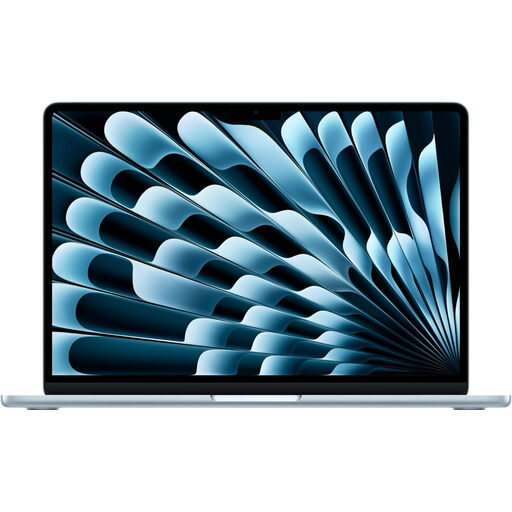
Apple MacBook Air 13-inch M5, 10-core CPU and GPU, 16GB, 1TB SSD, Sky Blue
This 16GB, 1TB configuration is a macOS option for work that moves between a home desk and other locations. Apple specifies Thunderbolt 4 ports with DisplayPort support and up to two external displays for the 13-inch M5 model; check your software and peripherals for macOS compatibility.
View on Joybuy
 No image available
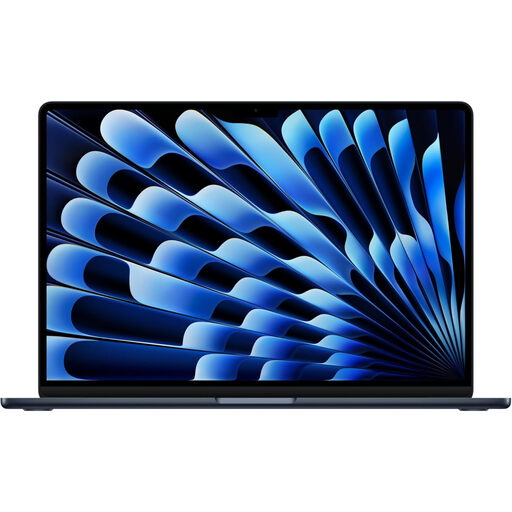
Apple MacBook Air 13-inch M5, 10-core CPU and GPU, 24GB, 1TB SSD, Midnight
Consider this 24GB, 1TB variant if that memory and storage configuration matches the applications and files you expect to use. Apple documents Thunderbolt 4 display output for the 13-inch M5 model; confirm that your required software and desk peripherals work with macOS.
View on Joybuy
 No image available
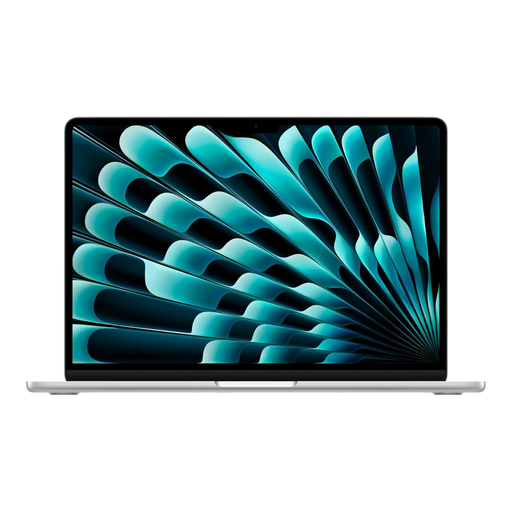
Apple MacBook Air 13-inch M5, 10-core CPU, 8-core GPU, 16GB, 512GB SSD, Silver
This variant lists 16GB memory and a 512GB SSD for documents, email and browser-based work. Apple specifies DisplayPort support through Thunderbolt 4 for the 13-inch M5 model; check macOS compatibility for the programs and peripherals you need.
View on Joybuy
 No image available
ASUS Vivobook 14 X1407QA-LY003W, Snapdragon X, 16GB, 512GB SSD, Quiet Blue
This 14-inch Windows laptop is an option if your everyday applications work with its Snapdragon X configuration. Before planning a monitor or dock around it, confirm the exact model’s display outputs, supported display settings and charging requirements.
View on Joybuy
 No image available
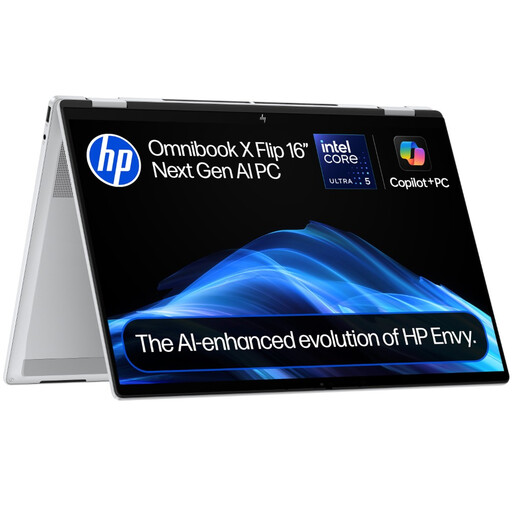
HP OmniBook X Flip 16-as0004na, Core Ultra 5 226V, 16GB, 512GB SSD
The 16-inch 2-in-1 touchscreen offers a larger built-in workspace when you are away from your home monitor. This configuration lists Windows 11 Home, 16GB memory and a 512GB SSD; check its external-display connections and carrying weight before choosing it for a desk-and-travel setup.
View on Joybuy
Common questions
Can a refurbished Windows 10 laptop replace my desktop?
Check its supported operating-system path before depending on it for routine online work. Microsoft Learn says standard Windows 10 support ended on 14 October 2025; ask for the installed edition and exact model, then check Windows 11 eligibility against Microsoft’s processor, firmware, TPM, memory and storage requirements. Editions with different servicing arrangements need their own support check.
What should I check before buying a laptop dock?
Match the laptop’s video-capable port and external-display limits to the dock, monitor and cable, then check whether the dock supplies the power the laptop requires. VESA describes how compatible USB-C equipment can carry DisplayPort video, USB data and power together; the USB-C connector shape alone does not establish that capability.
How do I check updates on a refurbished Chromebook?
Identify the exact model and check its update schedule under Settings, About ChromeOS and Additional details. Google Chromebook Help says the schedule gives the final update date; after that final update, the device no longer receives ChromeOS and browser updates, including security fixes.
How do I assess a refurbished Mac for future updates?
Identify the exact Mac model and compare it with Apple’s current macOS compatibility list. Check its separate technical specification for the monitor arrangement you want, because operating-system compatibility does not establish how many external displays that model supports.


