Who needs which backup?
The useful route depends on what you are replacing and whether you need a one-off transfer or copies that stay current afterwards.
People replacing a phone
Photos may be only part of what needs to move. Check messages, app data, settings and account-linked information against the backup and restore method for your iPhone or Android device. Apple Support and Google Android Help both describe limits that depend on the method or app.
People replacing a Windows PC
Decide whether to use an account-based Windows backup, manually copy files to external storage, or do both. Include folders outside your usual Documents location, then check the files on the new PC before putting the old one aside.
Households keeping files beyond one move
A transfer solves the immediate replacement task, but photos and documents will keep changing. An automatic backup and a separately stored removable copy offer different ways to recover files later; each still needs occasional checks.
What should you check before choosing?
Start with the data you need to keep, then check capacity and the way you would retrieve it on the replacement device. A direct phone transfer can help with setup, but it does not establish that a separate backup exists.
| Priority | What to check | Your needs |
|---|
| What gets copied |
Compare photos, documents, messages, downloads, settings and app data with the chosen backup method. Apple Support says an unencrypted computer backup will not transfer Health and Activity data; Google Android Help says not every app can back up or restore all settings and data. |
I need more than a photo library on the new phone, so I want to check each important category before wiping the old one. |
| Storage space |
Measure the files you plan to copy. Compare that amount with available cloud-account space, the removable drive’s usable capacity and free space on the new device. |
A small document set may need a different amount of space from a photo and video collection. I want room for the files I am moving and any copies I plan to refresh. |
| Access during setup |
Confirm the account needed for a cloud restore, or that the replacement device can read the external drive. Check when your phone’s transfer or restore option is available during setup. |
If the old device is unavailable, I need to know whether I can reach a backup without it. If it is still working, I can use direct transfer and check the result. |
| Connections |
For removable storage, check ports, cables, adapters and file-system access on both devices. A drive’s stated transfer speed does not establish that a particular phone or computer can use it. |
I want to plug the storage into both devices and open the copied files, rather than discover during the move that I need another connection. |
| Separate copies |
Decide how often the copy must be refreshed and where a removable drive will be kept. The UK National Cyber Security Centre advises against having all backups connected at the same time. |
For household files I cannot easily replace, I want a current copy and another route if an account or connected device becomes inaccessible. |
| File check |
Open representative files on the backup and then on the new device. Microsoft Support instructs users moving PC files with external storage to verify the copied files before removing the drive. |
Before I reset or give away the old device, I want to see that essential files and account-linked data are accessible where I need them. |
Which platform and storage references matter?
Phone and computer backup methods determine what can be restored; a removable drive provides a different, manually managed route. The brands below describe those methods or relevant drive lines, not a single interchangeable backup service.
Apple
Apple Support describes iCloud and computer backups for replacing an iPhone or iPad.
- You can make an iCloud backup and also keep a computer backup as an alternative.
- Apple Support says Health and Activity data will not transfer from an unencrypted computer backup; check the content and encryption settings for your chosen method.
Google
Google Android Help covers Google Account backup and Android-to-Android setup transfer.
- Account backup and direct transfer provide distinct routes when replacing an Android phone.
- Google says not all apps can back up or restore all settings and data. Check important apps individually before erasing the old phone.
Microsoft
Microsoft Support describes Windows Backup and a separate process for moving PC files with external storage.
- Windows Backup focuses on consumer devices; external storage offers a manual route for files you select.
- When using external storage, Microsoft instructs users to verify the copied files before removing the drive.
Samsung
Samsung lists the 1TB T7 Shield as a portable SSD with USB 3.2 Gen 2 connectivity.
- A portable SSD is a local-copy option for a compatible device.
- Check the exact drive variant, connection and file access needed by both devices before planning a transfer.
Crucial
Crucial describes its X9 portable SSD as working with Windows File History and Apple Time Machine.
- Those named backup workflows may be relevant when choosing storage for a compatible computer.
- Confirm the exact computer, connection and formatting requirements before using a drive for either workflow.
Removable storage options on Joybuy
These drives and the flash drive are options for making a manual local copy before changing devices, or for keeping a separate removable copy. Check the amount of data you intend to move and whether both devices can read the storage; the products do not replace the content checks needed for a platform backup.
 No image available
Samsung MU-PE1T0S 1TB portable SSD
A local-copy option for photos or documents when both devices can access an external SSD.
The listed variant has 1TB capacity and USB Type-C 3.2 Gen 2 connectivity. Measure the files you intend to copy and confirm the connection and file access on both devices.
View on Joybuy
 No image available
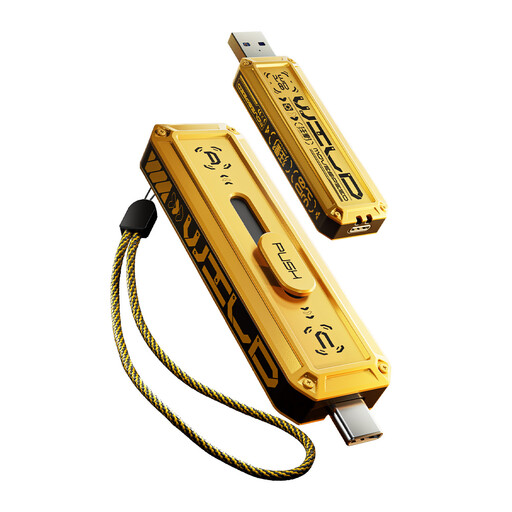
MOVESPEED YSUWD10-1TSY dual-interface USB flash drive
A removable option for manually carrying selected files between devices.
The product is described with USB-A and Type-C interfaces. Confirm its capacity for this exact variant before buying: the supplied product details give conflicting capacity figures. Also check that both devices can read the drive.
View on Joybuy
 No image available
Western Digital My Passport Ultra for Mac 5TB
Consider this external hard drive for manually copying a large collection of files between compatible computers.
The listed variant has 5TB capacity and is described for macOS 11+; a USB-C cable and USB-C-to-USB-A adapter are listed. The product description says Windows 10+ use requires a downloadable HFS+ driver, so check the intended computer and software before relying on it.
View on Joybuy
 No image available
Western Digital Elements Portable 4TB
A manual local-copy option for documents and media when replacing a compatible computer.
The listed drive has 4TB capacity and a USB-A connection. Its description identifies Windows 10+ use and says a Mac may require reformatting; check file-system requirements before copying files you need on both computers.
View on Joybuy
 No image available
Samsung Portable SSD T7 1TB, blue
This SSD provides a removable place to copy files before replacing a compatible computer or phone.
The listed variant has 1TB capacity and USB 3.2 Gen 2 connectivity, with USB-C-to-C and USB-C-to-A cables described as included. Check the exact devices and available space; the listed password protection is optional and needs setting up if you intend to use it.
View on Joybuy
Backup and transfer questions
Is phone-to-phone transfer enough before I erase my old phone?
Do not treat a completed transfer as proof that every important item has moved or that a separate backup exists. Google Android Help notes that app data and settings do not always back up or restore, and Apple Support identifies backup-method and encryption conditions. Check essential content on the new phone before erasing the old one.
How much space do I need on a removable backup drive?
Start by measuring the folders and media you plan to copy, then allow for any later copies you intend to keep. For a PC move, check locations such as Desktop, Documents, Downloads, Pictures and Videos rather than assuming everything is in one folder.
Cloud backup or a removable drive for household files?
Use an automatic, account-based route if regularly updated copies and access without the old device matter most; use removable storage for a manual local transfer or a separate copy. For files that would be difficult to replace, keeping both routes reduces reliance on a single account or connected drive, provided you maintain and check each copy.
What should I do after copying files to an external drive?
Browse the drive and open representative files, then safely eject it before disconnecting it. After copying files to the new computer, check them there too. Microsoft Support specifically instructs users to verify external-drive copies during a Windows PC move.


