For a household replacing a phone, an automatic cloud backup can help with device restoration, but photo synchronisation and device backup may cover different data. A portable drive provides a separate local copy of files, while a USB stick suits a deliberately selected set; a NAS is worth considering when several devices and version history justify its setup and upkeep. Check that the photos, documents and contacts you need are recoverable before resetting the old device.
Who needs which kind of backup?
Phone-replacement households
People replacing or resetting an iPhone or Android phone need to check how photos, contacts, settings and app data will reach the next device. Apple and Google describe different coverage for synchronised content and device backups.
Mixed-device photo households
When photos and documents are spread across phones, tablets and computers, account access and a separate copy matter alongside convenience. The National Cyber Security Centre advises keeping important data in a separate safe location.
Privacy-conscious home archivists
People who prefer a local copy may choose a portable drive or manage a NAS, provided they are willing to maintain the copying routine, access controls and safe storage.
What matters when choosing a backup route?
Choose the route according to what you need to recover: a working phone setup, files across household devices, a separate local archive or older versions from several computers. Before retiring the old device, check recovery using the accounts and equipment you will still have.
Cloud backup and storage
Consider it when: Phone restoration or access from signed-in devices is the main need.
Accept that: Recovery depends on account access, available storage and the distinction between synchronised files and device backups.
Portable SSD or hard drive
Consider it when: You want a separate local copy of a computer's photo and document library.
Accept that: The drive needs a compatible connection and a copying routine; drive formatting can also affect which computers can use it.
USB stick
Consider it when: You need to copy a selected set of documents or photos between compatible devices.
Accept that: Selecting and updating those files is a manual task, not a full device-restoration process.
Network-attached storage
Consider it when: Several household computers need a central destination and configurable version history.
Accept that: Setup, administration and planning for a further separate copy remain household responsibilities.
| Concern |
What to check |
Who this matters to |
| Phone restoration |
Check the last completed device backup and whether photos are synchronised separately; confirm how to restore to the replacement phone. |
If I am replacing a phone, I need my contacts, settings and recent photos to be available without relying on the old handset. Around 31% of consumers put phone restoration first. |
| Household access |
Check supported devices and account-sharing rules; shared storage does not necessarily mean shared files. |
With files across family phones and computers, I want each person to reach the right files without everyone using one login. For around 31% of consumers, cross-device access is the primary need. |
| Local archive |
Check capacity, connectors, computer compatibility and the exact drive's protection options. |
I want a separate copy of a growing photo library that I can keep locally, and I can take responsibility for updating it. That is the leading concern for around 23% of consumers. |
| Version history |
Check which devices can back up to the NAS, how versions are retained and how a further separate copy will be made. |
If several computers hold important files, I want a central backup that can retain earlier versions, even though I will need to manage it. Around 15% of consumers chiefly prioritise that setup. |
Mistakes to avoid before replacing a device
-
Assuming synchronised photos are part of a full phone backup
Apple says iCloud Photos synchronises separately from the daily iCloud Backup when the photo service is enabled. Checking only the device backup can leave you uncertain about where your pictures are stored.
Inspect photo synchronisation and backup details separately, then check that a recent photo and an important document are accessible before resetting the phone.
-
Assuming an included cloud allowance will cover a growing archive
Google says a standard account's storage of up to 15 GB is shared across Drive, Gmail and Photos. A growing photo library can therefore compete with other files for the same allowance.
Check current usage and the storage available to the accounts that will perform the backups; keep track of whether a separate local copy also needs updating.
-
Buying a drive without checking its format and connections
Western Digital says the cited My Passport version is formatted NTFS for Windows and may need reformatting for other operating systems. Reformatting a drive can erase files already on it.
Confirm the exact model's file system, ports and cables for each computer before making it the location of your only local copy.
-
Leaving Android recovery checks until after the old phone is gone
Google says backed-up non-photo and non-video device data is erased after 57 days of device inactivity. Google Photos content follows separate rules.
Check the backup date and required contents, and complete the intended restoration or transfer before retiring or resetting the old phone.
Relevant brands and services
Apple
iCloud+ is relevant to Apple-centred households using separate Apple Accounts and shared family storage.
- Apple lists family storage tiers of 50 GB, 200 GB, 2 TB, 6 TB and 12 TB.
- Apple says iCloud Photos synchronises separately from daily iCloud Backup; check both services before replacing an iPhone.
Google
Google One and Google Photos are relevant to households using Google Accounts for media backup and shared storage.
- Google says a standard account includes up to 15 GB shared across Drive, Gmail and Photos, while family members' files are not shared automatically.
- Google says family-sharing members must live in the same country. Check the chosen plan and which account receives photo backups.
Western Digital
The documented My Passport portable hard drive is a local option for computer-file backups.
- Western Digital describes scheduled copying through WD Backup and password-activated hardware encryption for the cited version.
- That version is formatted NTFS for Windows and may need reformatting for other operating systems; confirm the features of the exact model you choose.
Samsung
The Portable SSD T7 Touch is a compact local-storage route for compatible computers and Android devices.
- Samsung lists fingerprint unlocking, password protection and USB Type-C-to-C and Type-C-to-A cables for the T7 Touch.
- Those are T7 Touch features, not specifications for every Samsung portable SSD; check the full model name before choosing.
Synology
Synology NAS equipment is relevant to households willing to configure a central backup destination for several devices.
- Synology lists versioned restoration, integrity checks and multiple destination options for compatible Hyper Backup workflows.
- Those functions require suitable hardware, configuration and ongoing administration; a NAS alone does not establish that every household device is being backed up.
Local storage options on Joybuy
These portable drives and USB storage options are for making a local copy of selected household files. Choose a copying or backup routine that works with the devices you are replacing; a file copy does not by itself establish that a phone can be restored.
 No image available
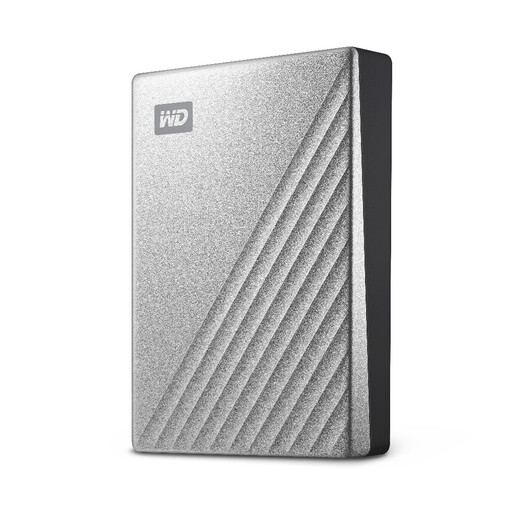
Western Digital My Passport Ultra 4TB Portable Hard Drive, Silver
Consider this portable hard drive for a separate copy of computer photos and documents before a device change.
Capacity: 4TB. Confirm the copying routine and computer compatibility you need; do not assume it will restore a phone.
View on Joybuy
 No image available
Samsung MU-PG4T0B 4 TB USB Type-C Drive, Black
Consider this local-storage option if you want to copy a substantial photo and document collection between compatible devices.
Capacity: 4 TB; interface: USB Type-C, USB 3.2 Gen 2x2. Check your devices' connections and the backup method you intend to use.
View on Joybuy
 No image available
Samsung Portable SSD T7 2 TB USB Type-C, Blue
Consider this portable SSD for a local copy of household files that you will update when the relevant device is available.
Capacity: 2 TB; interface: USB Type-C, USB 3.2 Gen 2. Check the required connection and file-transfer method before relying on it during a device replacement.
View on Joybuy
 No image available
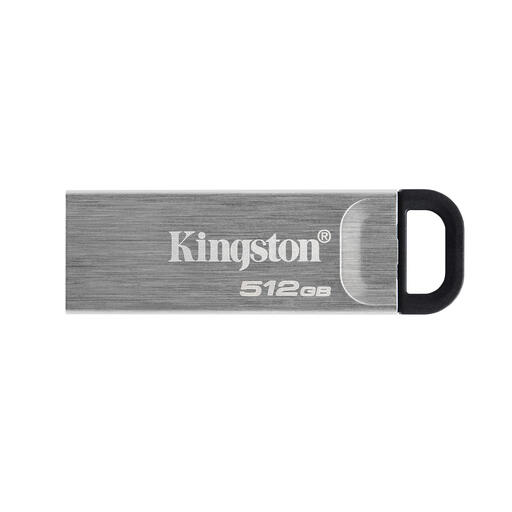
Kingston Technology DataTraveler Kyson 512GB USB Flash Drive
Consider this USB stick for a deliberately selected copy of important documents or photos, rather than a complete device backup.
Capacity: 512GB. Check that the devices involved can connect to the stick and transfer the files you need.
View on Joybuy
Backup questions before a device change
Is iCloud Photos the same as an iPhone iCloud Backup?
No. Apple says that when iCloud Photos is enabled, its synchronised photos and videos are not included in the daily iCloud Backup. Check photo synchronisation and device backup details separately before replacing the iPhone.
Can I restore an Android backup to a replacement phone?
Yes, if the Android backup was enabled and completed for the data you need. Google describes restoration during new-device setup or through the copy-data process afterwards; check the backup details and finish the transfer before wiping the old phone.
Does sharing family cloud storage expose everyone's files?
Not automatically. Google says Google One family members' files remain private unless shared, and Apple says family members' documents remain private on shared iCloud storage, although storage usage is visible. Check the provider's account and sharing settings for the plan you choose.
Can a Windows computer back up to an external drive or network location?
Yes. Microsoft says File History can make regular backups to an external drive or network location and restore earlier file versions. Check that any important folders outside its selected locations are included before relying on it.


